

What is the View Component?
View is the simplest component in MileApp. It does not capture data — it only shows it. The two most common use cases are:- Show Initial Page values on a Mobile App Page — for example, display the customer name and address on every page so the field worker has the context while completing the task.
- Show a static instruction or note — a quick guideline shown on a page (e.g., “Please confirm receiver identity before handing over the parcel”).
View Properties
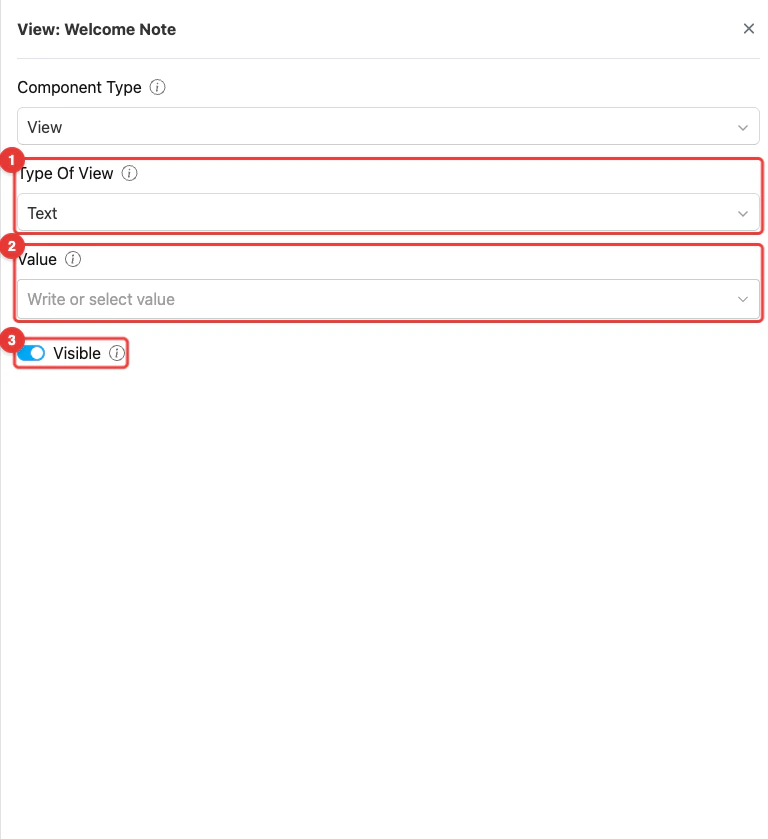
Component View settings
- Type Of View: Defines the kind of data this View renders. Choose the type that matches the source component you are referencing — String, Date, Date Time, Time, Numeric, Address, Geolocation, Phone Number, URL, Currency, or Image. The Value field below filters its options based on the Type Of View.
- Value: The information shown on the View. You can either write a static value directly, or pick another component from the Flow to reference its value. When referenced, the View will always display the latest value of that source component for every task created with this Flow.
- Toggle Visible: Affects the visibility of the component during task creation on the web and mobile, as well as task viewing on the mobile app. If the component is not visible, it will not be shown in the UI. However, both visible and hidden component data will be exported, regardless of their visibility status.
Type of View — Supported Data Types
How to Configure View
Step 1: Add the Component
In the Flow Builder, click Add Component on the target page. Set Component Type to View.Step 2: Choose the Type of View
Select the Type Of View that matches the kind of value you want to show. For example, choose String to display a name, or Address to display a delivery address.Step 3: Set the Value
In the Value field, do one of the following:- Reference another component — Open the dropdown and pick a component from the Flow whose value you want to display. Only components matching the Type Of View are listed.
- Write a static value — Type a fixed text directly into the field. This is useful for instructions or labels that do not change between tasks.
Step 4: Set the Title
Use the title field in the Pages panel (left side) to give the View component a clear label (e.g., Customer Name, Delivery Address). The title is shown above the value on the mobile app.Step 5: Toggle Visibility
Leave Visible on by default. Turn it off only if the value should be carried in the task data but hidden from the UI.How View Works in Tasks
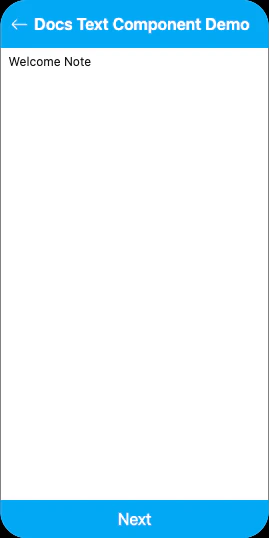
View component rendered on the mobile preview
- The View component renders as a read-only display — the worker cannot edit the value
- The displayed value comes from either:
- The referenced component, automatically populated for every task
- The static text set in the Value field
- Some types are interactive even though read-only:
- Geolocation opens the map app at the coordinate when tapped
- Phone Number triggers a call dialog when tapped
- URL opens the link in a browser when tapped
- Image opens a full-screen preview when tapped
Related
- Initial Page — The most common source of values for View components on later pages
- Mobile App Page — Where View components are typically placed
- Component: Input — The opposite of View — captures data instead of displaying it
- Flow Builder Overview — Reference for every part of the Flow Builder