

How to Switch Organization
You can switch between organizations directly from the profile menu. Step 1: Click on your profile icon in the top-right corner of the navigation bar. Step 2: Click on Switch Organization from the dropdown menu.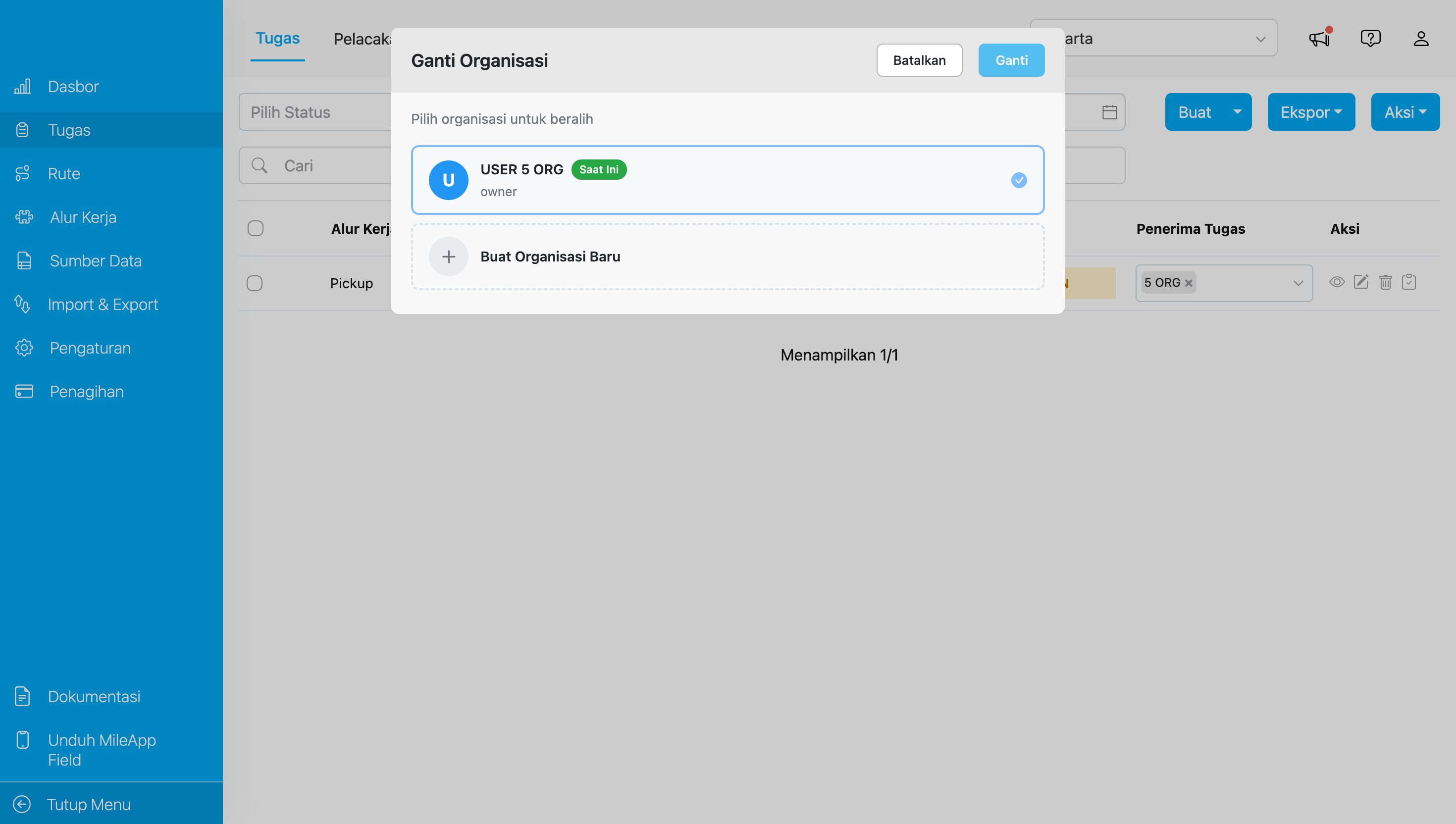
Switch Organization modal showing list of organizations
Security Verification When Switching
If the target organization has additional security enabled, you may be asked to verify your identity before completing the switch:- Cloud Authenticator: You will be redirected to enter your authenticator code
- Email OTP: A verification code will be sent to your email
How to Create a New Organization
You can create a new organization directly from the Switch Organization modal. Step 1: Open the Switch Organization modal by clicking on your profile icon and selecting Switch Organization. Step 2: Click on Create New Organization at the bottom of the organization list.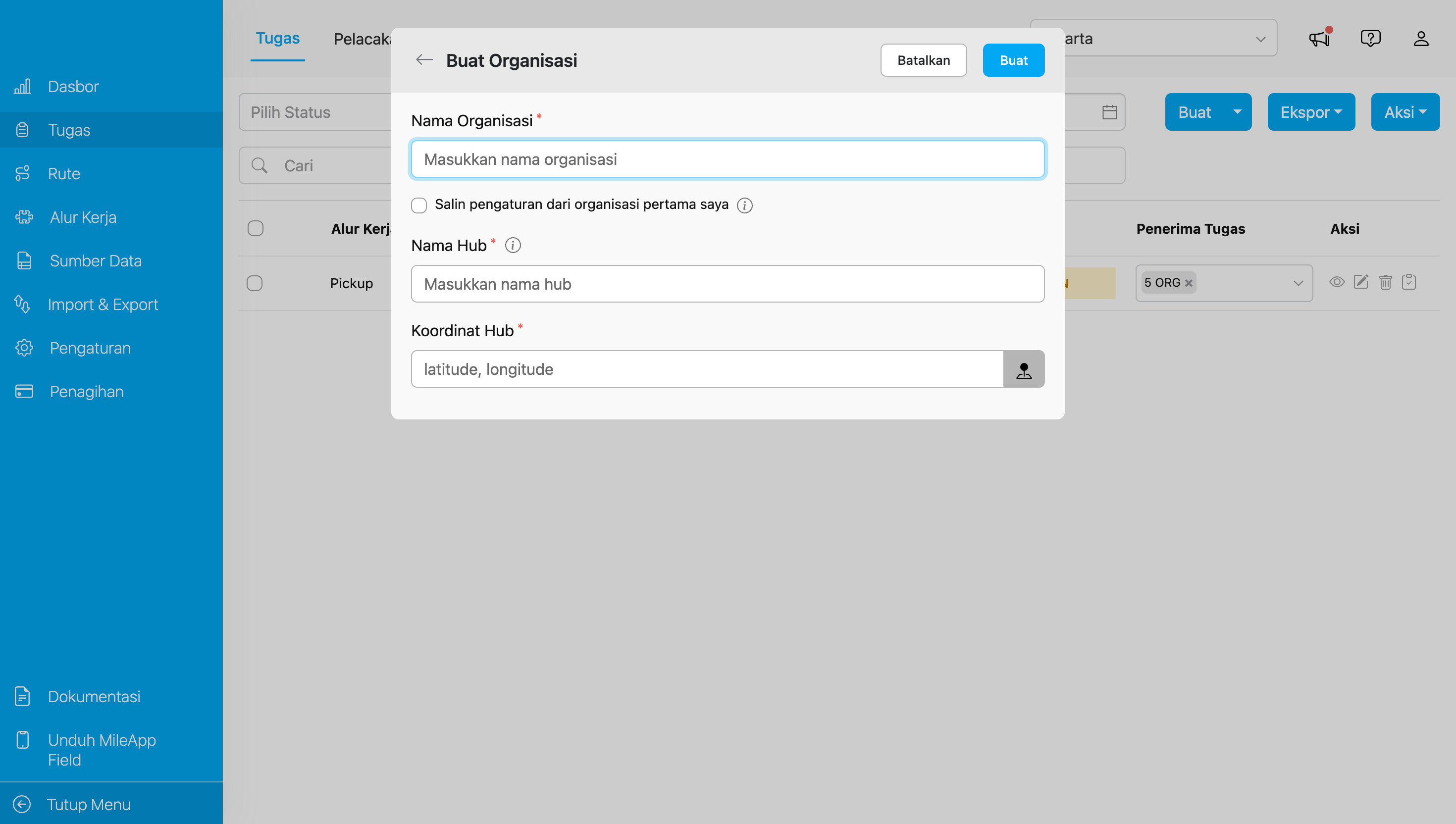
Create Organization form with required fields
- Organization Name - Enter a name for your new organization (required).
- Copy settings from my first organization - Check this option to copy configuration, hubs, roles, and flows from your first owned organization. This option only appears if you have an organization where you are the owner.
- Hub Name - Enter the name for your initial hub (required if not copying data).
- Hub Coordinate - Enter the latitude and longitude coordinates for your hub location, or click the map icon to select a location (required if not copying data).
What Gets Copied
When you check “Copy settings from my first organization”:Password Behavior in Multi-Organization
When a user belongs to multiple organizations:- Password Sync: Password changes are synchronized across all organizations automatically
- Password Reset: Admin can only reset passwords for users who originally registered in their organization (not for invited users)