

What is the Signature Component?
The Signature component renders as a blank pad in the mobile app. The user signs with a finger or stylus, and the drawn signature is saved as an image and attached to the task. After the task is completed, the signature image is available in task reports and the Gallery menu. Use Cases:- Proof of delivery — Recipient signs to confirm parcel handover
- Service acceptance — Customer signs after a technician completes a job
- Document handover — Capture a signature when transferring a signed form or contract
- Identity verification — Field worker signs to confirm their presence at a checkpoint
Signature Component Properties
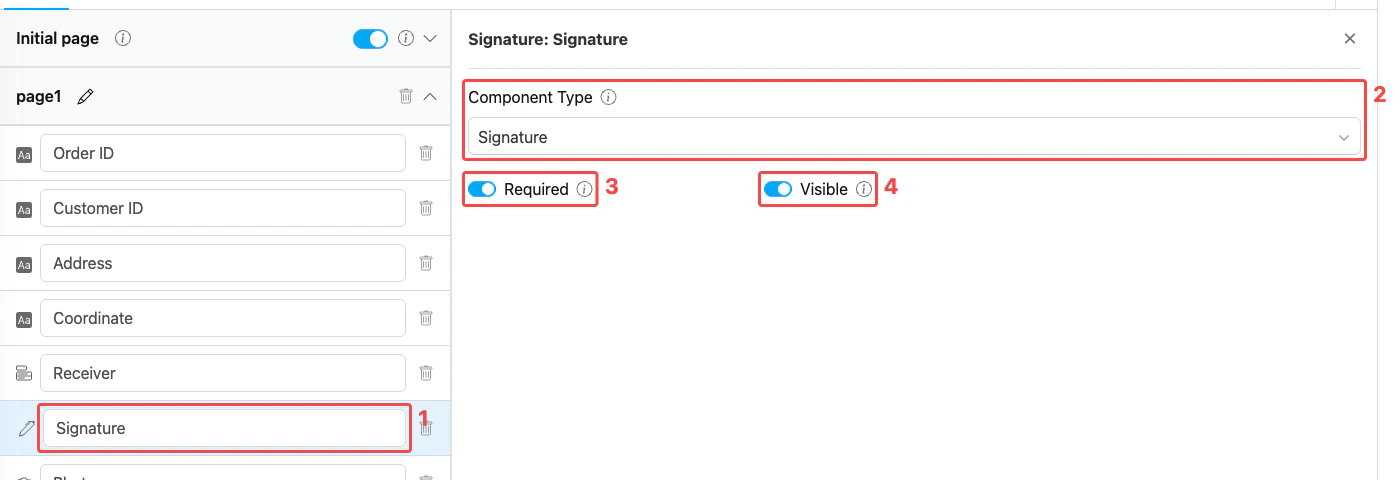
Signature component settings panel
- Title — Component label shown above the signature pad on the mobile app (e.g., “Receiver Signature”, “Customer Signature”)
- Component Type — Set to Signature
- Required — When on, the worker must draw a signature before the task can be saved
- Visible — Controls display on Create Task (web and mobile) and View Task (mobile). Hidden components still export their data.
How to Configure the Signature Component
Step 1: Add the Component
In the Flow Builder, open the target page and click Add Component. Set Component Type to Signature.Step 2: Set the Title
Enter a descriptive Title (e.g., “Receiver Signature”, “Customer Signature”). This label appears directly above the signature pad on the mobile app.Step 3: Toggle Required and Visible
- Turn on Required when the signature is mandatory for completing the task. Leave it off if the field is optional (the worker can skip drawing).
- Leave Visible on for normal use. Turn it off only when the component should be hidden from both the web admin form and the mobile app but still exported on completed tasks.
Step 4: Save
Click Save in the Flow Builder. The signature pad is now live in any task created from this flow.How the Signature Works in Tasks
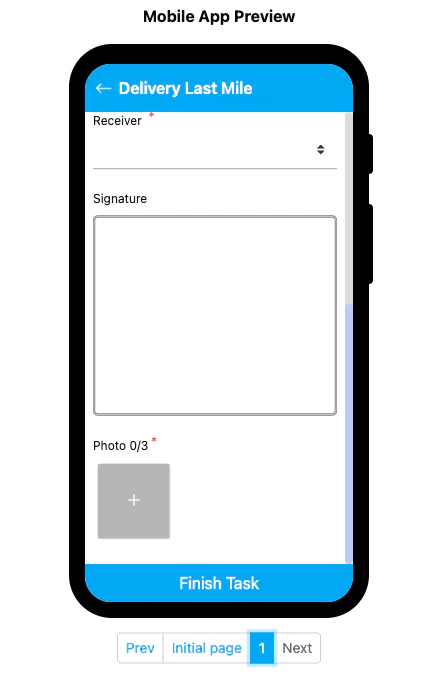
Signature component rendered on the mobile preview
- The Signature section shows the title and an empty drawing pad.
- Tap inside the pad and draw the signature with a finger or stylus.
- To clear and re-sign, tap the pad to reset and start again.
- The captured signature is saved as an image and attached to the task on completion.
- If Required is on, the worker cannot save the task until a signature is drawn.
Related
- Component: Photo — Capture images alongside signatures for proof of delivery
- Component: Capture — Capture barcodes, QR codes, or scanned documents
- Flow Builder Overview — Reference for every part of the Flow Builder