

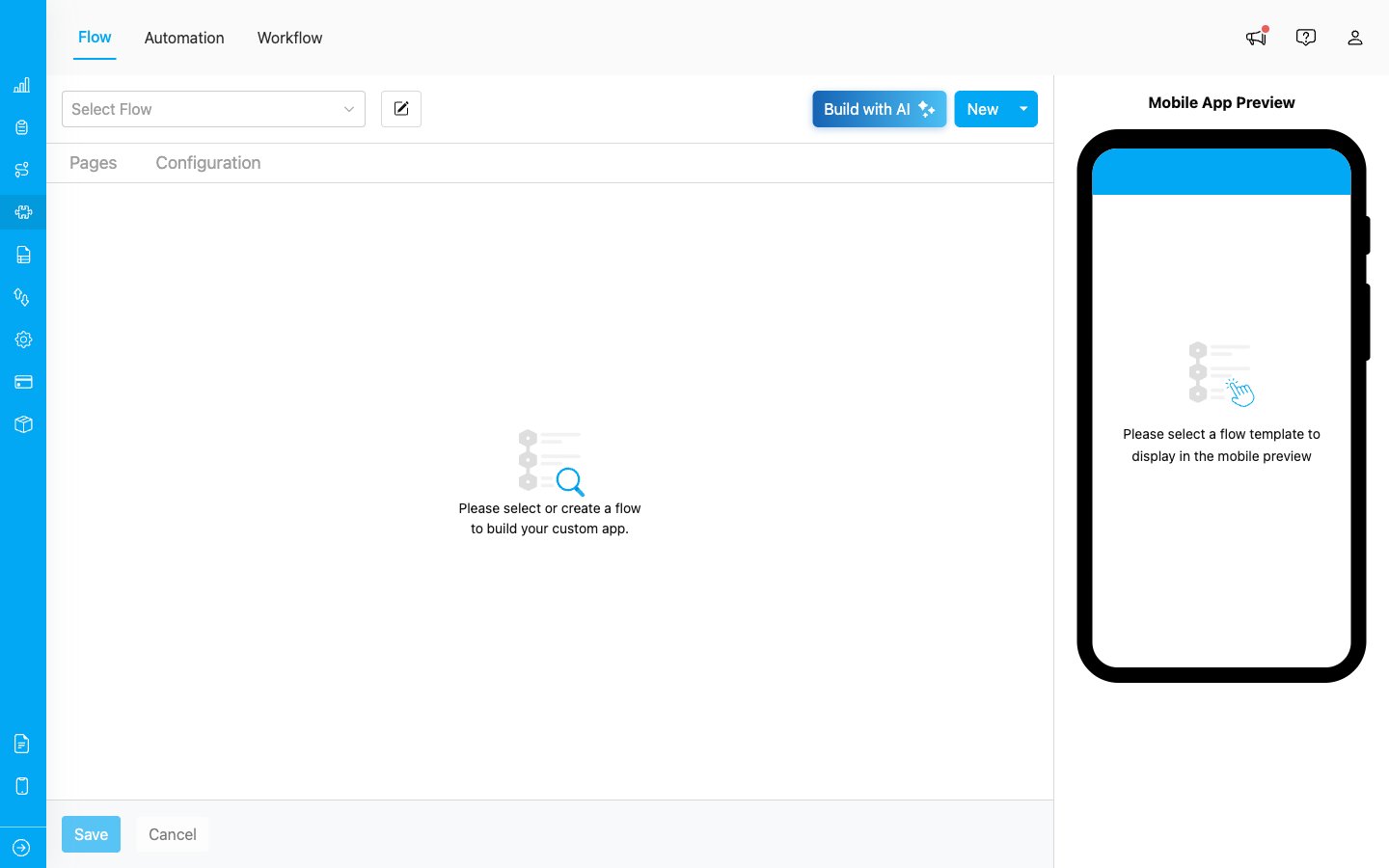
The Flow page — the starting point for managing every Flow
Why Flow Matters
Flow is the bridge between the office and the field:- For admins — Flow controls which fields appear when a task is created, ensuring every task starts with the right information.
- For field workers — Flow defines the screens they see in the mobile app, what they need to capture (photos, signatures, notes), and in what order.
- For the business — A well-designed Flow keeps data consistent and complete, which makes reports, exports, and integrations reliable.
Flow Limits per Plan
An organization can create an unlimited number of Flows regardless of the license plan. However, each Flow has a component limit:
Each component (View, Input, Photo, etc.) counts toward the Flow’s limit. Components on the Initial Page and on every Mobile App Page are counted together.
Flow Building Blocks
A Flow is made up of pages, and each page contains components that capture or display information. The screenshot below shows a real Flow (Last Mile delivery) with multiple pages on the left and a live mobile preview on the right.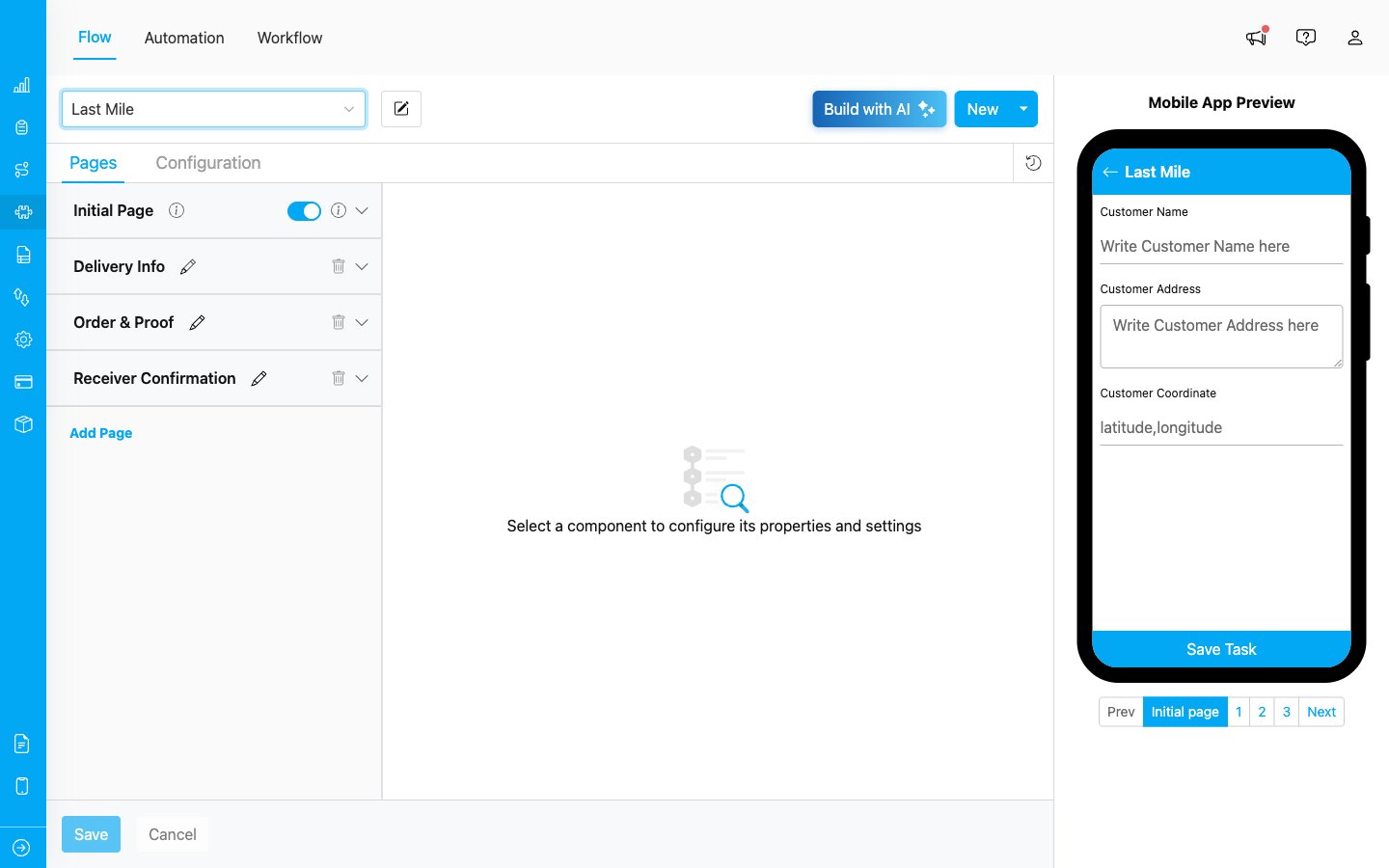
A Last Mile delivery Flow with four pages and the matching mobile preview
Types of Pages
- Initial Page — the first screen, shown when a task is created. There can only be one Initial Page per Flow, and it usually captures customer/delivery information that the admin enters at task creation time.
- Mobile App Page — additional screens used while the task is being done in the field. You can add multiple Mobile App Pages with Add Page to break the workflow into clear steps (for example: Delivery Info → Order & Proof → Receiver Confirmation).
Available Components
MileApp comes with a wide range of components that you can mix and match in any page:
See the Flow Builder section for the full reference on each component.
What’s Next
- How to Use Flow — Step-by-step walkthrough of the Flow lifecycle, from building to mobile usage, plus common industry examples
- Building Flow — Detailed guide on building a Flow from scratch or from a template
- Build Flow with AI — Generate a Flow from a plain-language description
- Flow Builder Overview — Reference for every part of the Flow Builder UI