
Documentation Index

Fetch the complete documentation index at: https://docs.mile.app/llms.txt

Use this file to discover all available pages before exploring further.

A saved Workflow becomes useful only when you run it as an Activity from the Task page. Each Activity creates one main task (the Activity itself) plus one subtask per Workflow step, all in a single submit.
Required permission:
  • View Workflow
  • Create Task
  1. Go to the Task menu in the sidebar.
  2. Click the New dropdown at the top-right of the Task page and choose Activity. The Create Activity modal opens.
  3. In the Create Activity modal, pick the Workflow you want to run from the Select Workflow dropdown.
  4. The modal expands to show one section per Workflow step. Fill in the fields for every step — fields connected by a Workflow field mapping are pre-filled with the value from the earlier step.
  5. Click Submit to create the Activity. MileApp creates the main task and every step subtask in one operation.
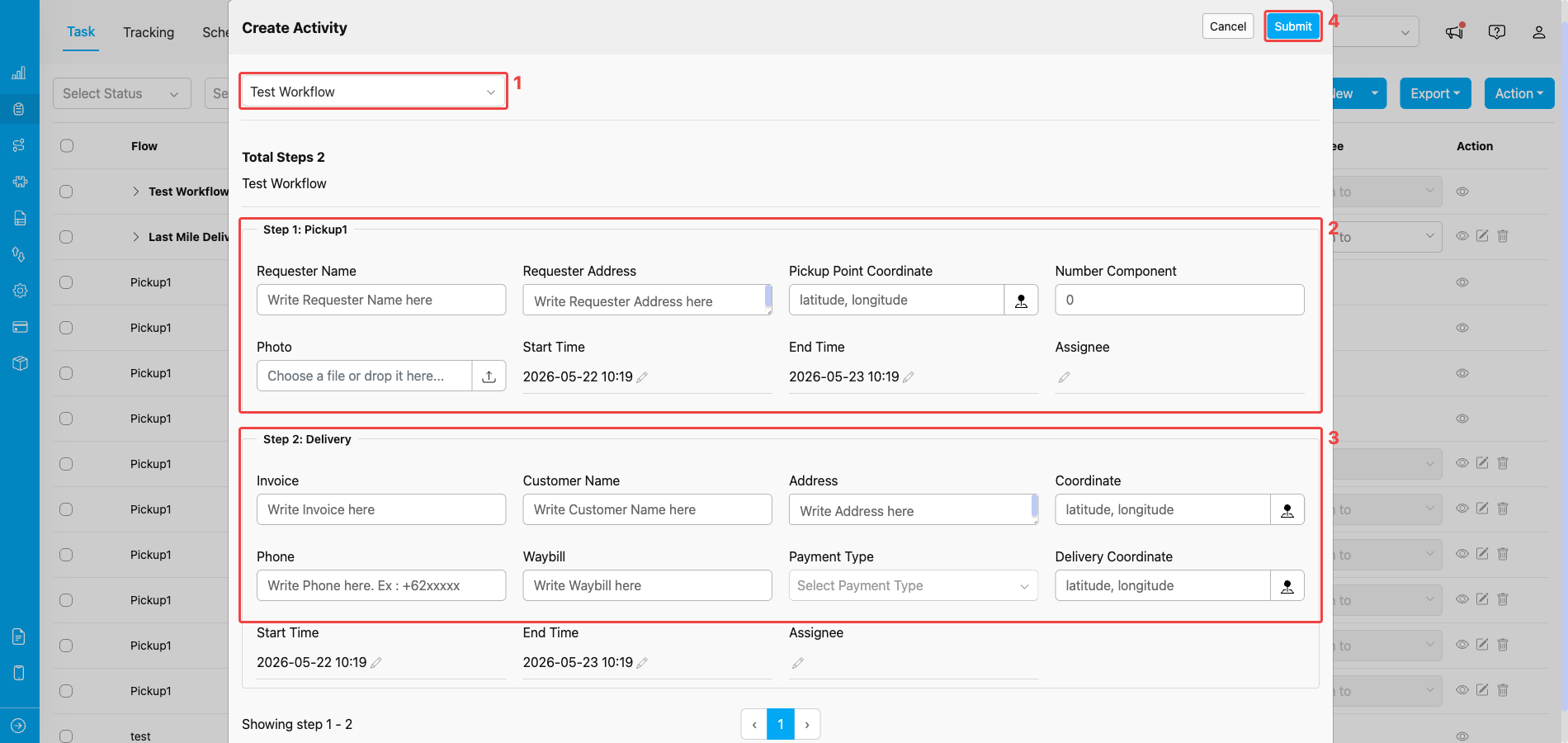
Create Activity multi-step form

Create Activity modal after picking the Test Workflow — both step sections are visible

Create Activity modal elements:
  1. Workflow dropdown — pick the Workflow you want to run. The dropdown lists every Workflow in your organization.
  2. Step 1 section — fields for the first step’s task. Includes the step’s Flow fields plus its own Start time, End time, and Assignee.
  3. Step 2 section (and any later steps) — same structure as Step 1. Each Workflow step renders as its own section, in the order defined by the Workflow.
  4. Submit — saves the Activity and creates the main task together with every step subtask. Click Cancel to discard.

After Submit

The new Activity appears at the top of the Task list as an expandable parent row. Click the chevron (►) next to its name to reveal the step subtasks underneath, in the order the Workflow defines. The parent Activity’s Start time and End time are calculated automatically — the earliest start time and the latest end time across all step subtasks. The Activity status is Ongoing if at least one step has an assignee; otherwise it stays Unassigned. See Activity in Task for the full reference, including how the step subtasks behave, how to view their details, and how to manage their status.
The number and order of steps come from the Workflow definition. If you need a different sequence, edit the Workflow (or create a new one) before creating the Activity — step count and order cannot be changed after the Activity is created.

Billing & Task Usage

The main task (the parent Activity created from a Workflow) is treated as an internal grouping record — it does not count toward your organization’s monthly task usage or task limit. Only the regular tasks created from a Flow are billed. See Task Usage Guide for the full list of what is and isn’t counted as a task.

Frequently Asked Questions

Q: Can I edit the Workflow after Activities have been created from it? A: You can edit the Flow, Assignee, Status Mapping, and Field Configuration on each step, but the number of steps cannot be reduced if active Activities still use those step positions. Changes apply to new Activities only — existing Activities keep the configuration captured at creation time. Q: Can I assign different users to different steps? A: Yes. Either set a default assignee per step in the Workflow definition, or pick the assignee for each step manually inside the Create Activity modal. Each step subtask carries its own assignee independently of the others. Q: Why does my Step 2 already have some fields filled in? A: The Workflow has a field mapping configured between Step 1 and Step 2 — values you enter (or that already exist) in the earlier step are copied automatically into the matching fields of the later step. Q: Can I change the Workflow of an existing Activity? A: No. The Workflow is fixed at creation time. To run a different sequence of steps, create a new Activity using the Workflow you want. Q: Does the parent Activity count toward my task usage / billing limit? A: No. The main task (parent Activity) is an internal grouping record and is not counted as a billable task. See the Task Usage Guide for the full list of what is and isn’t counted toward your monthly task limit.