

- Irreversible Action: Deleting an organization is permanent and cannot be undone. Ensure you have backed up any critical data before proceeding.
- Owner’s Role Requirement: Only users with the role of “Owner” have the authority to delete an organization. If you do not possess this role, contact the organization owner to perform this action.
- Password Input Required: To prevent accidental deletions, you must input your password to confirm the deletion.
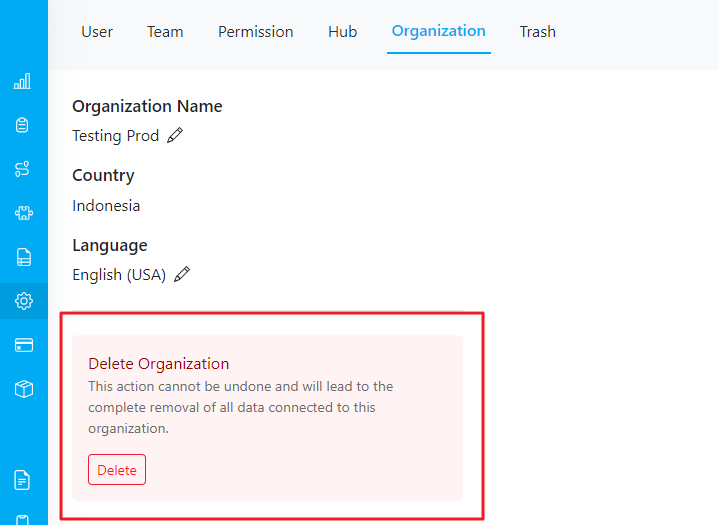
Delete button on Setting/Organization page
Steps to Delete Organization:
- Navigate to the “Settings” menu in the organization dashboard.
- Click on the “Organization” tab.
- Locate the “Delete” button.
- Confirm your decision by entering your password.
Data to be Deleted:
Deleting the organization will remove the following types of data:- Task: All task-related information including task details and schedules.
- Route: Information related to vehicles, routing results, and configurations.
- Flow: Data pertaining to flows and automation processes.
- Data Source: Data types and sources associated with the organization.
- Setting: User information, roles, and hub configurations.
- Billing: Billing information associated with the organization.
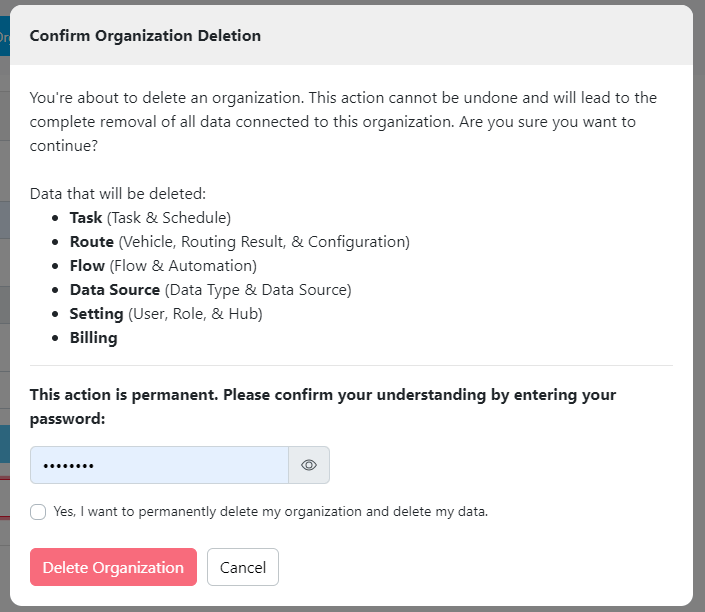
Form delete organization
After Deletion
The experience after deleting your organization depends on whether you belong to other organizations:- If you have other organizations: You will see a success page with an option to log in and access your other organizations. Your account remains active, and you can continue using MileApp with your remaining organizations.
- If this was your only organization: You will see a farewell page and be redirected to the MileApp homepage. Your access to MileApp will be revoked until you create or join a new organization.