

Required permission:
- View Organization
- Edit Organization
Accessing the Organization page
Open the Settings icon in the left sidebar, then click the Organization tab at the top of the page. You will land on the Detail Organization view.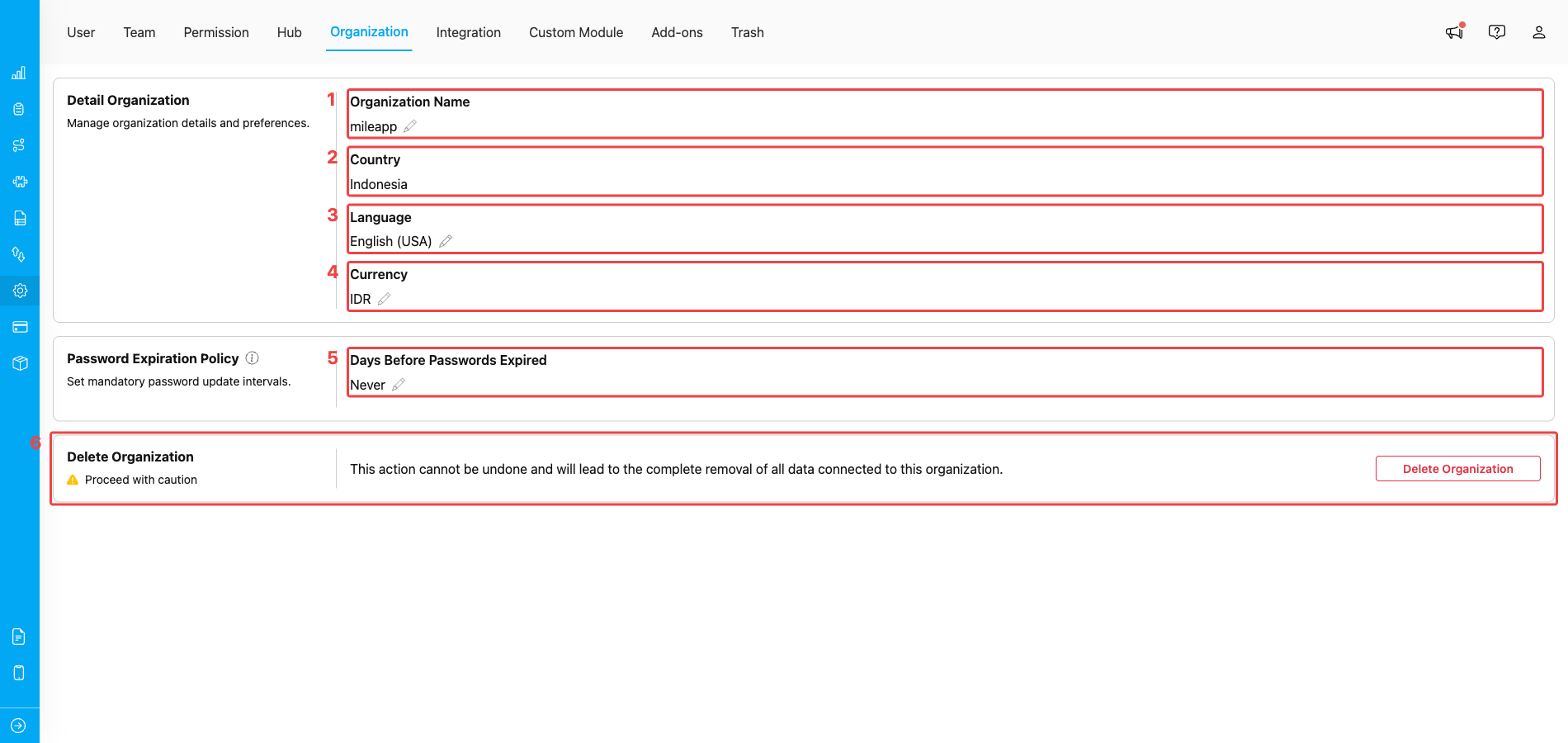
Setting → Organization showing the inline-edit fields, password policy, and Delete Organization section
- Organization Name — the display name used across the workspace (emails, receipts, tracking notifications, and the
{{ organization name }}placeholder in automation templates). Click the pencil icon to rename, then click outside the field to save. - Country — the country your organization operates in. This sets the regional defaults (phone code, language fallback) referenced by the rest of the platform. Country is read-only — it is locked at organization creation and cannot be changed afterwards. Contact MileApp support if you genuinely need to move the organization to a different country.
- Language — the default interface language for users in this organization. The chosen language is applied to system interfaces and notifications for every user who has not picked their own language preference.
- Currency — the default currency used by Bill components, billing screens, and any pricing display. See Organization Currency Setting for the full list of supported currencies and behaviour notes.
- Password Expiration Policy — how often users in this organization are forced to update their password. Set to Never to disable expiration, or pick a number of days to enforce a rotation cadence.
- Delete Organization — permanently removes the organization and every piece of data attached to it. The action is guarded by a password-confirmation dialog and is only available to the Owner. See How to Delete your Organization for the full flow.
How the inline-edit works
The three editable identity fields (Name, Language, Currency) use the same inline-edit pattern. Country is the exception — it is read-only and does not have a pencil icon, so it is not part of this flow.- Click the pencil icon next to the field — the value turns into an editable input or dropdown.
- Type the new value or pick from the dropdown.
- Click outside the field (or pick a different value from the dropdown) — MileApp saves the change immediately. There is no separate Save button.
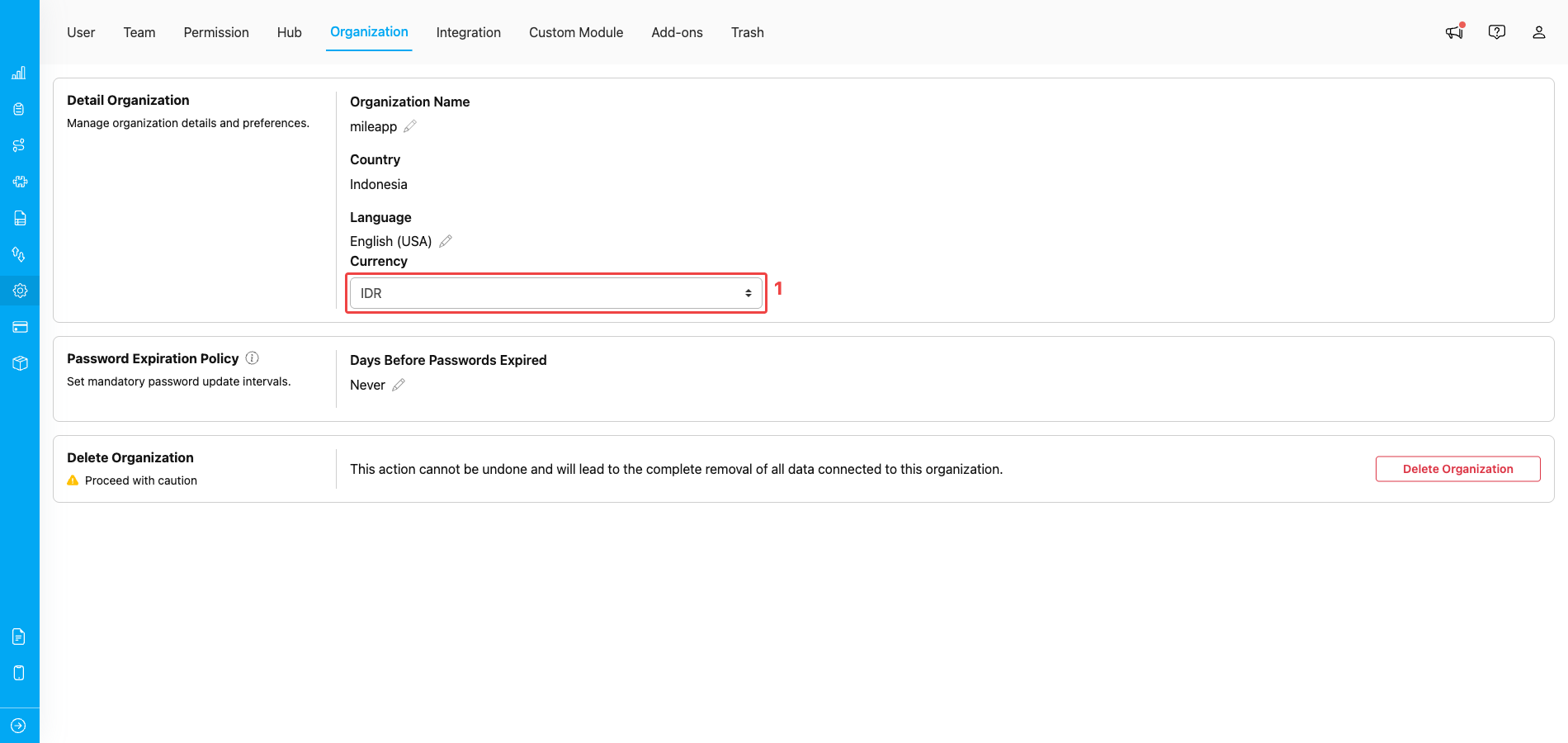
Currency field in edit mode after clicking its pencil icon — pick a value and click outside to save
- Active editor — the read-only value (e.g., IDR) becomes an editable input or dropdown. Pick the new value and click anywhere else on the page; MileApp saves the change without any Save button.
Changing the Organization Name
Click the pencil next to Organization Name, type the new name, then click outside the field. The new name immediately replaces the old one across the workspace, including:- Email subjects and signatures sent by MileApp.
- Receipts and invoices generated for the organization.
- The
{{ organization name }}placeholder inside notification automations. - The header shown on shared public tracking pages.
Country (read-only)
Your organization’s Country is locked once the organization is created and cannot be changed from this page — there is no pencil icon next to the field. The country selection drives several defaults across the platform (such as the default phone code on user invites and the fallback language for new users), so changing it after the fact would invalidate existing data in unpredictable ways. Note that this lock does not affect Hub creation — you can still add hubs in any country supported by MileApp, regardless of your organization’s country.Changing the Language
Click the pencil next to Language, pick a language from the dropdown, then click outside. This is the default language for the whole organization. Individual users can still pick their own language from their profile menu, which overrides the organization default for that user. If a user has not picked their own language, MileApp uses the organization-level language for their interface and notifications.Changing the Currency
Click the pencil next to Currency, pick a currency code from the dropdown, then click outside. The change applies immediately to:- The default currency used by Currency input components and Bill components in new tasks.
- Pricing displays on billing and invoice screens.
Password Expiration Policy
The Password Expiration Policy card sets how many days a user’s password is valid before they are forced to update it. Click the pencil under Days Before Passwords Expired, then choose either:- Never — passwords never expire (default).
- A specific number of days — users are required to change their password after this many days. They will see a prompt at login when the policy fires.
Deleting the Organization
The Delete Organization section at the bottom of the page is irreversible. Clicking the Delete Organization button opens a confirmation dialog that requires both a password and a consent checkbox before the action is allowed.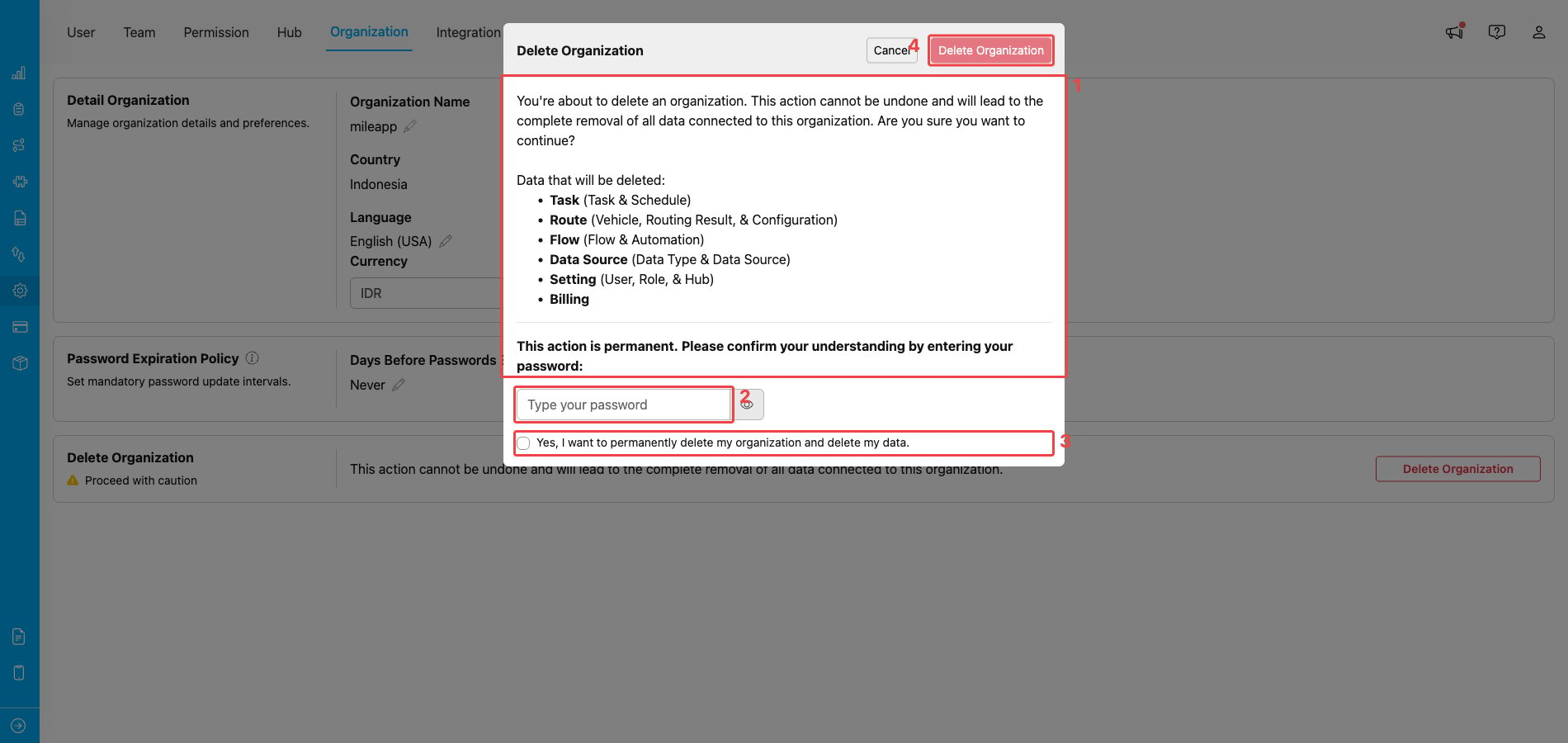
Delete Organization confirmation dialog — listing the data that will be removed, the password field, and the consent checkbox
- Warning + data list — the dialog opens with a description of what is about to happen and the full list of data that will be deleted: Task (Task & Schedule), Route (Vehicle, Routing Result, & Configuration), Flow (Flow & Automation), Data Source (Data Type & Data Source), Setting (User, Role, & Hub), and Billing.
- Password field — type your own account password to prove you intend to delete this organization. The eye icon next to it toggles the password visibility.
- Consent checkbox — tick “Yes, I want to permanently delete my organization and delete my data.” to confirm the action.
- Delete Organization — the confirm button at the top-right of the dialog stays disabled until both the password and the consent checkbox are filled in. Click it to finalise the deletion, or Cancel to back out.
Frequently Asked Questions
Q: I renamed my organization. Will it change invoices that have already been issued? A: No. The new name only appears on future emails, receipts, invoices, and tracking pages. Documents already issued keep the original name they were generated with. Q: I changed the Language for the organization, but some users still see the old language. Why? A: The organization Language is only a default. Any user who has explicitly picked their own language from their profile menu keeps that personal choice — only users who never picked a language follow the organization-level default. Q: If I change the Currency, will it convert the amounts on existing tasks and bills? A: No. Changing the currency does not automatically convert existing monetary values — the numbers stay the same, only the displayed currency symbol updates. The new currency applies to all new Bill components, Currency inputs, and billing displays from the moment you change it. Q: Can I really not change the Country? My business expanded to another country. A: Country on the Organization is locked and cannot be edited from this page. However, you don’t need to change it to operate elsewhere — go to Settings → Hub and create a new hub in the destination country instead. Hub creation supports global locations regardless of your organization’s country. Q: Can I recover my organization after I delete it? A: No. Deletion is permanent and immediately removes all associated Tasks, Routes, Flows, Data Sources, users, roles, hubs, and billing data. There is no restore from Trash for the organization itself. Export anything important first.Related
- Organization Currency Setting — full list of supported currencies and display formats.
- How to Delete your Organization — step-by-step guide for the deletion flow.
- Notification Automation — uses the
{{ organization name }}placeholder. - User Management — invite and manage the people inside this organization.
- Role & Permission Management — assign the View/Edit Organization permissions.