Required permission:
- View Chat on Web
Permission
Chat has two permissions, one for each side of the conversation. They are set per role on the Setting - Permission page.
A role holds one of the two, never both. An admin role is given View Chat on Web; a field user role is given View Chat on Mobile. A field user with the web permission would be able to read every conversation in the organization, which is why the two are kept apart.
A role with neither permission simply has no chat: the menu does not appear on the web, and the chat screen is unavailable in the mobile app.
Conversation List
Opening the Chat menu shows every field user you can talk to, newest conversation first. Each row carries the last message, the time it arrived, and a badge counting the messages you have not read yet. Field users who have never been messaged appear in the same list, so you can start a conversation without looking them up anywhere else.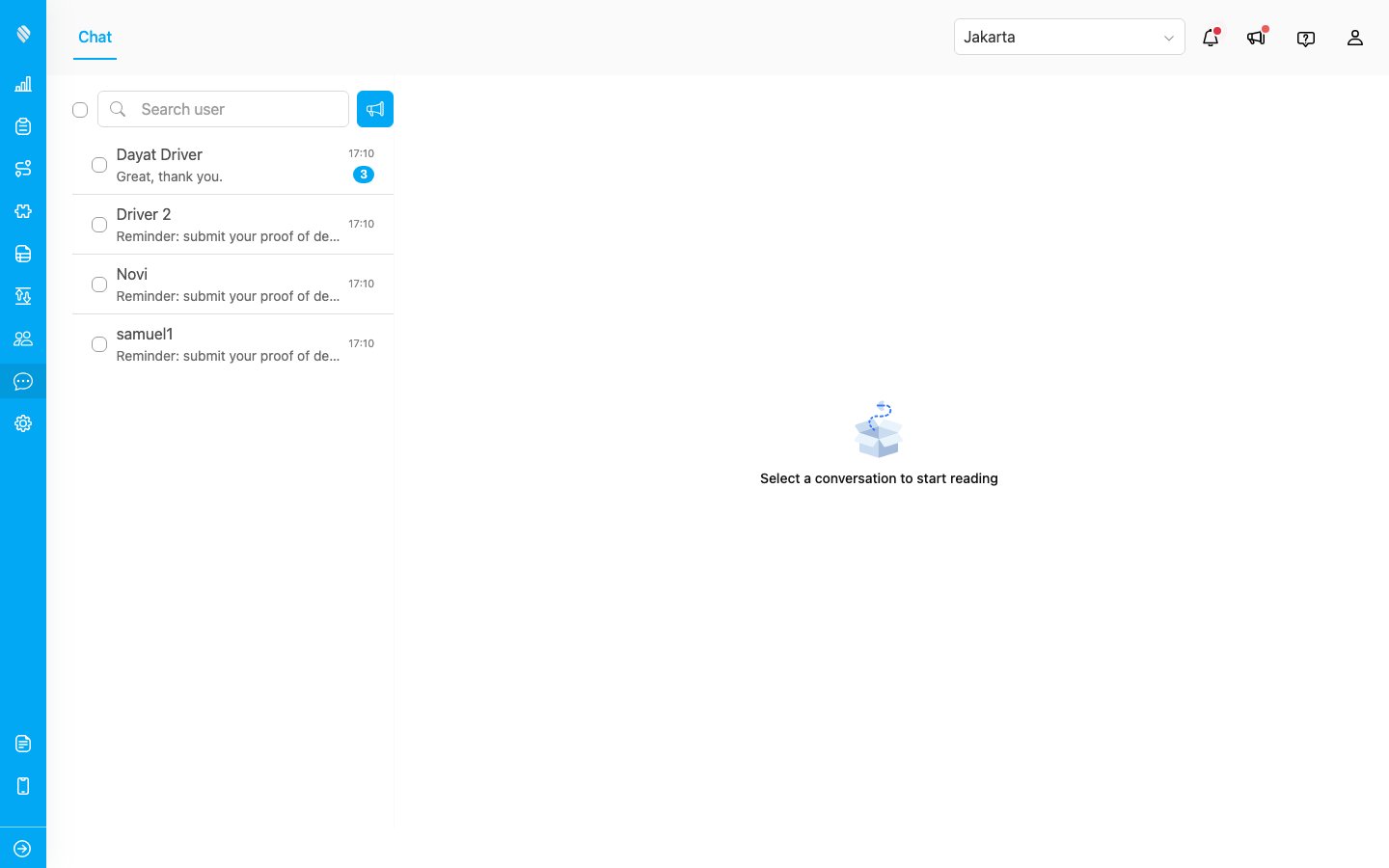
Only active accounts appear. A user who has been invited but has not verified their account yet cannot receive messages, so they are left out until they finish verification.
Reading and Replying
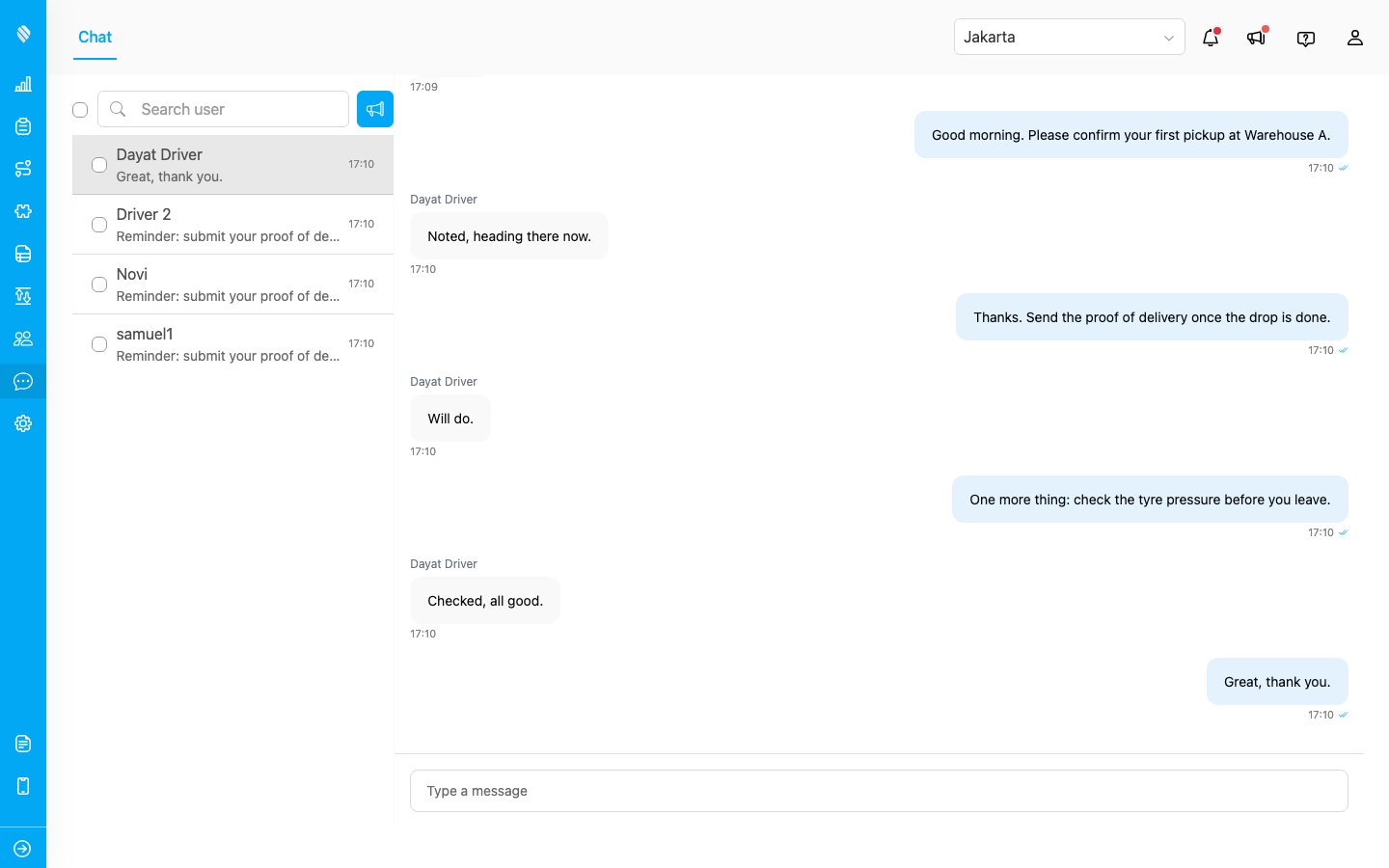
Selecting a row opens the conversation. The thread opens at the newest message; scrolling up loads older ones. Type in the box at the bottom and press Enter to send, or Shift + Enter to start a new line.