

Introduction
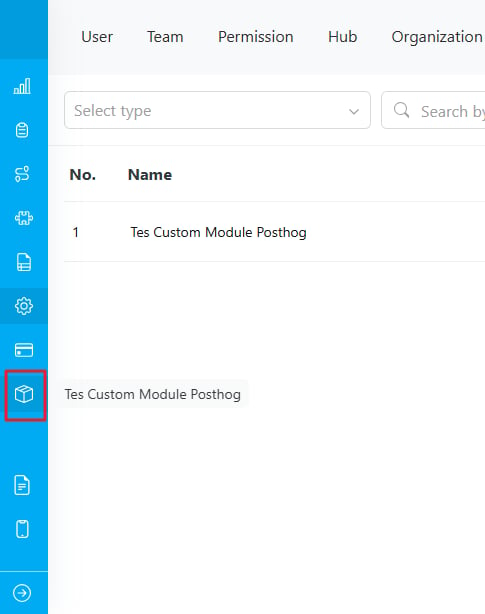
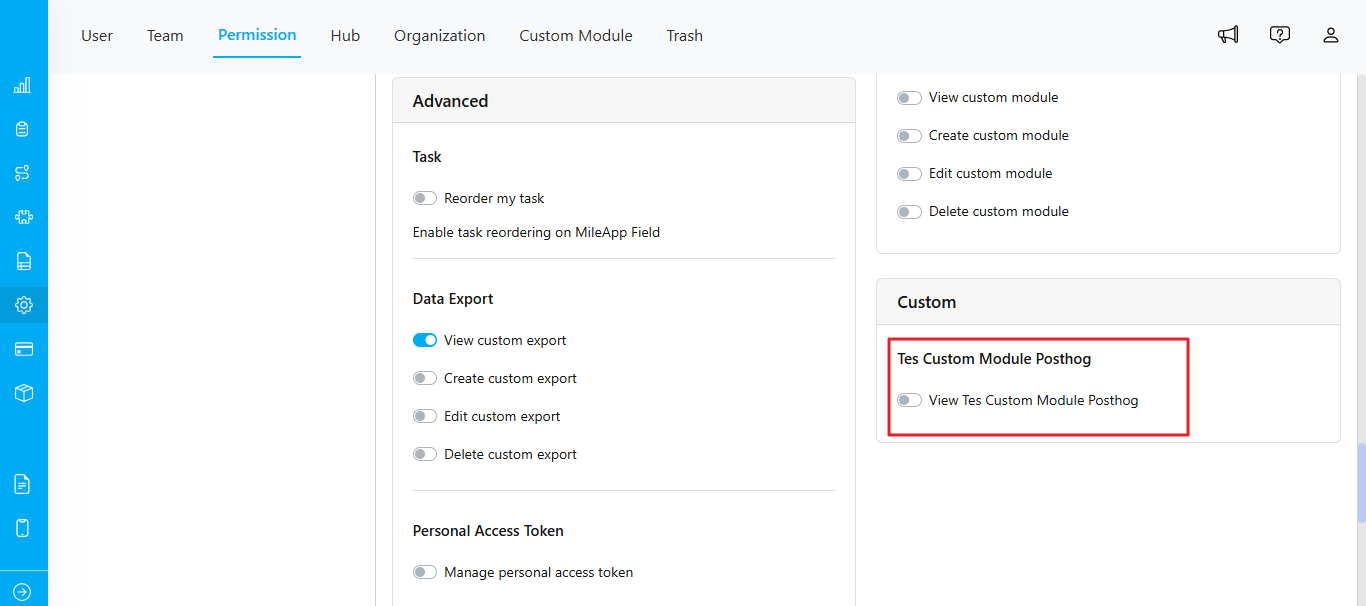
Custom modules are a feature that allows you to integrate additional modules into MileApp. These modules will be displayed as additional menu items in the sidebar, and when you click on them, they will open a new tab in the browser with the specified URL. You only need to provide a module name and URL to create a custom module. The custom modules also work on the mobile app, providing you with the flexibility to access these modules on the go.Add Custom Module
To add a custom module, follow these steps:- Log in to your MileApp account.
- Select the “Settings” menu.
- In the settings menu, type the URL https://web.mile.app/setting/custom-module
- On the “Custom Modules” page, you will see a list of existing custom modules (if any). To add a new custom module, click the “New” button.
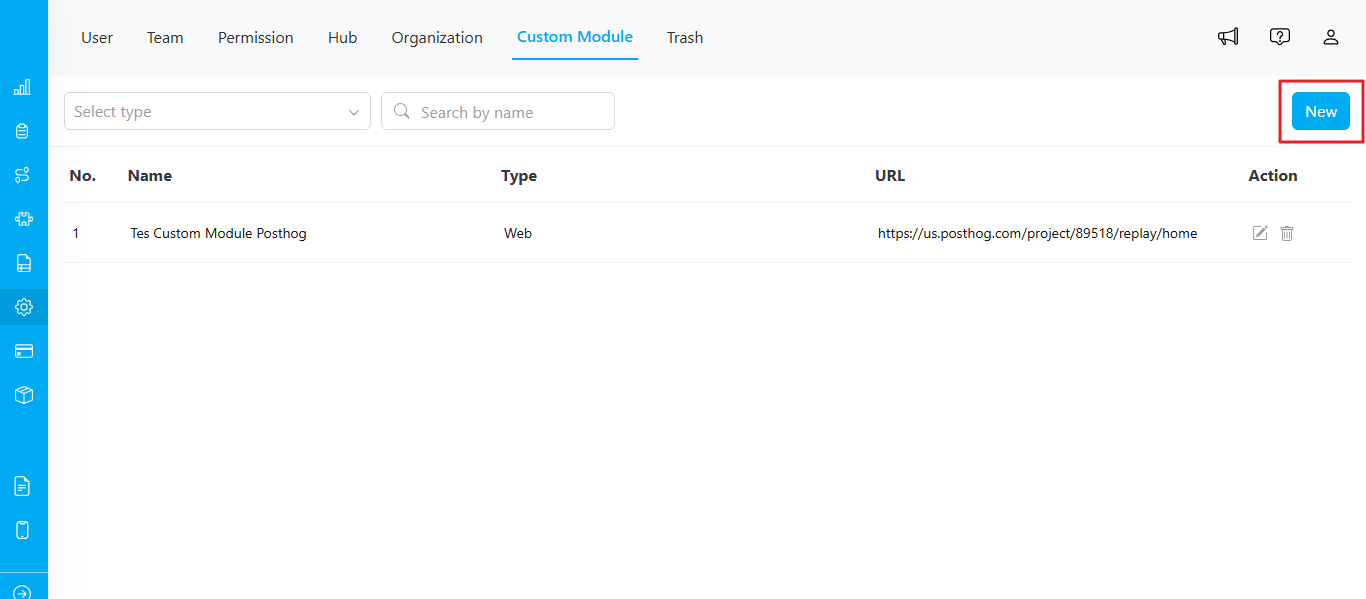
- Name: Enter the name that will be displayed in the sidebar as the module’s title. Note: Ensure you are not using a module name that already exists in MileApp.
- Type: You can choose if this menu option should open in a new web tab or show up as new menu in mobile app.
- URL: Enter the URL of the additional module that will be accessed when this module is clicked.
- After filling in the information, click the “Submit” button to save the custom module.
Edit Custom Module
You can edit all fields except the name. If you wish to edit the name, you can consider deleting the existing one and creating a new custom module.Using the {SHORT_TOKEN} Placeholder in the URL
The URL field accepts a special placeholder, {SHORT_TOKEN}, that lets your external service authenticate the user without ever seeing the user’s bearer token. This is the recommended pattern when your Custom Module URL points to a third-party endpoint that needs to know who the user is.
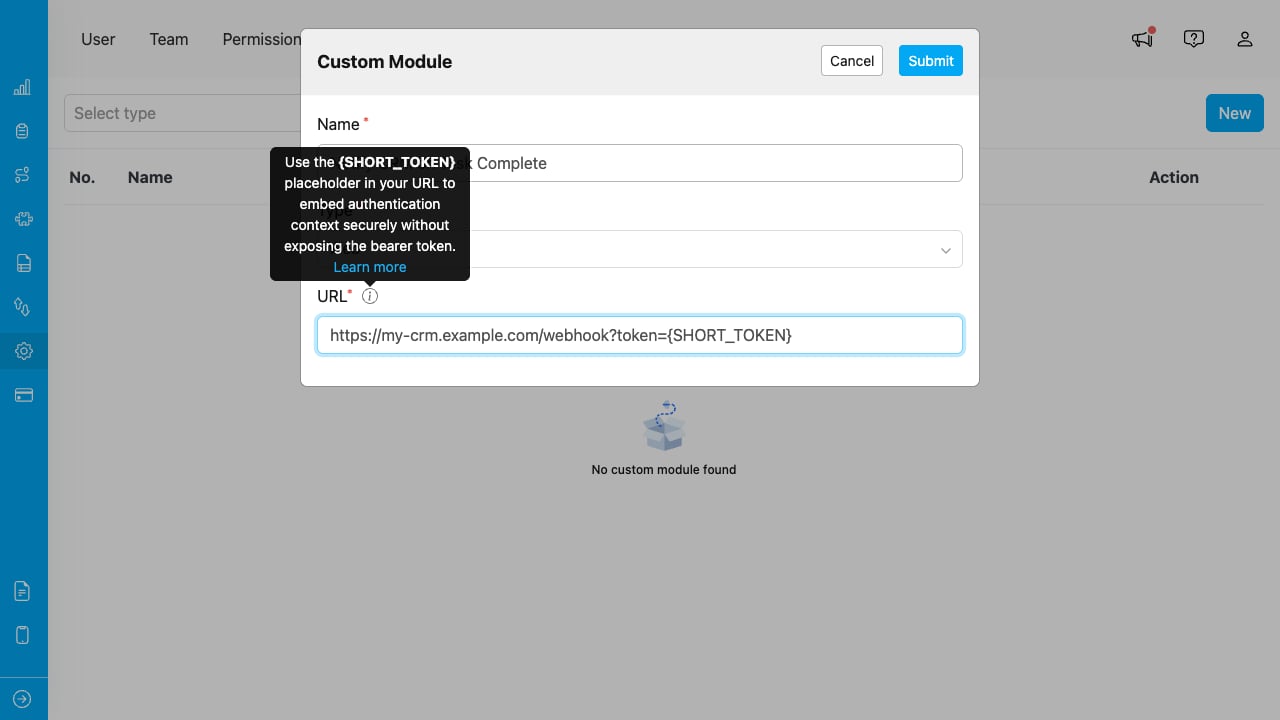
The Add/Edit Custom Module dialog showing the URL field with {SHORT_TOKEN} and the tooltip describing the placeholder.
Why use it
Embedding a bearer token directly in a URL (e.g.,?token=eyJhbGc...) leaks the credential to external service logs, browser history, and any intermediary that observes the request. The bearer is then valid for the rest of its lifetime — typically hours. {SHORT_TOKEN} swaps that long-lived credential for a one-time, 5-minute placeholder that your external service exchanges for the bearer behind the scenes.
How to use it
Step 1 — Embed{SHORT_TOKEN} in the URL anywhere your external service expects the credential:
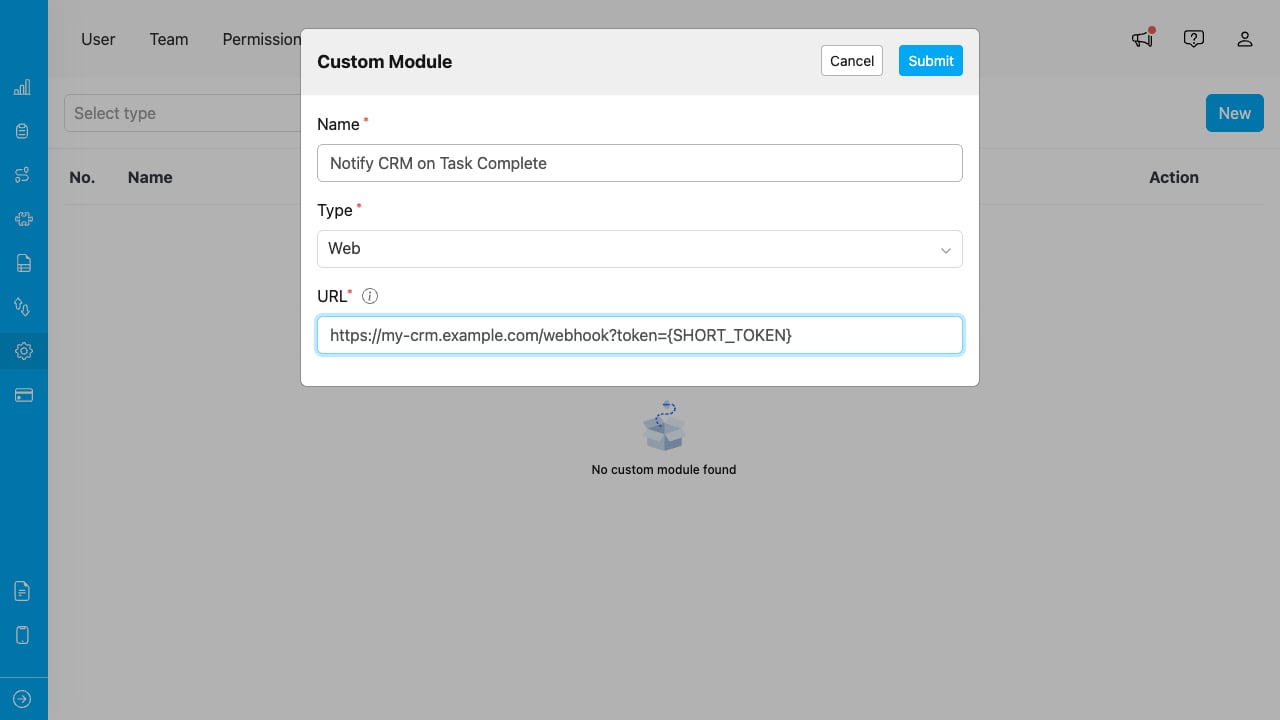
Place {SHORT_TOKEN} wherever your external service expects the credential.
When MileApp invokes this URL, it auto-generates a fresh short token (5-minute TTL) and substitutes the placeholder before sending. You do not need to call the Generate API yourself for this case.
?token=abc123def456ghi789. Immediately POST it back to MileApp to exchange for the bearer:
You can skip this step if your external service does not need to call MileApp APIs on the user’s behalf — for example, if your service only consumes the data passed in the request, runs its own logic, and responds (without writing anything back to MileApp). Resolving the short token is only required when you need a
bearerToken to make authenticated requests to MileApp on behalf of the user.bearerToken for subsequent calls back to MileApp APIs (e.g., to update a task on behalf of the user) and use userId / organizationId for your own authorization checks.
Step 3 — Handle failures. The resolve endpoint returns 400 Bad Request when the short token has expired (>5 minutes), never existed, or is malformed. Treat any 400 as an unauthenticated request and reject the operation — do not retry, the token is gone.
Constraints
- TTL: 5 minutes. Resolve promptly on receipt — do not queue or process asynchronously.
- Treat the short token as you would a password — do not log it, do not store it, do not include it in error reports.
- TLS only. All calls to
apiweb.mile.appare HTTPS.
Generating a short token outside the Custom Module flow (advanced)
If you need to mint a short token in your own integration code (i.e., outside the Custom Module invocation), call the Generate endpoint with the current bearer token:shortToken + expiresAt shape.