

Required permission:
- Create Flow
- View Flow
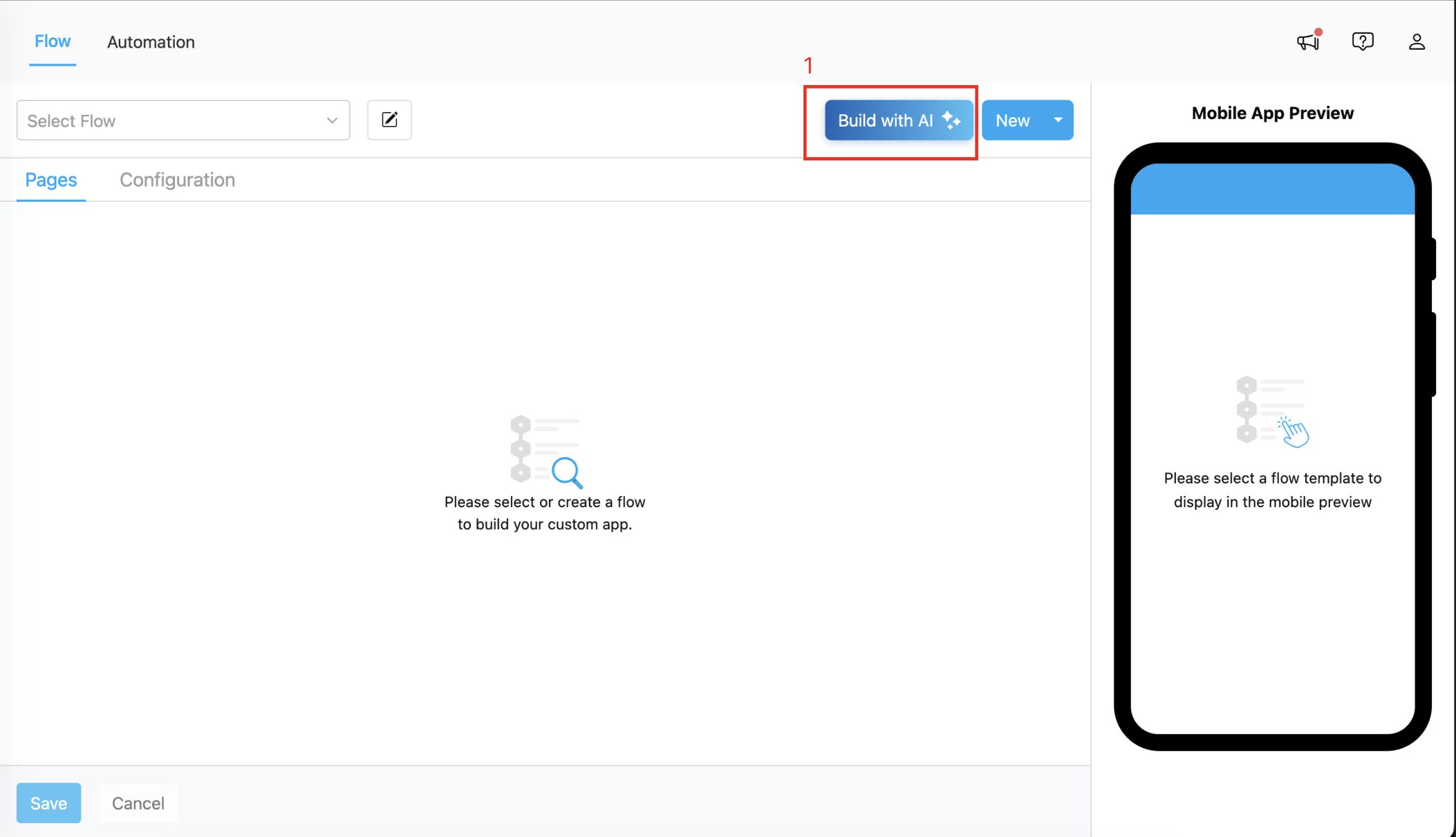
Flow Menu Display
Open the AI Flow Builder Dialog
Click the “Build with AI” button in the Flow builder header. This opens the AI Flow builder dialog.- Flow Title: Enter a descriptive name for your flow.
- Alphanumeric characters only (letters, numbers, and spaces)
- Cannot be empty
- Flow title should be unique, can’t use with existing flow name.
- Flow Description: Provide a detailed description of your workflow process. This description is used by AI to understand and generate your flow structure.
- Minimum 20 characters
- Maximum 400 characters
- Clearly describe each step of your workflow
- Describe what information needs to be collected
We manage parcel deliveries between city branches. Each courier should log the customer’s address, confirm pickup and drop-off points with GPS, capture proof photos at delivery, and track how long the delivery takes.
- Cancel Button: You can cancel the AI Flow creation at any time
- Submit Button: Once you’ve filled in both required fields, click the Submit button to start build flow with AI.
Success Generate Flow
- A success notification appears: “Flow generated successfully!”
- The modal closes automatically
- The newly created flow opens in the flow builder
- You can now customize the generated structure