

How to Access
On desktop:- Click the Help icon in the top navigation bar
- Select Ask Mile Assistant from the menu
- The Chat Support window opens
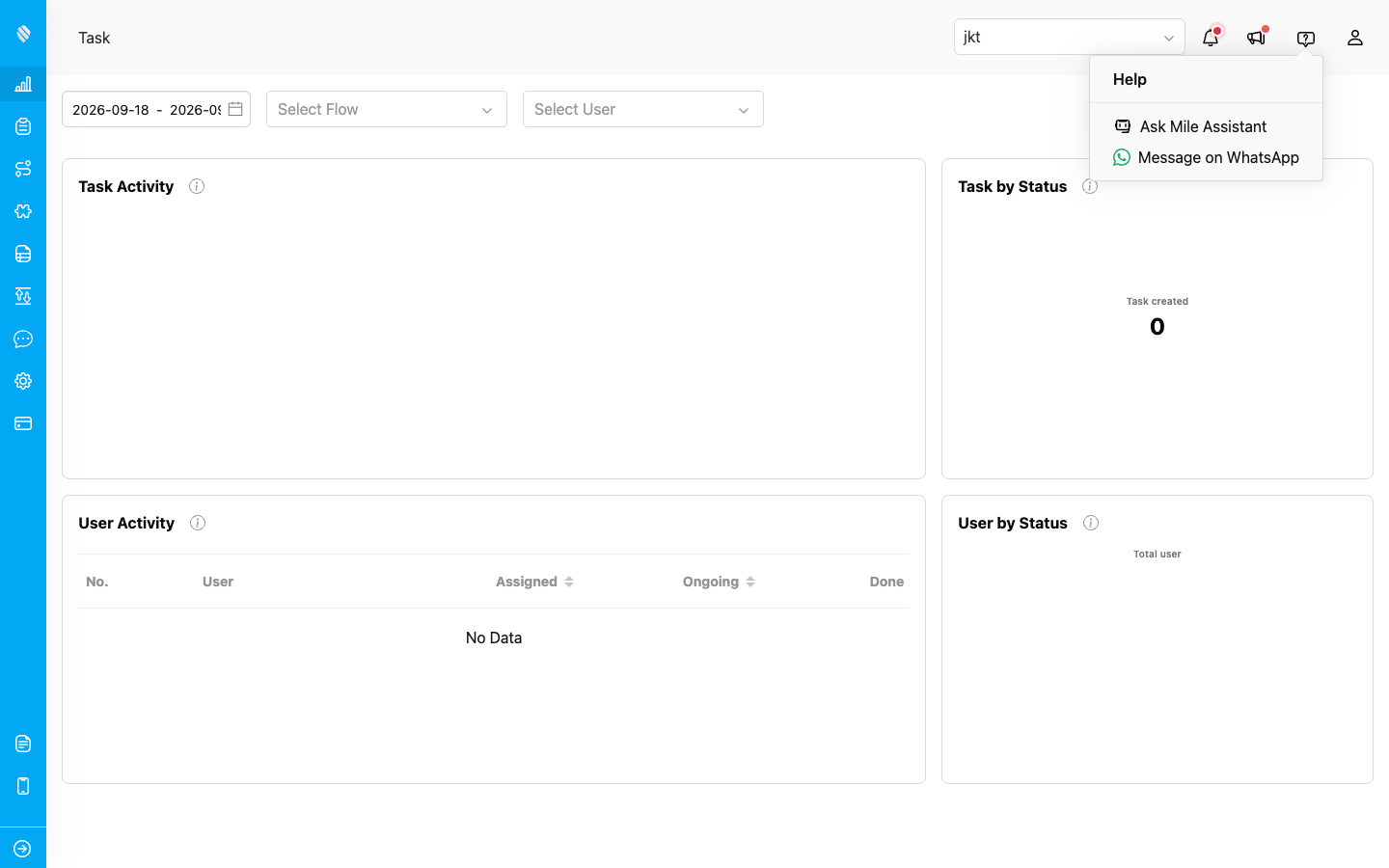
The Help menu, opened from the top navigation bar
On mobile:- Open the Help panel from the sidebar
- Tap Ask Mile Assistant
- The Chat Support window opens
Asking Questions
Type your question and send it. The assistant, labeled Mile Assistant in the conversation, searches MileApp’s knowledge base and replies in the same conversation, usually within a few seconds. For example, an operations lead whose drivers keep receiving tasks from other areas can ask “Our drivers keep getting assigned tasks outside their area. How do I make sure each driver only gets tasks near their hub?” and get the steps: check each driver’s hub access, then add automations that route new tasks to the right hub and assign them to drivers in that hub.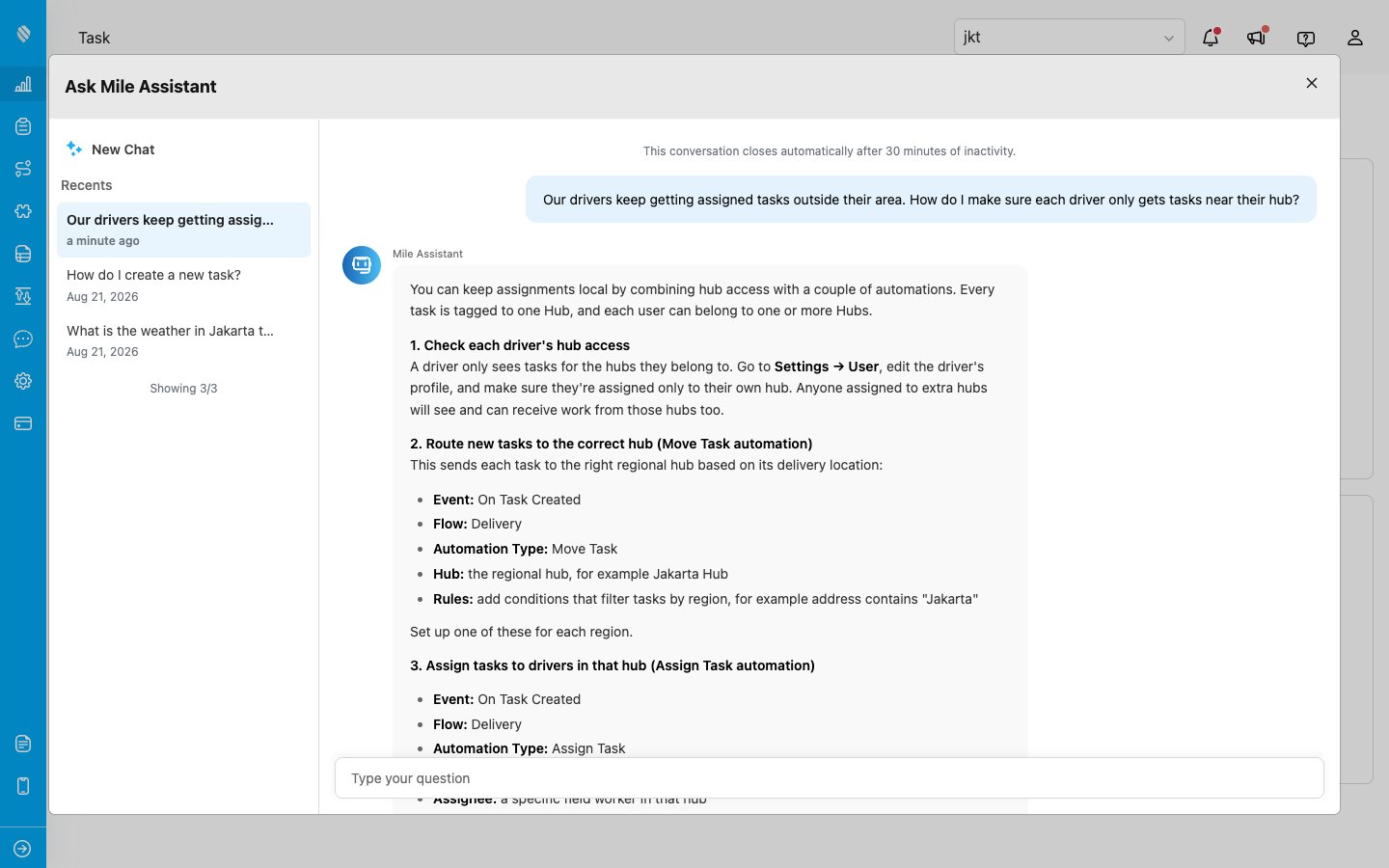
A question about hub assignment, answered by Mile Assistant
You can ask a follow-up in the same conversation and the assistant keeps the earlier context, so “And if a task was already assigned to the wrong driver, can I move it without recreating it?” is answered in light of the first question. Only one question is processed at a time. Send the next one after the current answer arrives.When the Assistant Hands Over to Support
The assistant answers questions about how MileApp works. It does not act on your data, so it cannot cancel a task, change a shipment or fix an account for you. When you ask for something like that, it says so plainly and passes the request to the MileApp support team, instead of pretending the work is done.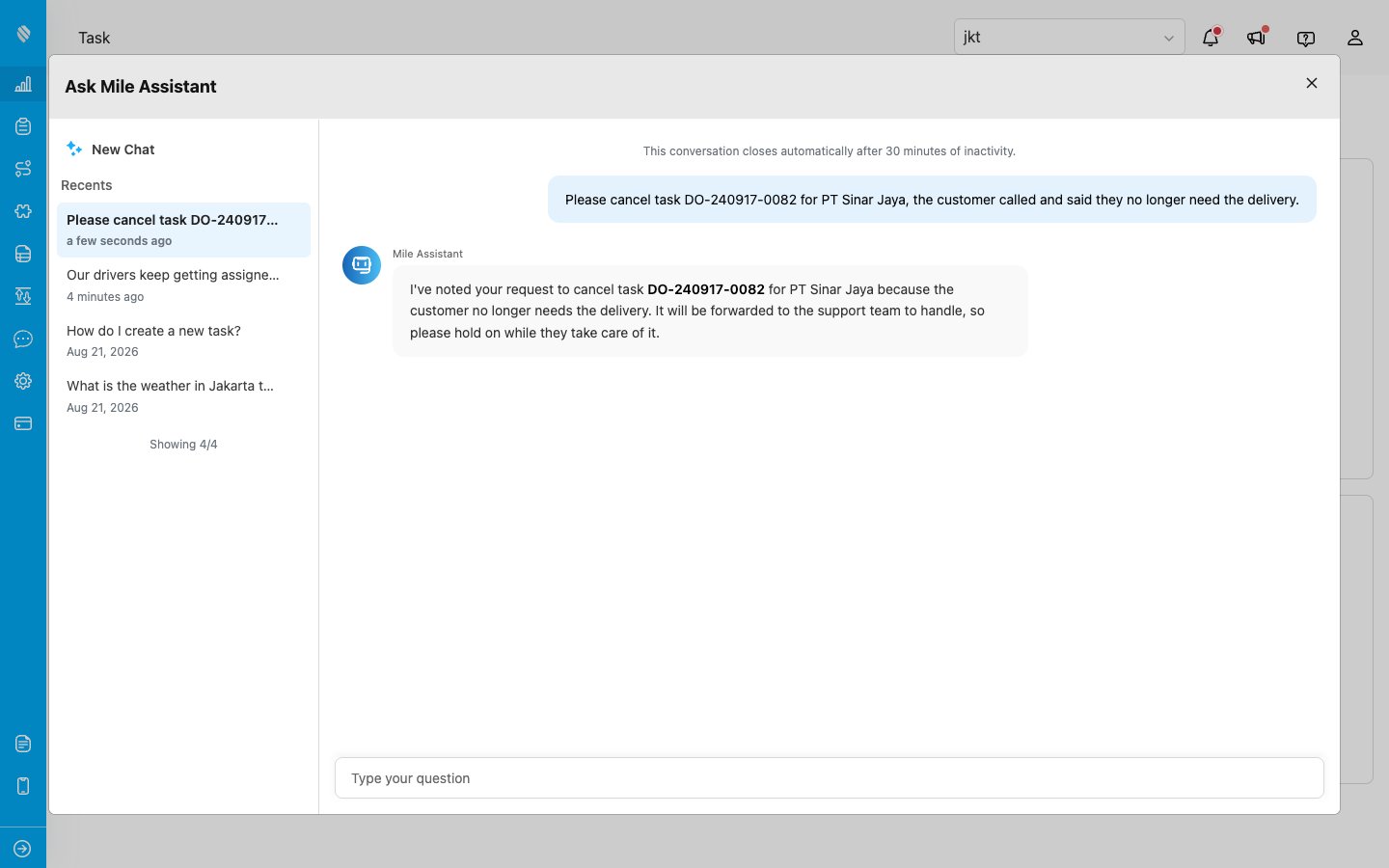
Asked to cancel a task, the assistant forwards the request to the support team
When a member of the support team picks the conversation up, a line reading Continued by the support team appears, and their replies are labeled Support team. You do not need to refresh or reopen anything: replies arrive in the open window on their own. While support is handling the conversation, the assistant stays out of it, so every reply comes from a person.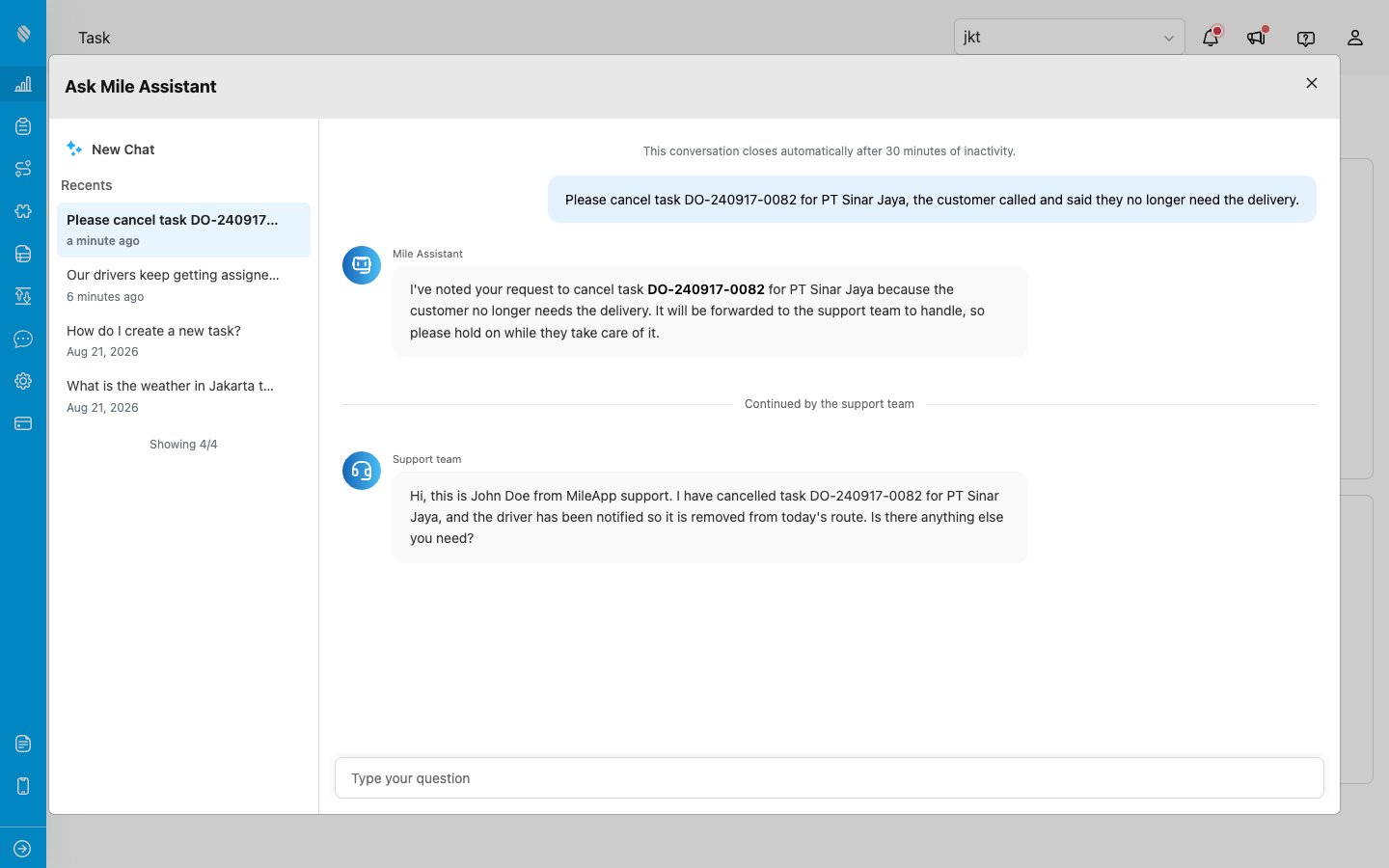
The support team takes over and replies in the same conversation
If support hands the conversation back, a line reading Continued by Mile Assistant appears and the assistant answers again.Conversation History
Every conversation is saved automatically.- Previous conversations appear in the list on the left, titled by the question you asked
- Open one to load its full message history
- New messages you send continue that same conversation until you start a new one
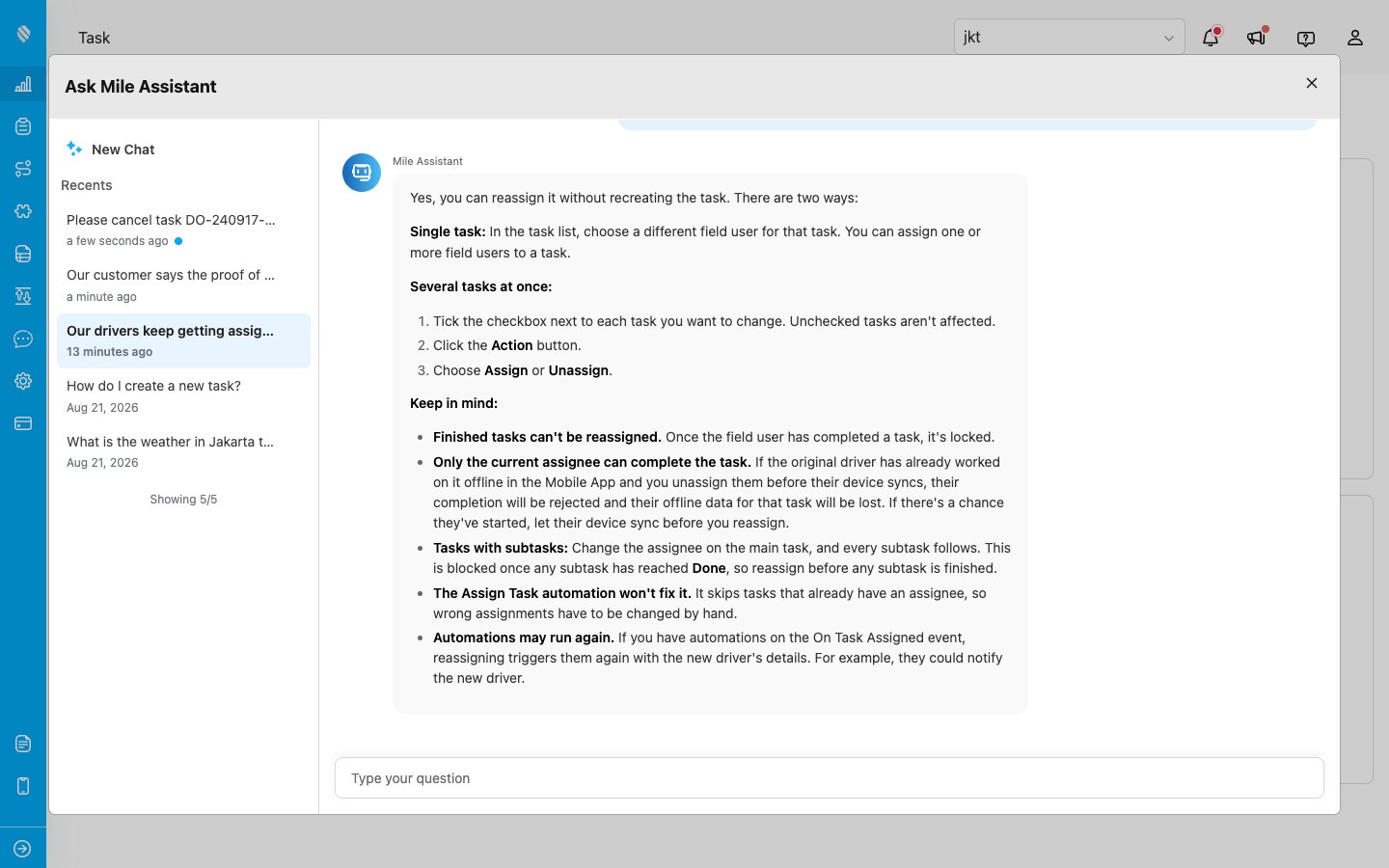
The blue dot marks a conversation that received a reply while you were reading another one
While a Conversation Is Open
A short line at the top of the conversation explains that an inactive conversation is closed automatically. It stays there while the conversation is open, and a brand new chat with no messages yet does not show it.Resolved Conversations
When the support team has finished helping you, they close the conversation. It then becomes read only: its entry in the list carries a Resolved badge, and in place of the message box the conversation shows a line telling you it is closed and to start a new chat. This happens in the open window as soon as support closes it.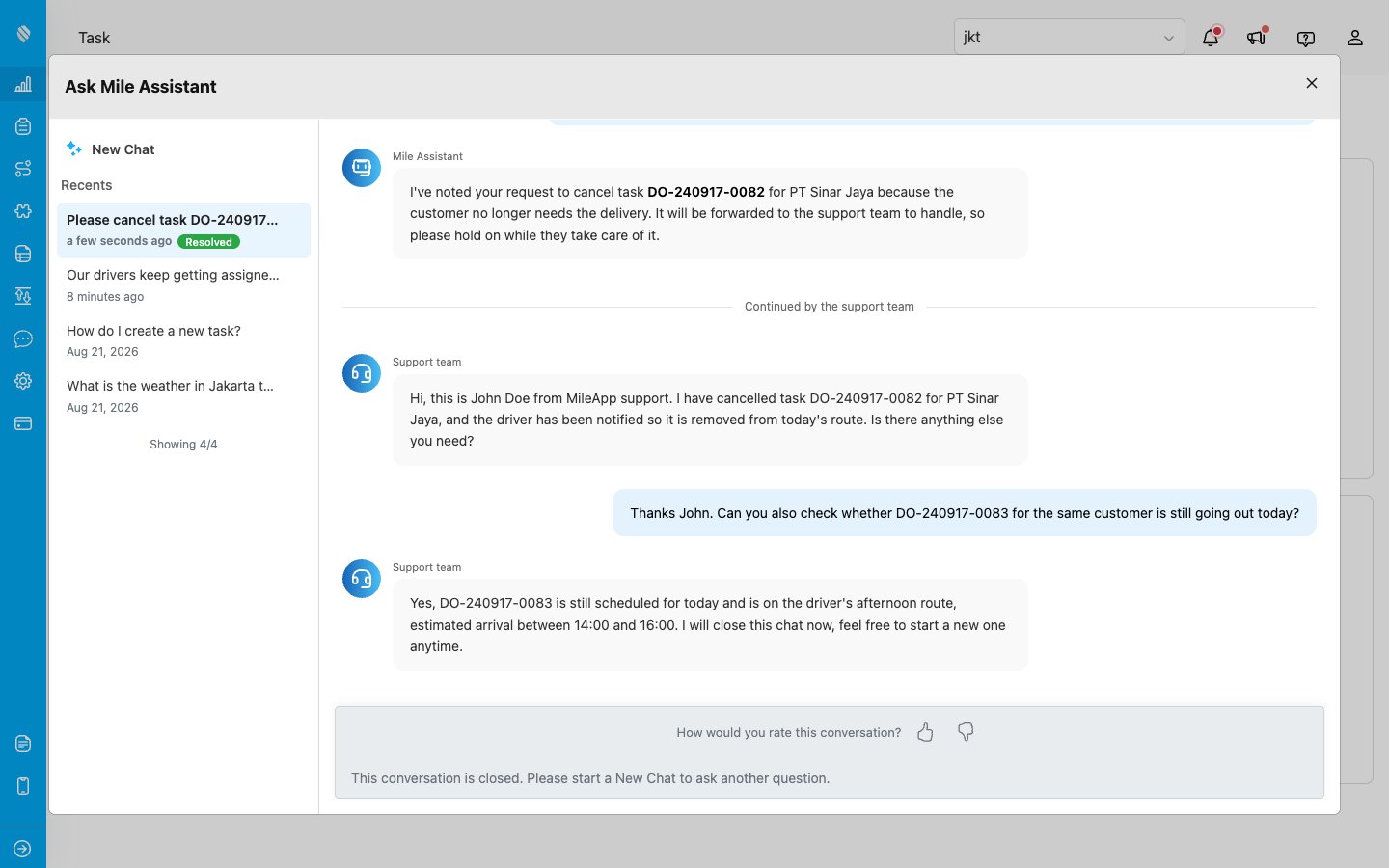
A closed conversation: the Resolved badge in the list, and the rating question above the closed message
To keep going, start a new conversation with New Chat. The resolved conversation stays in your history for reference.Rating a Conversation
Once a conversation is closed you are asked, once, how you would rate it. Choose the thumbs up or the thumbs down. Your choice stays highlighted and both buttons lock, so a conversation can be rated only once. The rating is kept with the conversation, so reopening it later shows the rating you gave rather than asking again. A conversation that is still open is not rated: the question appears only after it has been closed.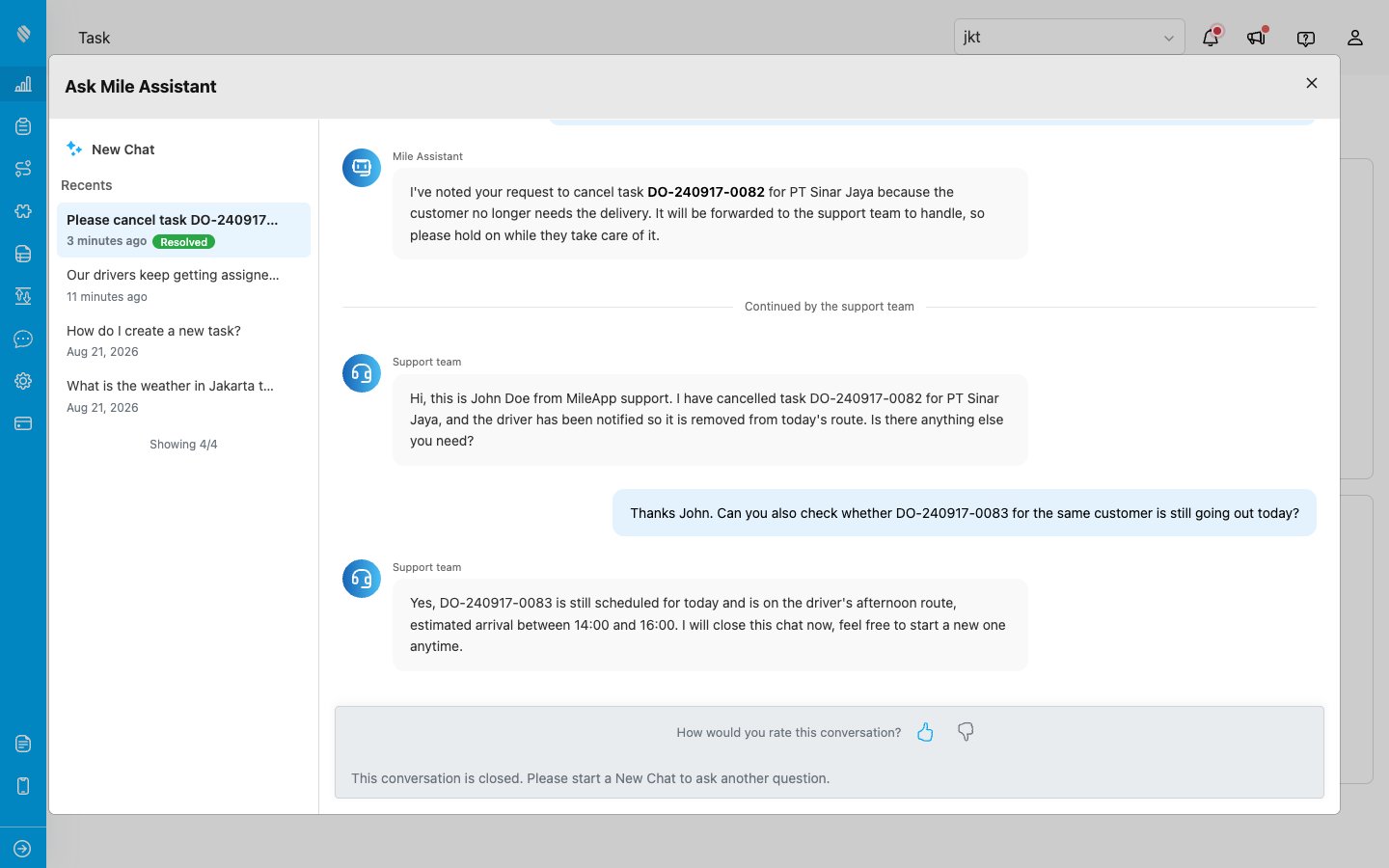
After you rate it, your choice stays highlighted and the buttons lock
Managing Conversations
Start a new conversation: Click New Chat to leave the current thread and start fresh. Delete a conversation: Hover the conversation in the list, click the delete icon and confirm. This removes it from your list.Tips for Best Results
- Ask one question at a time, in plain language
- Mention the feature or page you are asking about, for example “task schedule” or “route optimization”
- If the answer misses the mark, rephrase rather than repeating the same question
- For anything that needs an action on a specific task, shipment, account or invoice, ask directly: the assistant passes it to the support team