

What is the Timer Component?
The Timer is a stopwatch attached to a single Mobile App Page. When the page is opened, the worker starts the timer; when they leave the page or finish the task, the elapsed duration is saved on the task. Use Cases:- On-site service duration — Track how long a technician spends at a customer’s location
- Working time per step — Measure the time taken for each stage of a multi-page flow
- Performance auditing — Compare durations across workers or visits
- SLA monitoring — Verify that a stop or activity stays within an expected window
Timer Component Properties
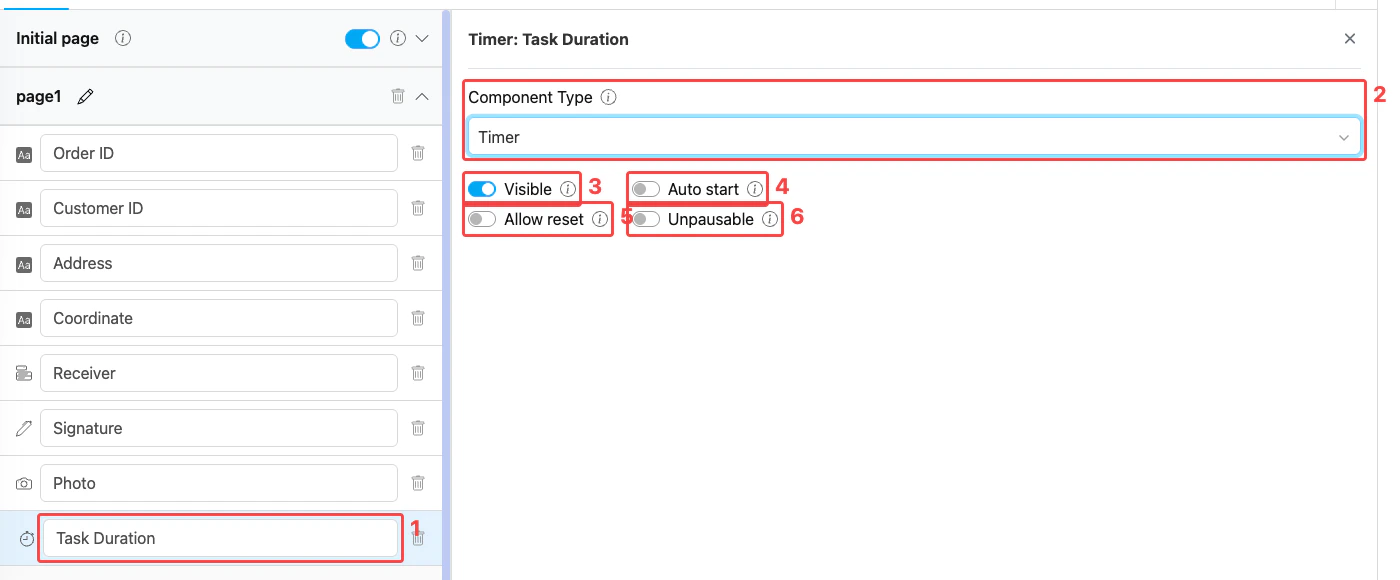
Timer component settings panel
- Title — Component label shown above the stopwatch on the mobile app (e.g., “Task Duration”, “Service Time”)
- Component Type — Set to Timer
- Visible — Controls display on Create Task (web and mobile) and View Task (mobile). Hidden components still export their data.
- Auto start — When on, the timer starts counting automatically the moment the worker opens the page. When off, the worker must tap Start to begin counting.
- Allow reset — When on, the mobile app shows a Reset button so the worker can clear the elapsed time and start over. When off, the timer cannot be reset by the worker.
- Unpausable — When on, the timer cannot be paused once it starts. Use this for activities that should be measured continuously (e.g., SLA-bound service windows).
How to Configure the Timer Component
Step 1: Add the Component on a Mobile App Page
In the Flow Builder, open a Mobile App Page (e.g., Page 1). Click Add Component, then set Component Type to Timer. The Timer option is not available on the Initial Page.Step 2: Set the Title
Enter a descriptive Title (e.g., “Task Duration”, “Service Time”, “Visit Duration”). This label appears above the stopwatch on the mobile app.Step 3: Choose Auto Start Behavior
- Turn Auto start on when the activity begins as soon as the worker reaches the page (e.g., on-site service starts immediately on arrival).
- Leave it off when the worker needs to explicitly tap Start (e.g., to mark the moment a customer signs the form).
Step 4: Configure Reset and Pause Controls
- Turn Allow reset on if the worker should be able to restart the timer (e.g., on a mistake or retry). Leave it off to preserve the original duration.
- Turn Unpausable on for continuous, audit-grade measurements where pausing should not be possible.
Step 5: Save
Click Save in the Flow Builder. The timer is now part of the page for any task created from this flow.How the Timer Works in Tasks
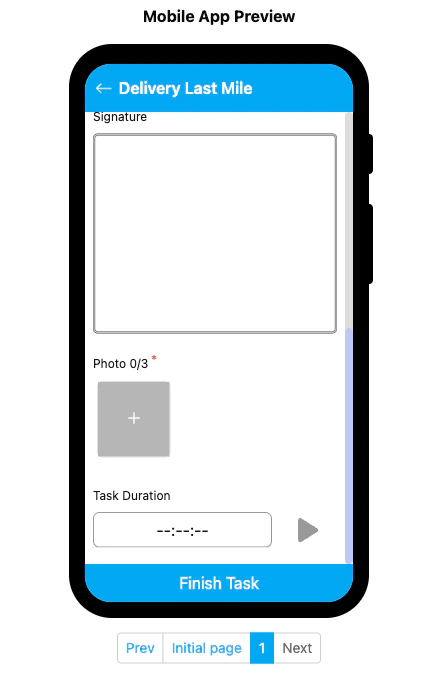
Timer component rendered on the mobile preview
- The Timer section shows the title and a stopwatch display (
--:--:--) with a Start (play) button. - If Auto start is on, the timer begins counting automatically; otherwise the worker taps Start.
- While running, the worker can tap Pause to stop counting — unless Unpausable is on, in which case the pause button is hidden.
- If Allow reset is on, a Reset button is available to clear the elapsed time.
- The accumulated duration is saved on the task when the worker completes it.
Related
- Component: Capture — Automatically capture a single timestamp (arrival/departure) instead of measuring elapsed time
- Configuration: Time — Flow-level start and end time windows
- Mobile App Page — Where Timer components must live
- Flow Builder Overview — Reference for every part of the Flow Builder