You can modify your existing Custom Export to fit your needs. Follow these steps to edit a Custom Export.
Required permission:
  • Export Task
  • View custom export
  • Edit custom export
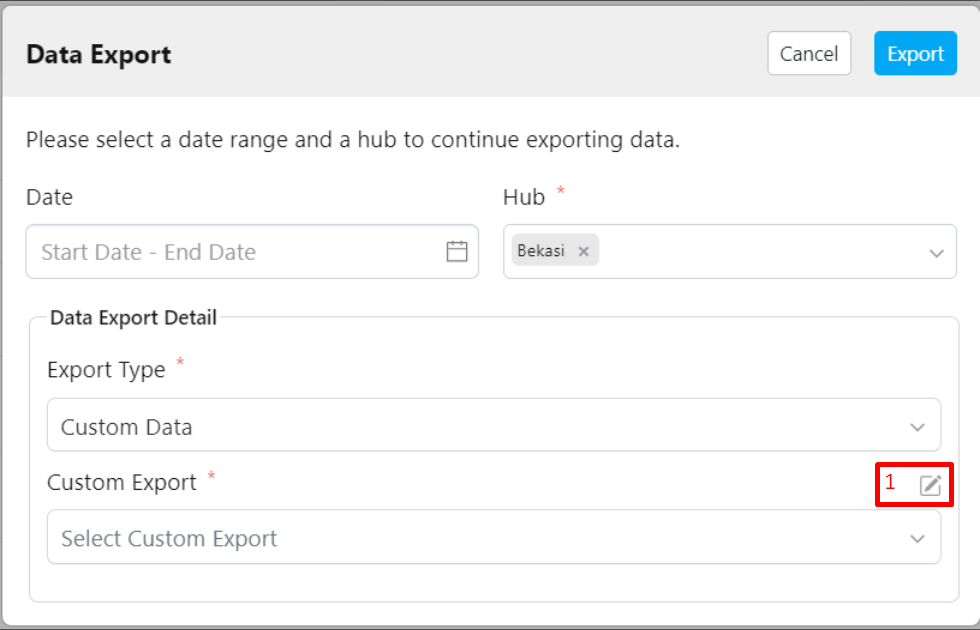
Custom Export Form Display
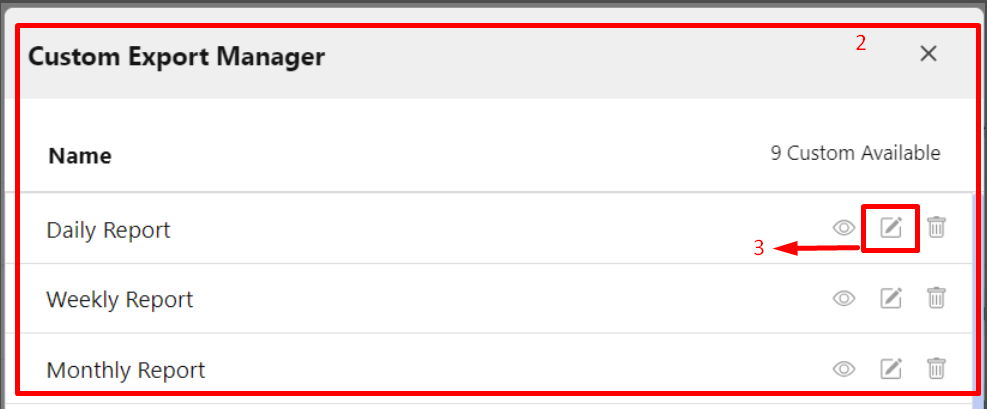
Custom Export Manager Display
Steps to Edit a Custom Export:
  1. Click the pencil icon (Custom Export Manager).
  2. A pop-up window will appear, displaying a list of your existing Custom Exports.
  3. Click the pencil icon next to the Custom Export you wish to edit.
Once you click the pencil icon for the Custom Export you want to modify, the Custom Export details will appear. You can edit the name of the Custom Export and adjust the fields that will appear in the exported file. Once you have made your changes, click the Save button to save your modifications. Tip: To remove fields from the exported file, click the ‘x’ icon next to the field, or click the “Remove All” button to delete all selected fields at once.