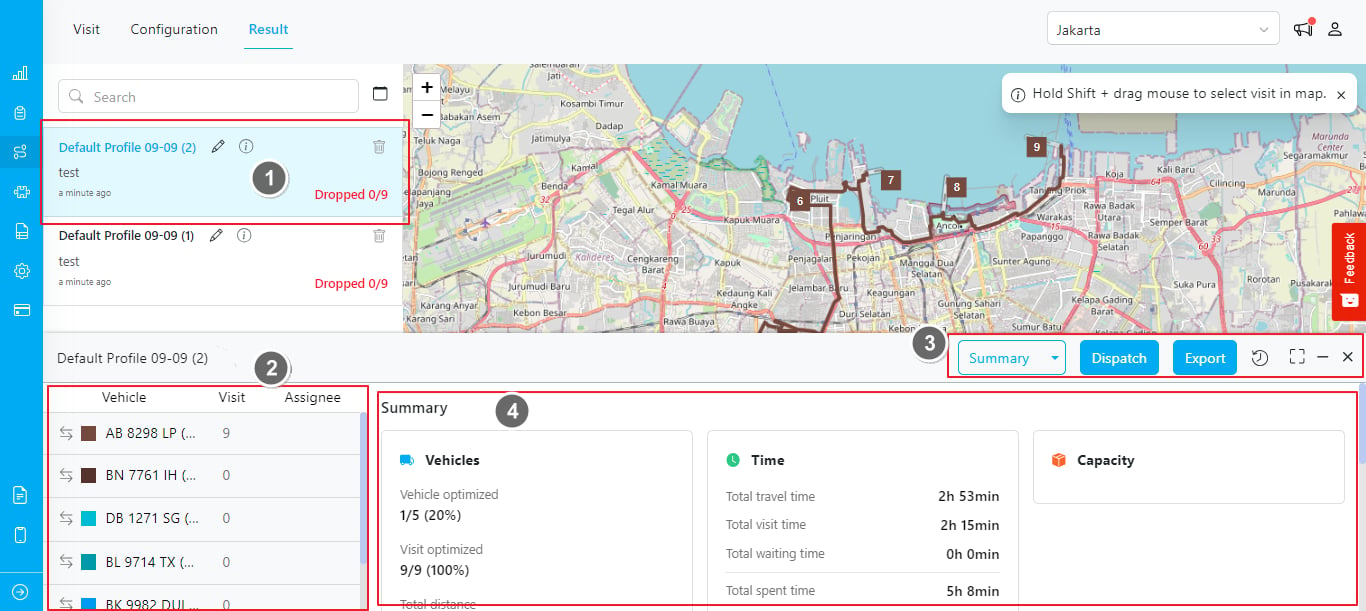
- Result List: When you click the Optimize button, a new result is generated and appears at the top of the list. There is a brief information such as the optimization time, user, visits processed, dispatch status, and an option to delete the result is displayed.
- Vehicle List: Lists all active vehicles involved in the route optimization. Includes vehicle name, total assigned visits, user assignee, and an option to switch vehicles.
- Action:
- View Option: Various view options are available, allowing you to see the result in Summary, List, or Gantt Chart format.
- Dispatch: To assign the routing result to field users, you can click the Dispatch button. After dispatching, you can track assignments in the Task menu. Learn more here.
- Export: Export the routing result in excel format.
- History: View changes made to this result and restore changes if needed. Learn more about history in the next section.
- Full Screen: Expand the result detail view, hiding the map view.
- Minimize: Minimize the result detail view.
- Close: Close the current result.
- Result Detail: Consists of Summary, Vehicle Detail, and Visit Detail.
Changing View Mode
With the Gantt Chart Visualization, you can now see all your vehicles’ visit assignments in a visually intuitive Gantt chart format. This dynamic view allows you to instantly grasp the timeline and allocation of tasks, improving your decision-making process.
Gantt Chart View in Routing Result
Navigation in Gantt Chart View
The Gantt Chart view within the “Routing-Result” menu offers a set of intuitive functionalities to enhance your navigation experience. Familiarize yourself with the following features: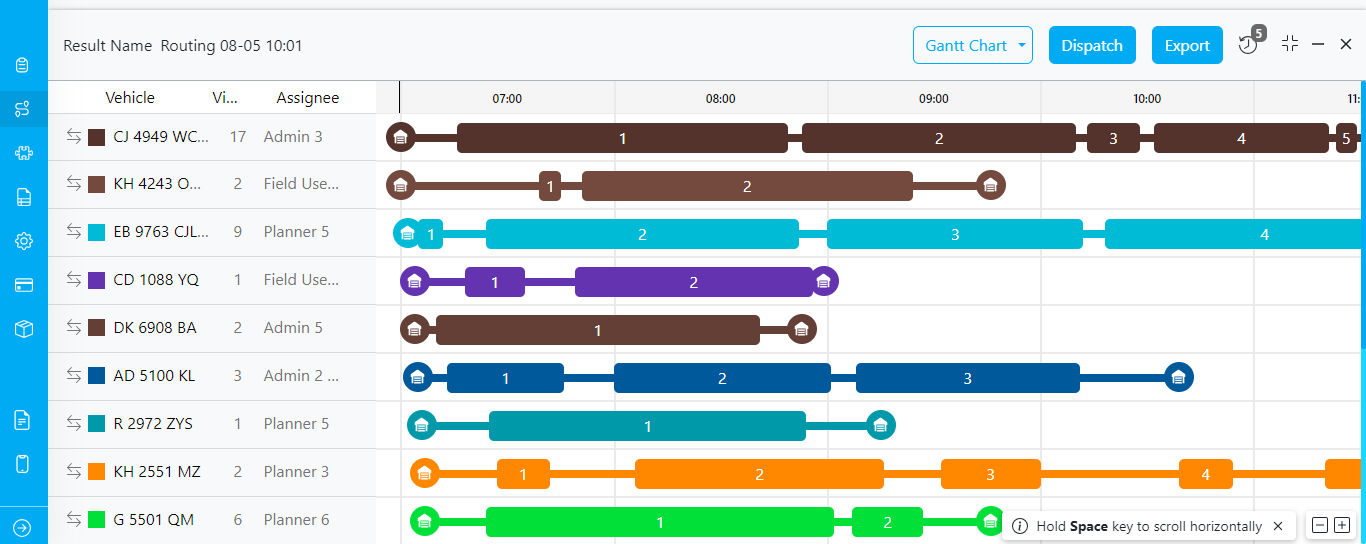
-
Horizontal Scrolling:
- Shortcut: Hold down the Space key to initiate horizontal scrolling.
- Description: This feature allows you to effortlessly navigate through your Gantt Chart horizontally. By holding the Space key, you can seamlessly scroll through the timeline.
-
Zoom In & Out:
- Buttons: Utilize the + (Zoom In) and - (Zoom Out) buttons located in the bottom corner of the Gantt Chart view.
- Description: Zoom in and out of the Gantt Chart to gain a comprehensive view of your project’s details. The + and - buttons provide a convenient way to adjust the scale, allowing you to focus on specific timeframes or obtain a broader overview of the routing results. You can zoom out up to 8x.
Routing Result History
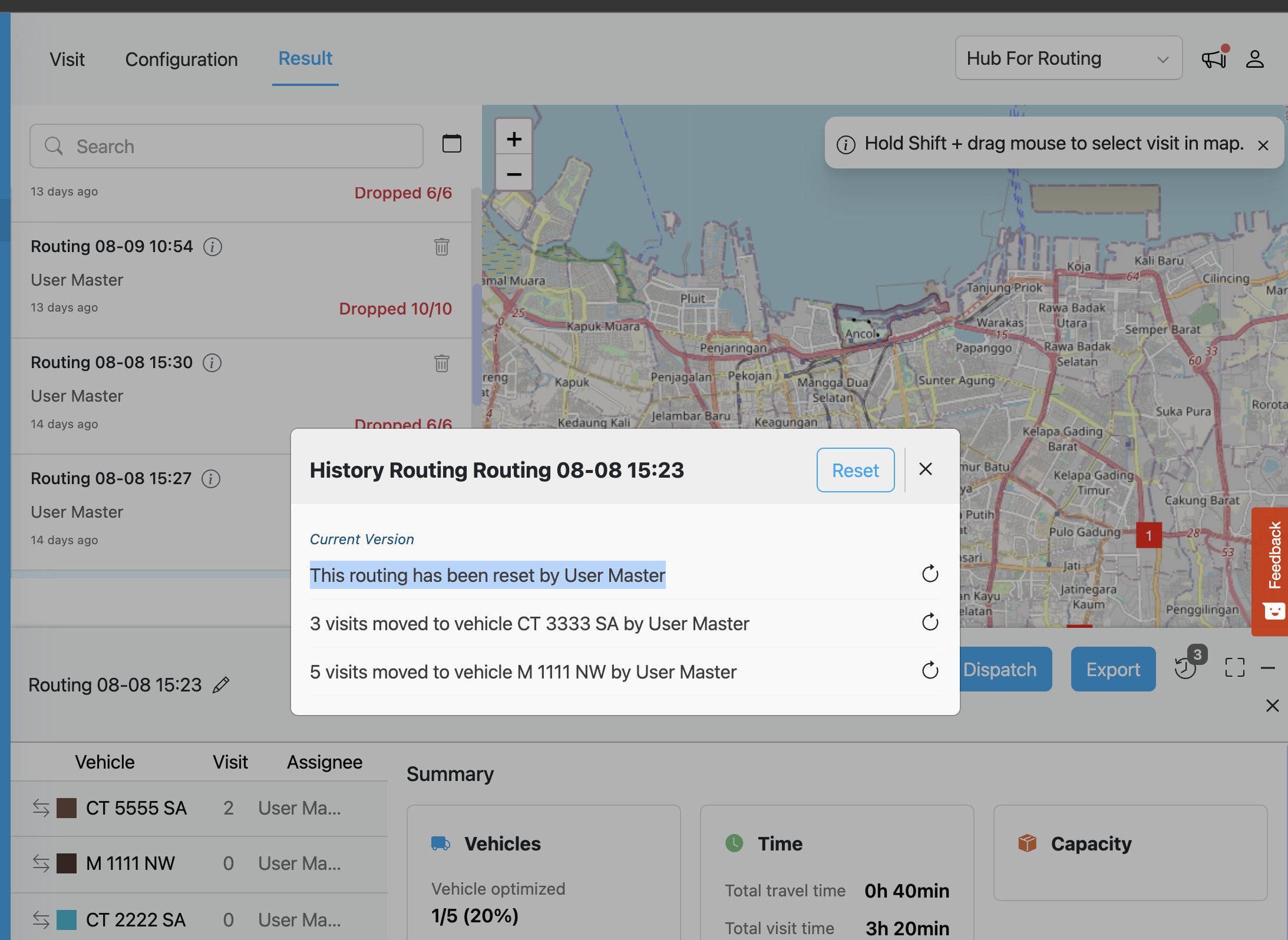
This feature allows you to view and restore previous versions of routing results based on historical data. Click the icon to display a list of available changes made to the routing results over time.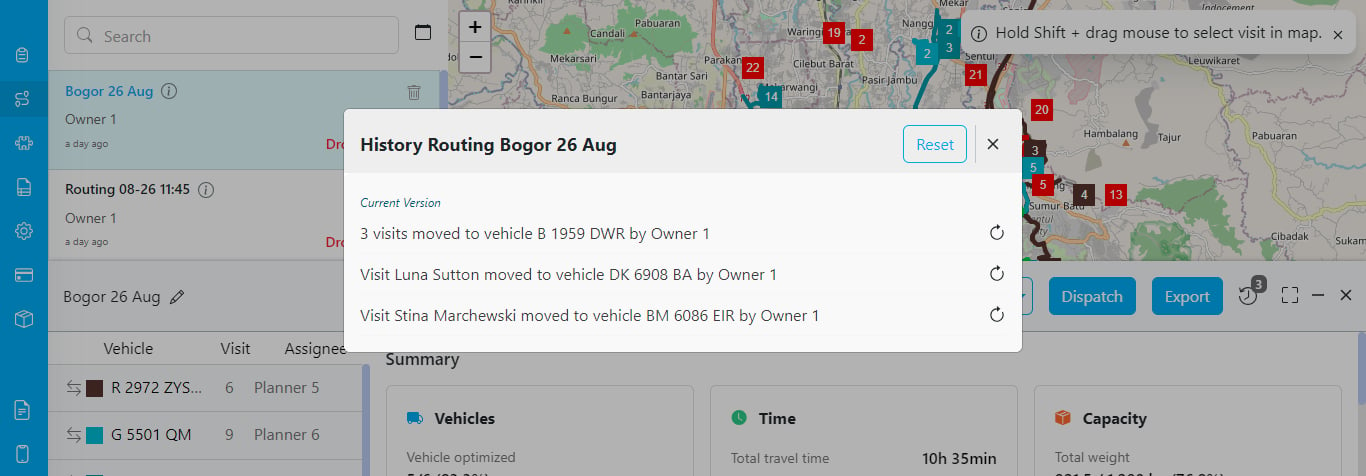
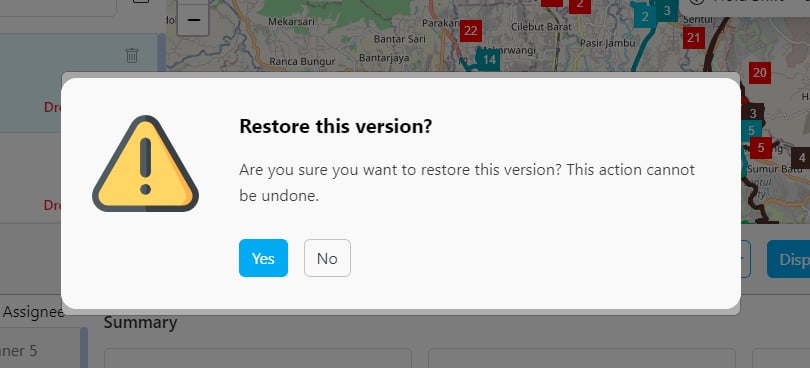
- “2 visits moved to vehicle B by Owner” (this is the current version)
- “Visit Place A moved to vehicle A by Owner”
Reset Routing Result
If you need to revert your changes to the original state, simply click the “Reset” button. This will undo all modifications, and the reverted record will appear in the history results.