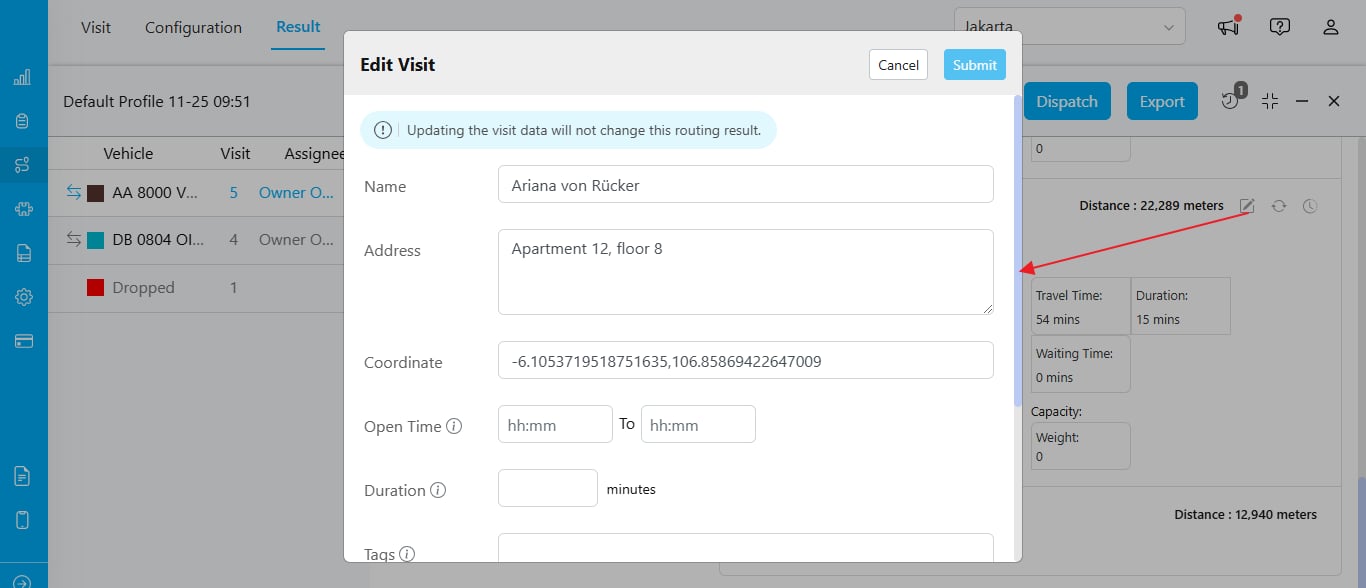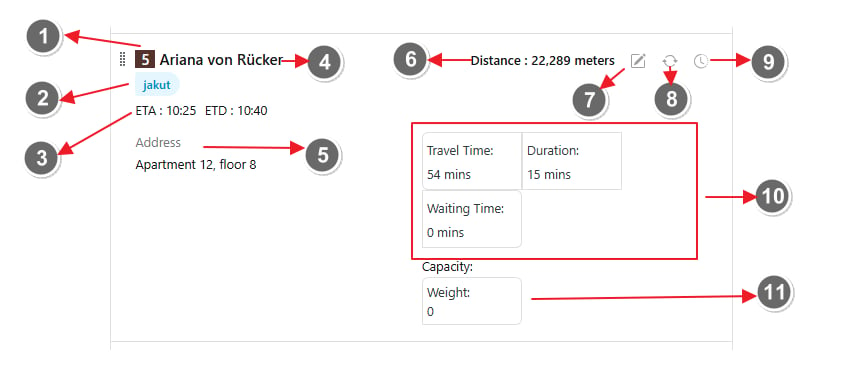
- Visit Order in the Vehicle: The sequence in which visits are scheduled for the vehicle.
- Visit Tags: Labels or tags associated with the visit for easy identification.
- ETA and ETD Information: Estimated Time of Arrival (ETA) and Estimated Time of Departure (ETD).
- Visit Name: The name assigned to the visit.
- Address Details: The complete address for the visit location.
- Distance from Previous Visit or Hub: The distance from the last visit or the hub if it’s the first visit.
- Edit Visit: You can update the visit data by clicking this button. Note: Updating visit data will not recalculate or update the routing results.
- Move Visit: This feature allows you to reassign a visit to a different vehicle. Refer to the next section for more information.
- See History: Use this feature to view a comprehensive history of the visit, including any reassignments to other vehicles or sequence changes.
- Detail of Times:
- Travel Time: Time spent traveling to the visit location.
- Visit Time: Time spent at the visit location.
- Waiting Time: Time spent waiting at the visit location. This is calculated from the ETA and the duration from the Open Time.
- Open Time: The earliest possible time to start the visit. This can be the operational hours of the place.
- Close Time: The latest possible time to complete the visit.
- Capacity: Dynamic capacity information based on the capacity used during routing optimization.
Move Visit to Another Vehicle
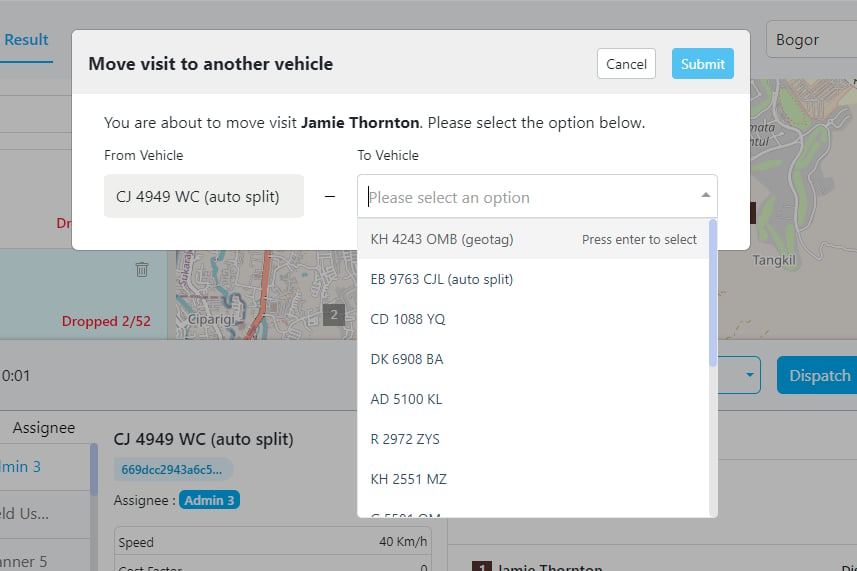
In case there are dropped visits, you can manually move the visit to another vehicle. This feature also allows you to transfer a visit from one vehicle to another within the same routing result. There are two ways to achieve this:- Move Visit Individually
- Click on the move icon for the specific visit.
- A pop-up will appear.
- Choose the designated vehicle.
- Click “Submit” to confirm the move.
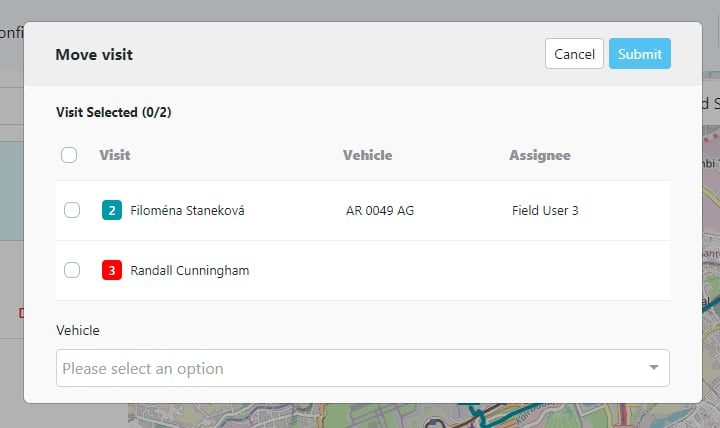
- Bulk move
- Select the area on the map by holding
Shiftand dragging the mouse to select the visits. - When you release the mouse, a pop-up will appear showing all the selected visits.
- You can review and choose which visits to proceed with to avoid accidentally selecting incorrect visits.
- Select the area on the map by holding
See Visit History
When you move a visit, you can view its history by clicking the History icon. The History icon will be positioned the same in both the List View and Gantt Chart View.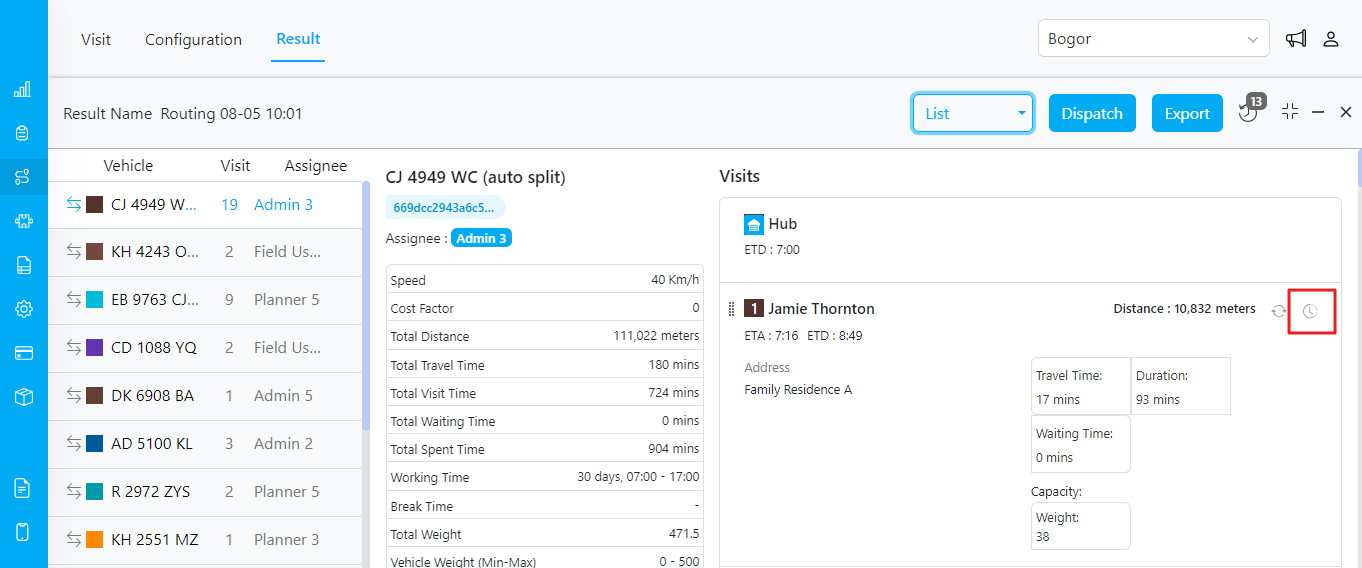
History Icon in List View
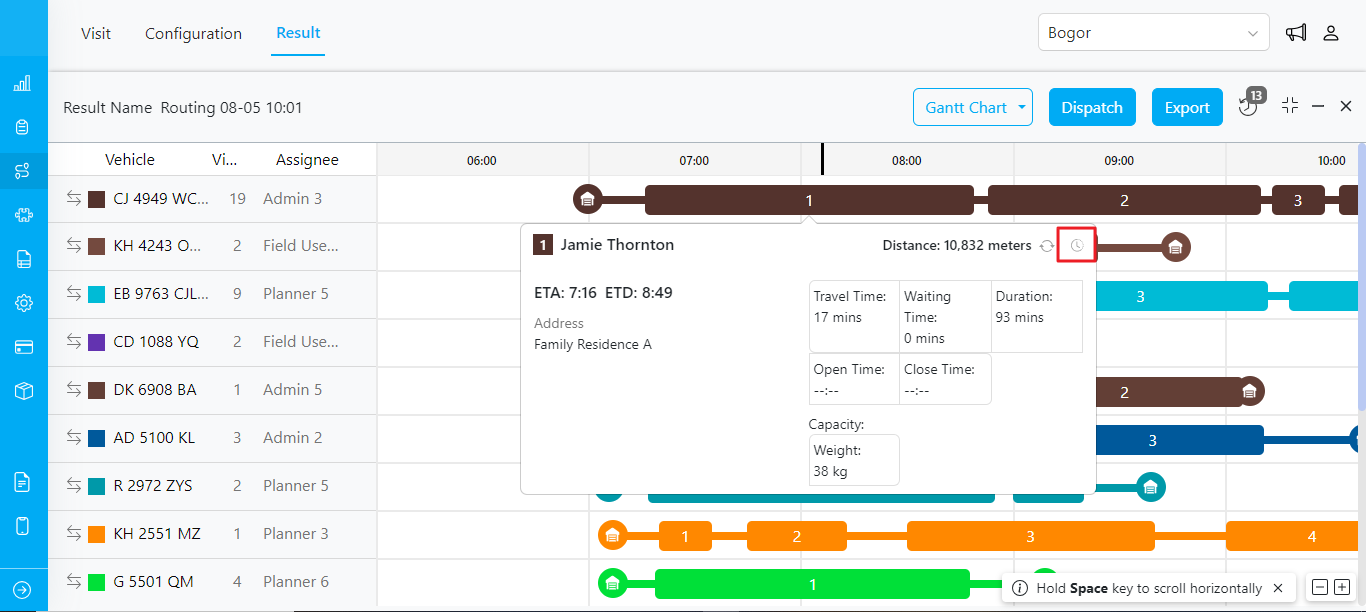
History Icon in Gantt Chart View
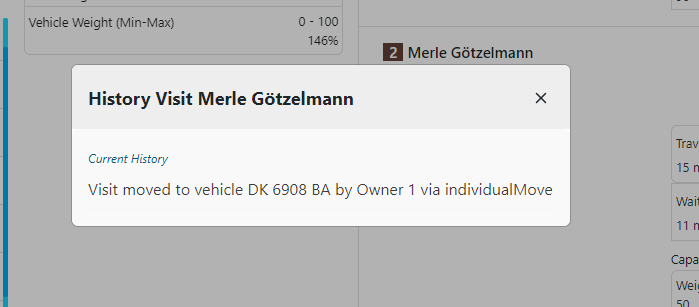
The visit history includes:- Action: The specific action taken, such as “Moved to” or “Changed sequence.”
- User: The user who executed the action, for example, “by John Doe.”
- Source: The way a visit has been moved, such as via individual move, bulk move, or vehicle switch. The most recent update will appear at the top of the list with indicator “Current History”.
Edit Visit
Every visit that has not been marked as “Done” will display an Edit button next to it.:- For any visit you want to modify, simply click the Edit button displayed next to the visit details.
- A pop-up form will appear, displaying all the editable fields that are typically available in the Visit menu. These fields can be updated directly from this form.
- After making your changes, click the Submit button to finalize the update.
- A loading indicator will appear to show that the data is being updated. The system will update the task data. However, no changes will be made to the routing result, and no recalculation or re-optimization will occur.