

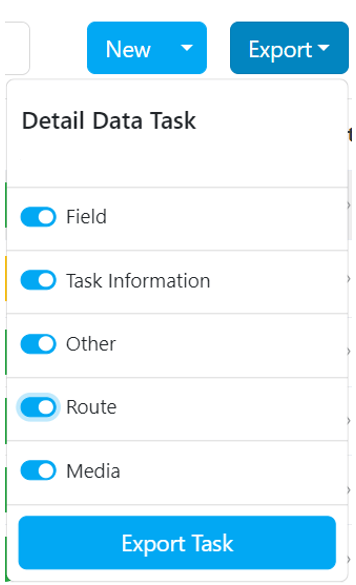
Popup Export Task Display
You can obtain task data reports using the data export feature by clicking the “Export” button and then selecting “Export Task.” Additionally, you can customize the data generated in the report file. Customizing Report Data: Utilize the following toggle options to customize your report:- Field: Includes Task ID, Flow Name, Hub ID, Hub Task, Start Time, End Time, App Version, Device Information, Component Values.
- Task Information: Provides Task Details, Created By, Updated By, Assignee, Status, and other related information.
- Route: Displays Route Information like ETA, ETD, Distance, and other route-related details.
- Media: Offers Image/File URLs for media-related data.
- Other: Additional data