

- Sign in to web.mile.app
- Once signed in, go to the menu Task.
- Within the task module, you will see a list of your active tasks.
- Browse through the list to find the task you want to complete.
- Look for the “Do Task” icon associated with the task. This icon indicates that the task is active and can be completed via the web.
- Click on the “Do Task” icon to proceed.
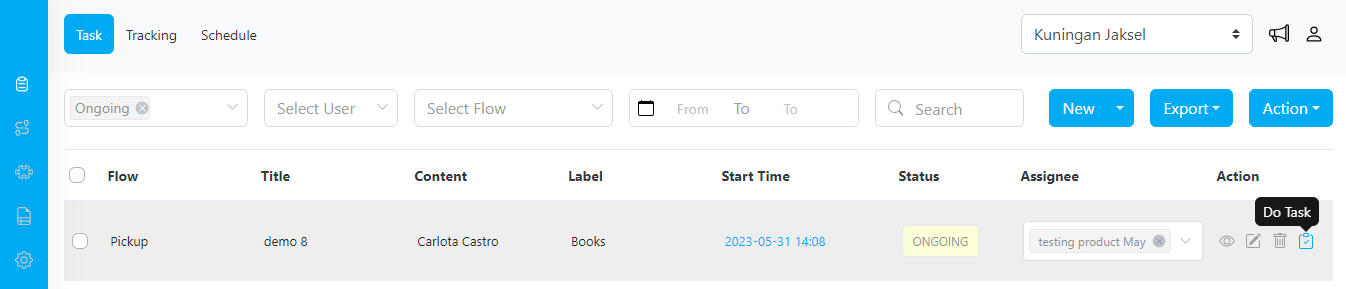
”Do Task” icon in menu Task
Step 4: Completing the Task- After clicking the “Do Task” icon, a dedicated task view will open up.
- If you encounter a loading issue when clicking “Do Task,” please try clearing your cache or performing a hard reload.
- Depending on the task’s flow type, you may encounter different pages or steps before reaching the final completion step.
- Follow the instructions and provide any required information on each page or step.
- Review the task details on each page to ensure accuracy and completeness.
- Proceed through the flow by clicking the “Next” or similar button until you reach the last step of completing the task.
- Once you reach the final page of the task flow, carefully review all the information entered and ensure its accuracy.
- Look for the “Finish Task” button on the final page.
- Click the “Finish Task” button to complete the task.
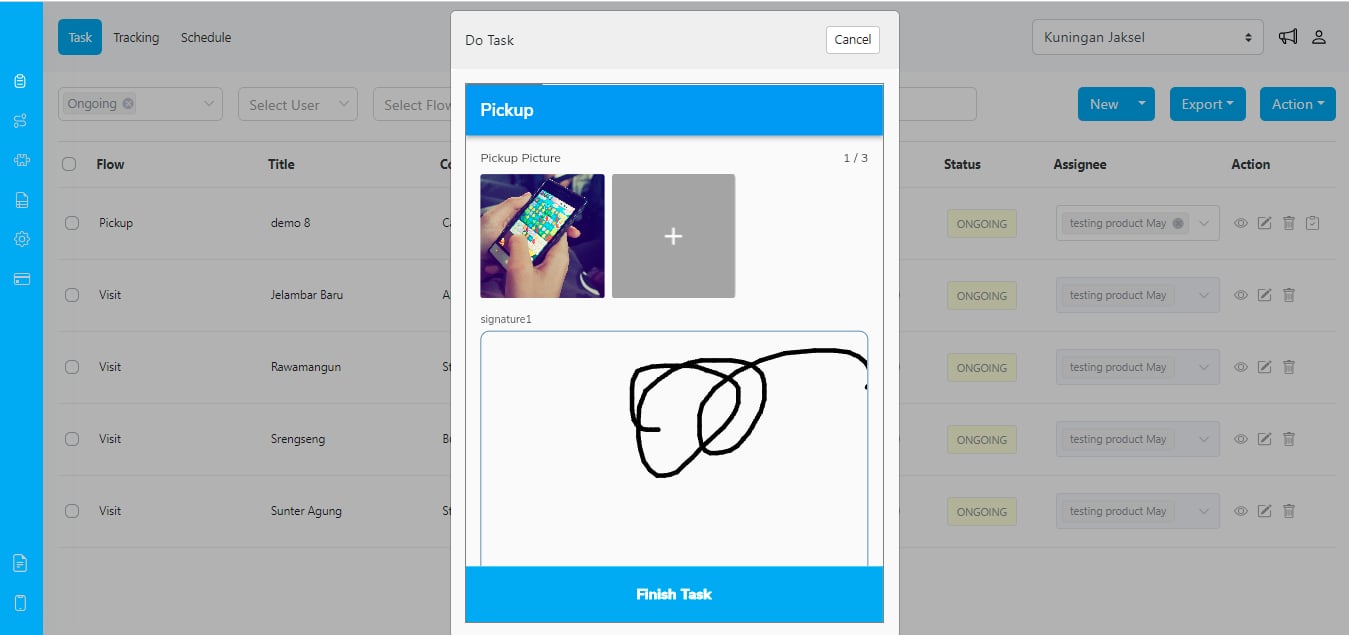
Review the uploaded file and sign the task before finishing
Step 5: Task Status Update- Once completed, the task will be marked as “Done” in the task module.
- The icon “Do Task” will no longer appear on that task.
- To review your completed tasks, navigate to the appropriate task.
- Look for the completed task in the list.
- Click on the task to view its details, including the done time, uploaded file/photo, and any other relevant information.
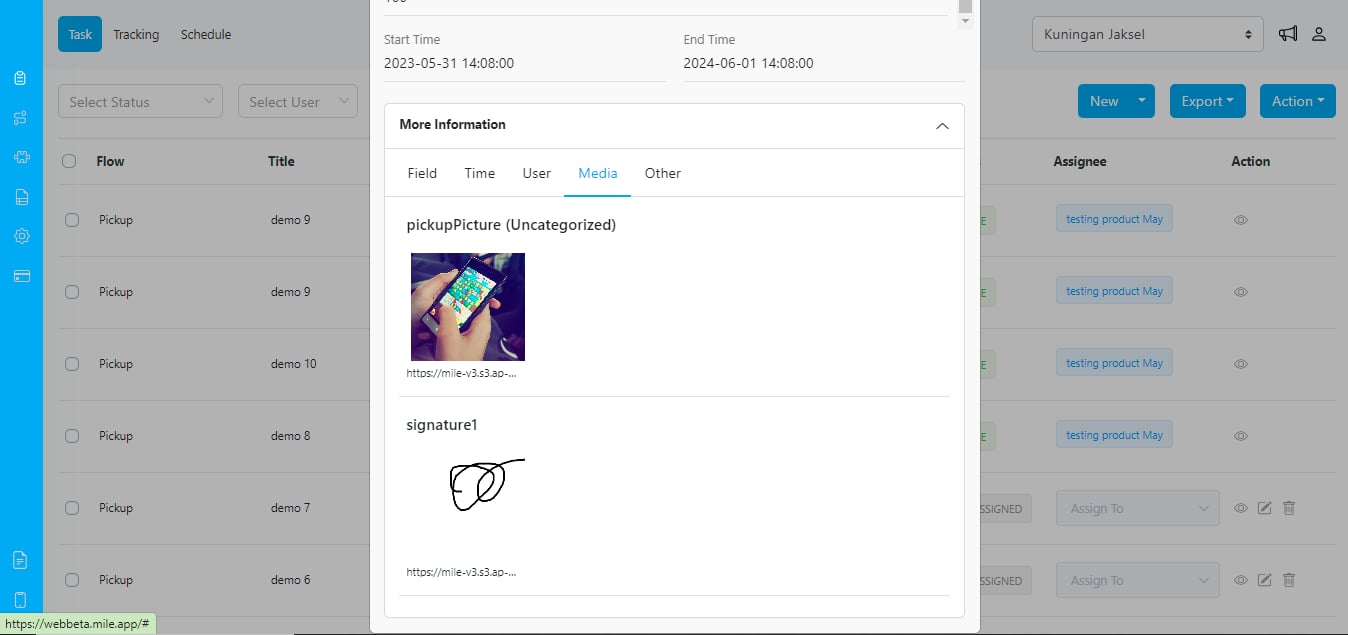
The detail information that has been processed via Web Task
Note:- The “Web Task” feature generates a new key, “doneFrom”:“WEB,” to indicate that the task was completed using the web interface. This key provides a record of tasks completed via the web and allows for differentiation from tasks completed through other methods.
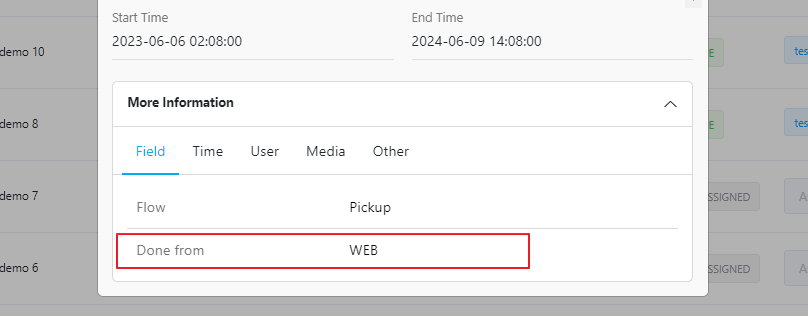
Information “Done from: WEB” in the task detail
- The “Do Task” icon will disappear under the following conditions:
- The task has not yet started. This occurs when the task’s start time is ahead of the current time.
- The task has expired. This occurs when the task’s end time has already occurred.
- The task is unassigned or not assigned to the same user login in the web application.
- The task has been marked as “Done” indicating completion.