

The Setup Wizard checks for two platform permissions: View flows and View tasks. Make sure your role has these before starting.
Starting the Setup Wizard
When you open Invoice Generator for the first time, the Setup Wizard appears automatically.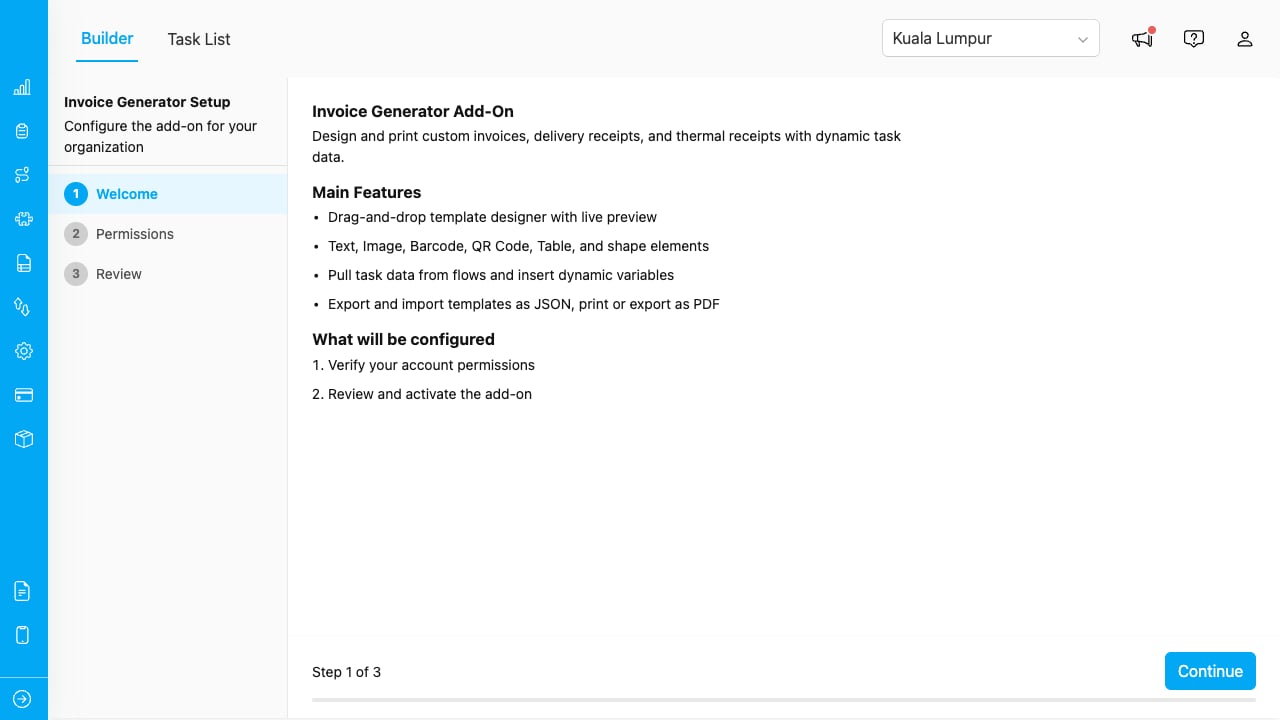
The Setup Wizard opens automatically on first access, showing 3 steps: Welcome, Permissions, and Review.
Step 1: Welcome
The welcome screen explains the main features of Invoice Generator:- Drag-and-drop template designer with live preview
- Text, Image, Barcode, QR Code, Table, and shape elements
- Pull task data from flows and insert dynamic variables
- Export and import templates as JSON, print or export as PDF
- Verify your account permissions
- Review and activate the add-on
- Create page-level access permissions (Builder, Task List)
Step 2: Verify Permissions
The wizard checks that your account has the required platform permissions.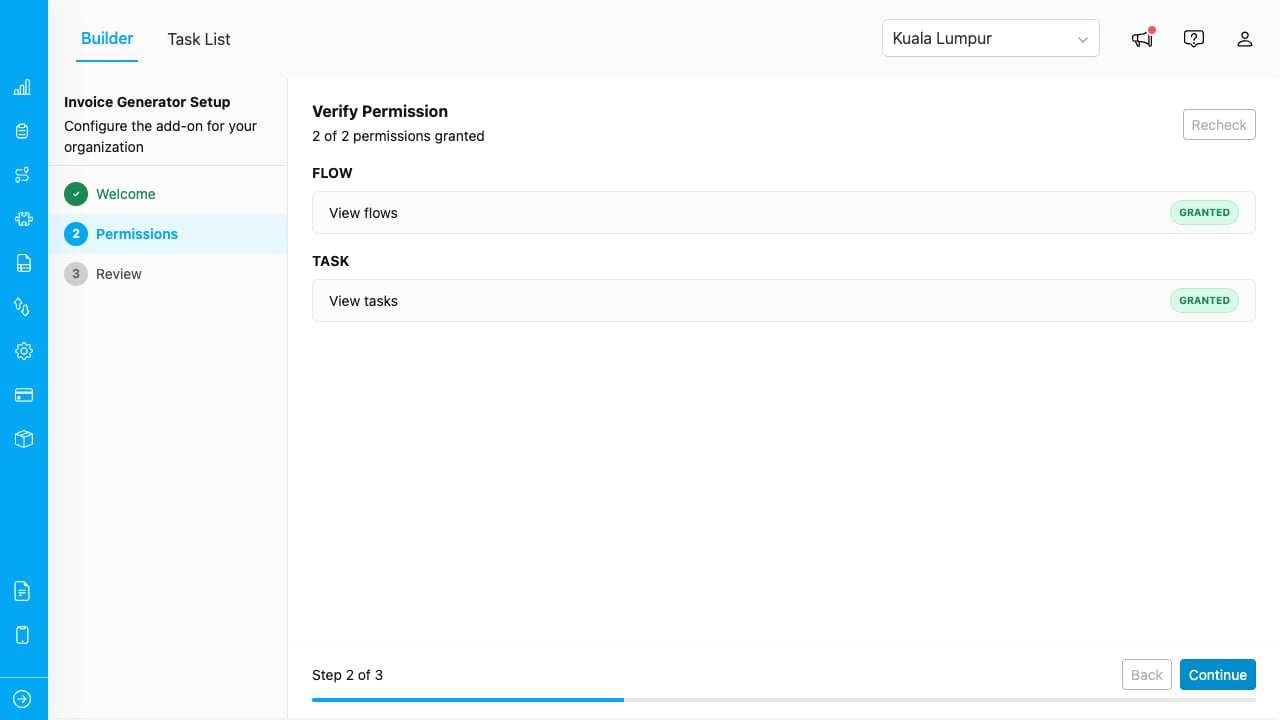
The Permissions step shows a checklist. All items must be granted before you can continue.
If any permission is missing, contact your administrator to update your role in the Permission page. Click Recheck after permissions are updated.
Click Continue to proceed.
Step 3: Review and Activate
The Review step shows a summary of all configurations. Verify everything looks correct.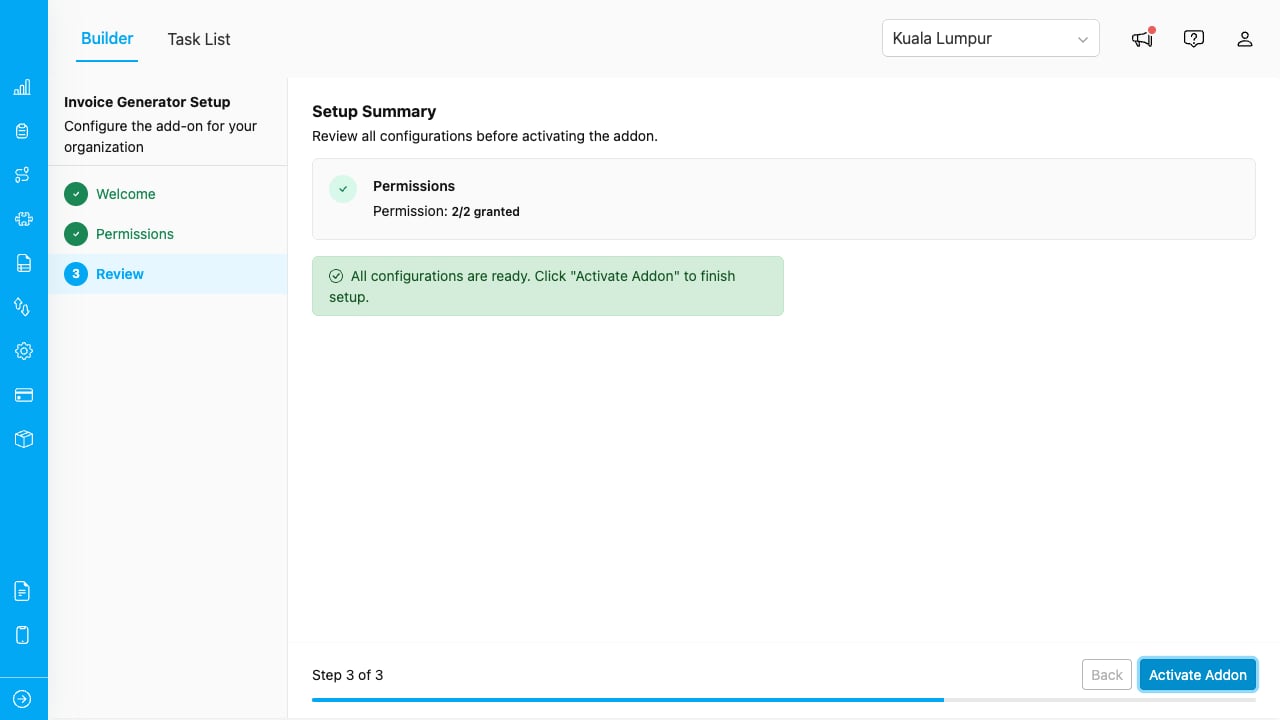
The Review step confirms all permissions are granted and the add-on is ready to activate.
Click Activate Addon to finish setup. The Builder page loads immediately.Page-Level Permissions
After setup, the wizard creates two custom permissions for your organization:
These permissions are automatically granted to the user who completes the wizard. To give other users access, go to Settings > Permission and enable these permissions under the add-on’s section.
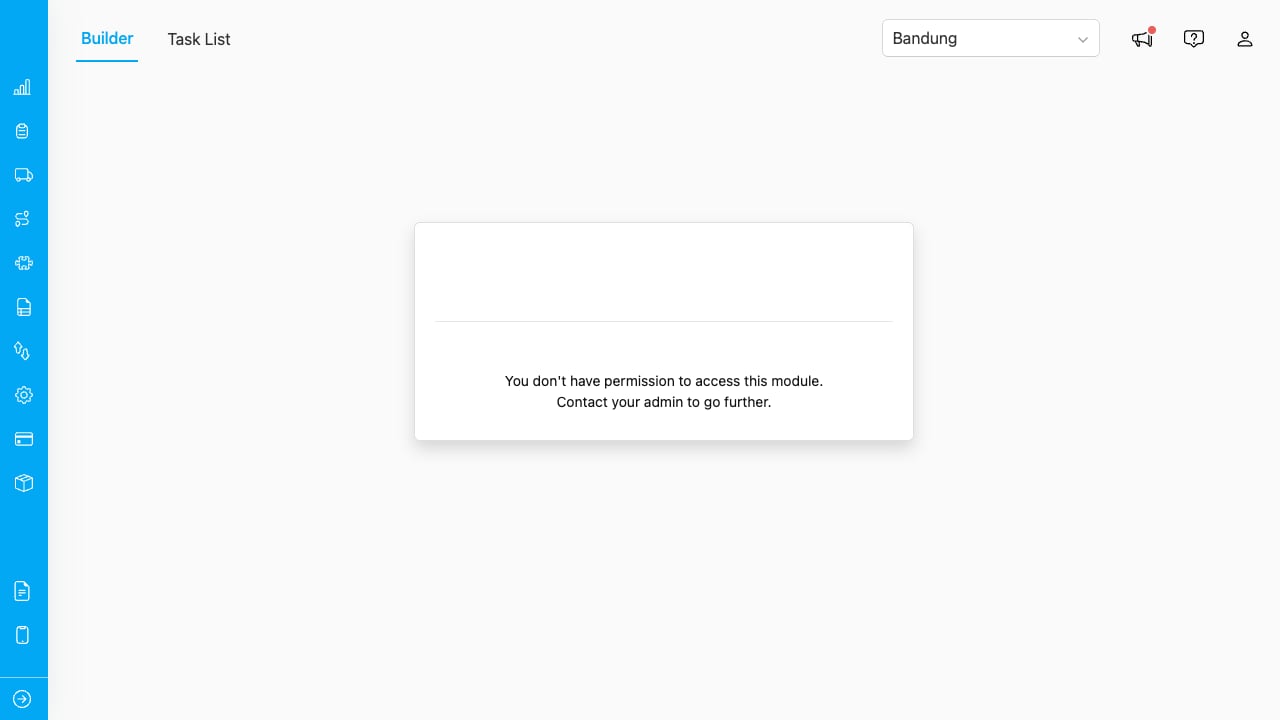
Users without the required permission see the standard MileApp access denied page.
Deleting Configuration
To reset the add-on and start over:- Click the gear icon (⚙) in the Builder toolbar.
- Select Delete Configuration.
- Confirm the action in the popup dialog.