

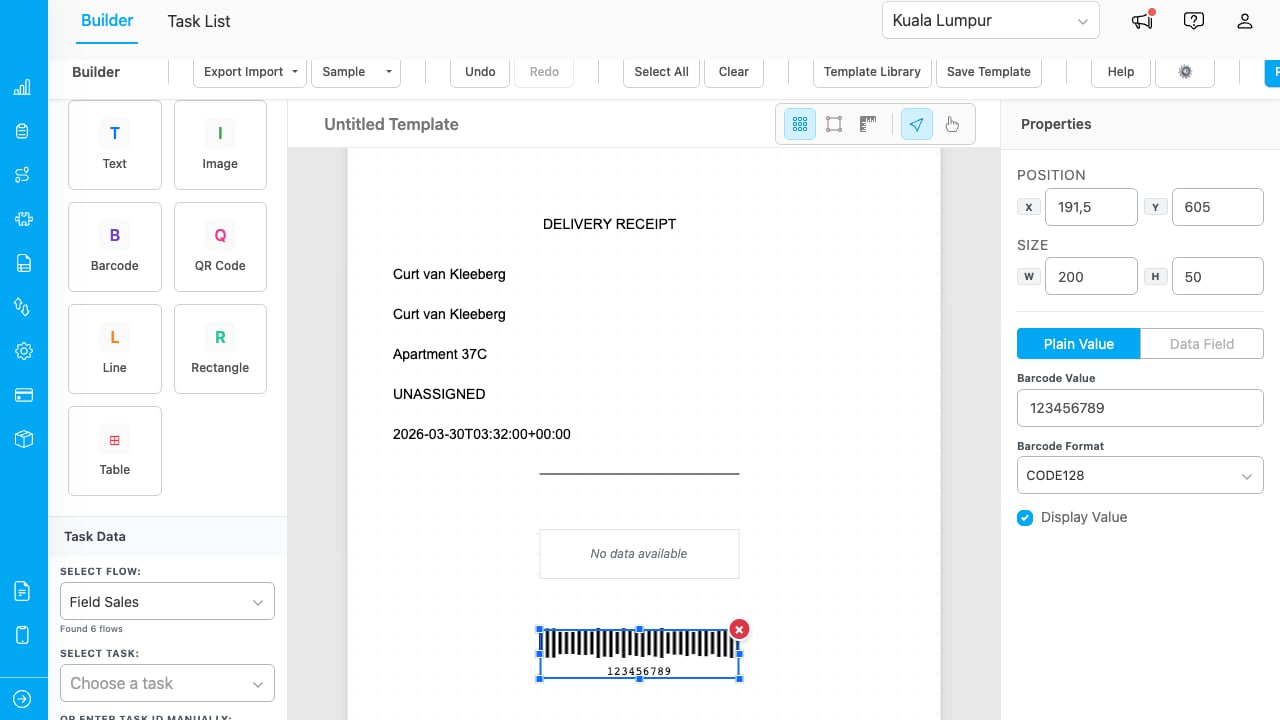
The Builder with a delivery receipt template. Left sidebar shows element types and task data. Right panel shows properties for the selected element.
Adding Elements
Drag any element type from the left sidebar onto the canvas:Selecting and Editing Elements
- Click an element to select it. Blue handles appear for resizing.
- Cmd+Click (Mac) or Ctrl+Click (Windows) to multi-select elements.
- Arrow keys move selected elements by 1px. Shift+Arrow moves by 10px.
- Tab cycles through elements. Shift+Tab goes in reverse.
- Delete removes the selected element(s).
Data Field Binding
To display real task data in your template:- Select a text element.
- In the Properties panel, click Data Field (instead of Plain Value).
- Choose a field from the dropdown (e.g., Customer Name, Status, Start Time).
- The element immediately resolves to the actual value from the loaded task.
You must select a flow and fetch a task in the Task Data section (bottom of the left sidebar) before data fields resolve. Without task data loaded, elements show placeholder text.
Grid and Snap
The canvas has a grid system to help align elements precisely:- Grid toggle (grid icon or Ctrl+G): Shows/hides the dot grid on the canvas.
- Snap to grid (bounding-box icon or Ctrl+;): Elements snap to grid intersections during drag.
- Measurements (rulers icon): Shows position and dimensions overlay near selected elements.
- Alignment guides: Orange lines appear when dragging an element near another element’s edge, helping you align them.
Keyboard Shortcuts
Press F1 or click Help to see all available shortcuts.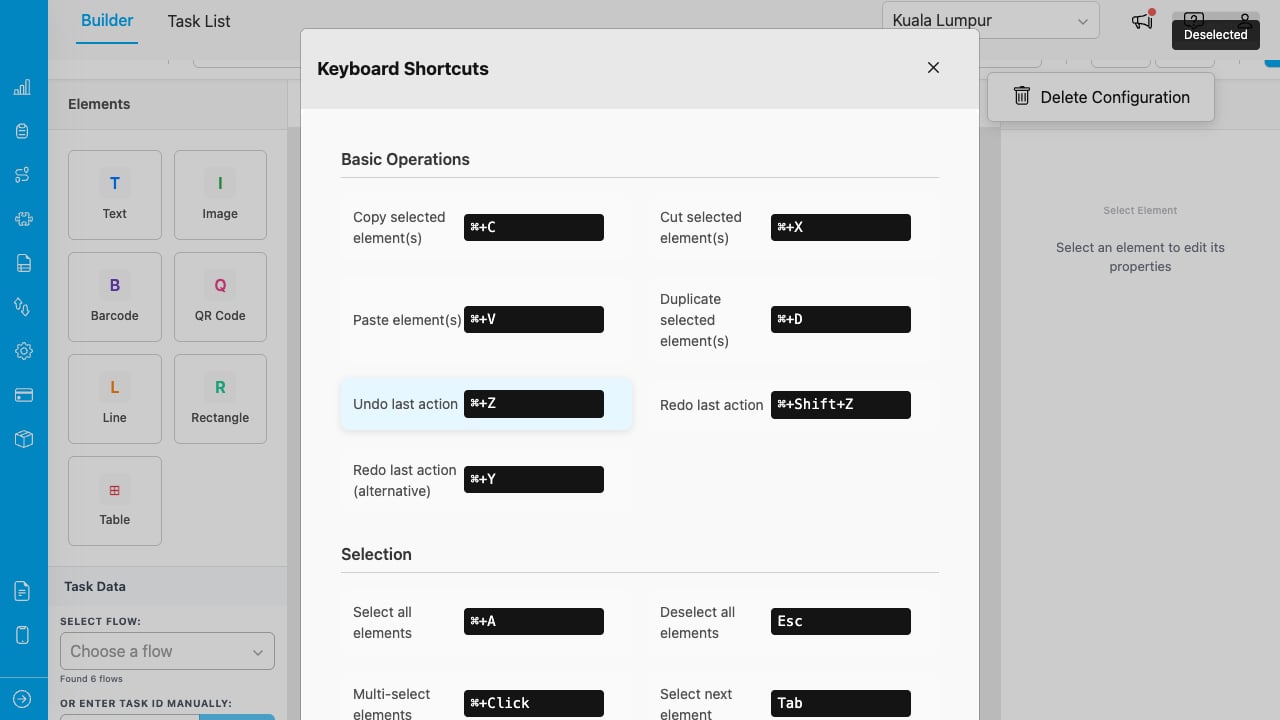
The Help modal lists all keyboard shortcuts organized by category.
Key shortcuts:Saving Templates
- Click Save Template in the toolbar.
- Enter a name and optional description.
- Click Save.
Template Library
Click Template Library in the toolbar to see all saved templates.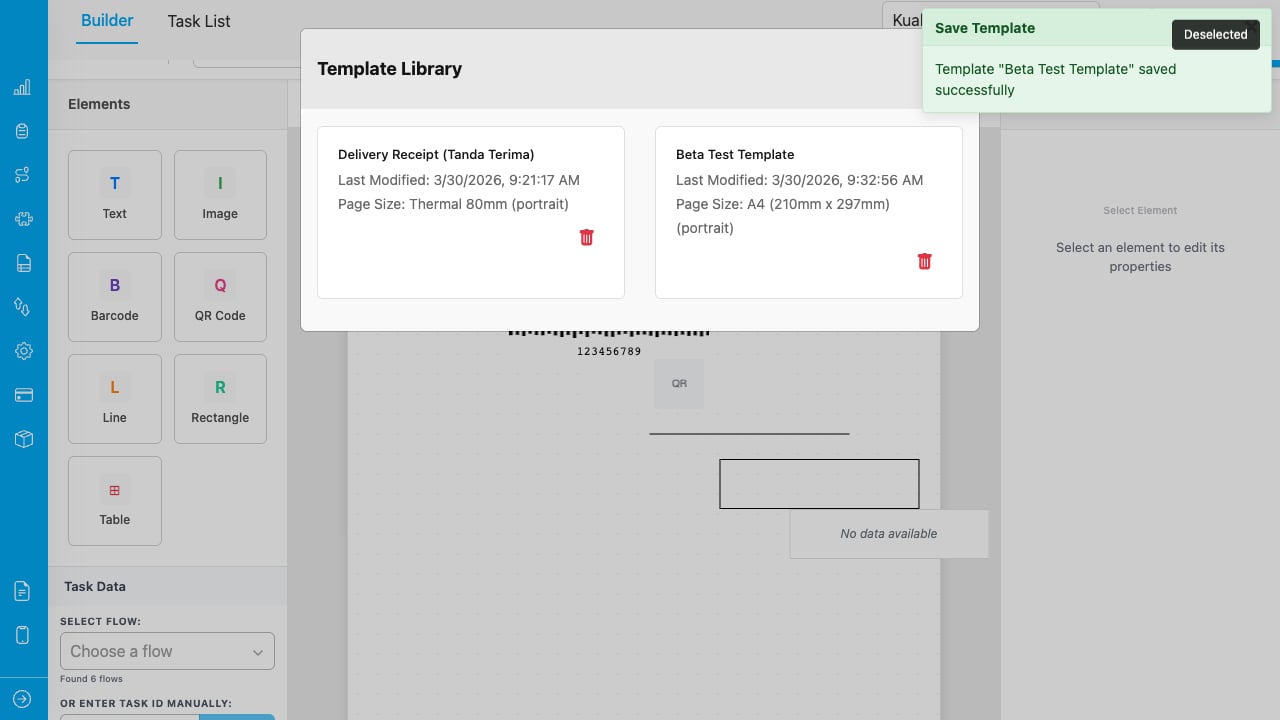
The Template Library shows cards with name, description, last modified date, and page size. Click a card to load the template.
- Click a card to load that template onto the canvas.
- Click the trash icon to delete a template (with confirmation).
- Templates show the last modified date and page size/orientation.
Import and Export
Use the Export Import dropdown in the toolbar:- Export as JSON: Downloads the current template as a JSON file for backup or sharing.
- Import from JSON: Loads a template from a previously exported JSON file.
Sample Templates
Click Sample in the toolbar to load a pre-built template:- Sample Template Invoice: A standard invoice layout.
- Sample Template Delivery: A delivery receipt with customer details and bill items.
- Sample Template Thermal: A narrow thermal receipt (80mm width).
Print Settings
Click Print Settings in the toolbar to configure:- Page Size: A4, Letter, or custom dimensions (in mm).
- Orientation: Portrait or Landscape.
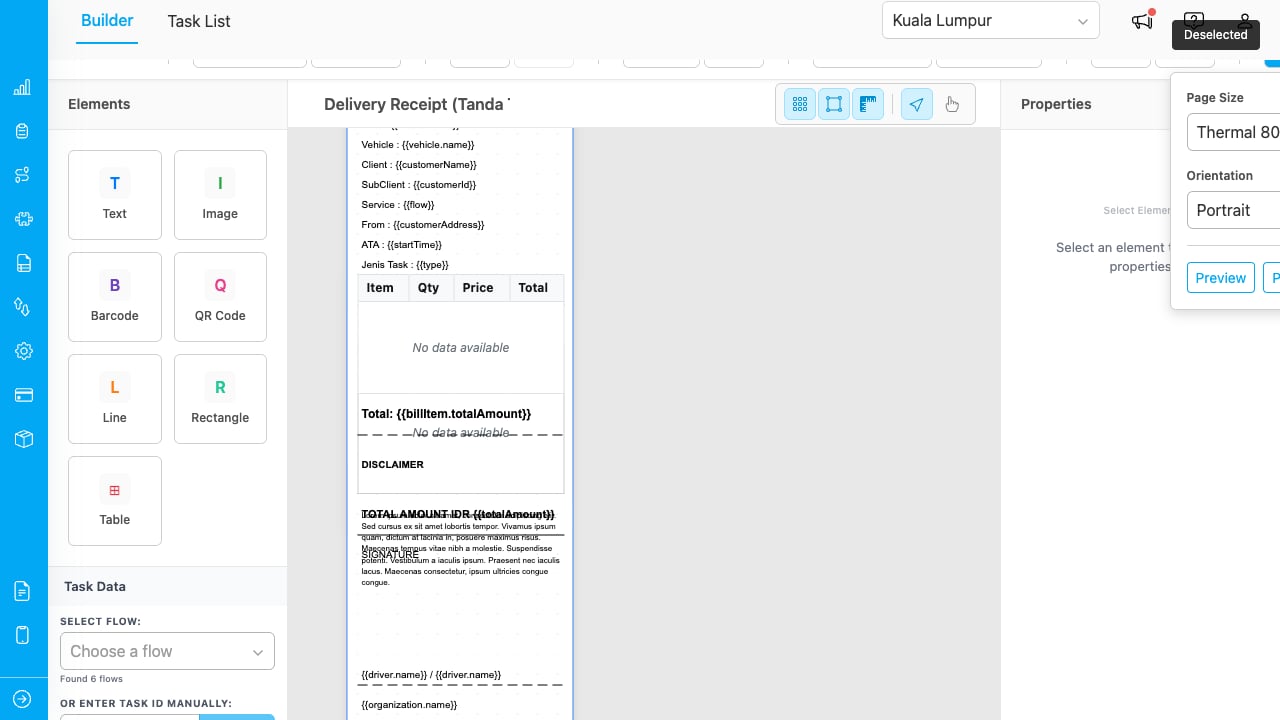
The Print Settings dropdown with page size selector, orientation toggle, and quick action buttons.