

Required permission:
- View automation
- Edit automation
The Automation Table
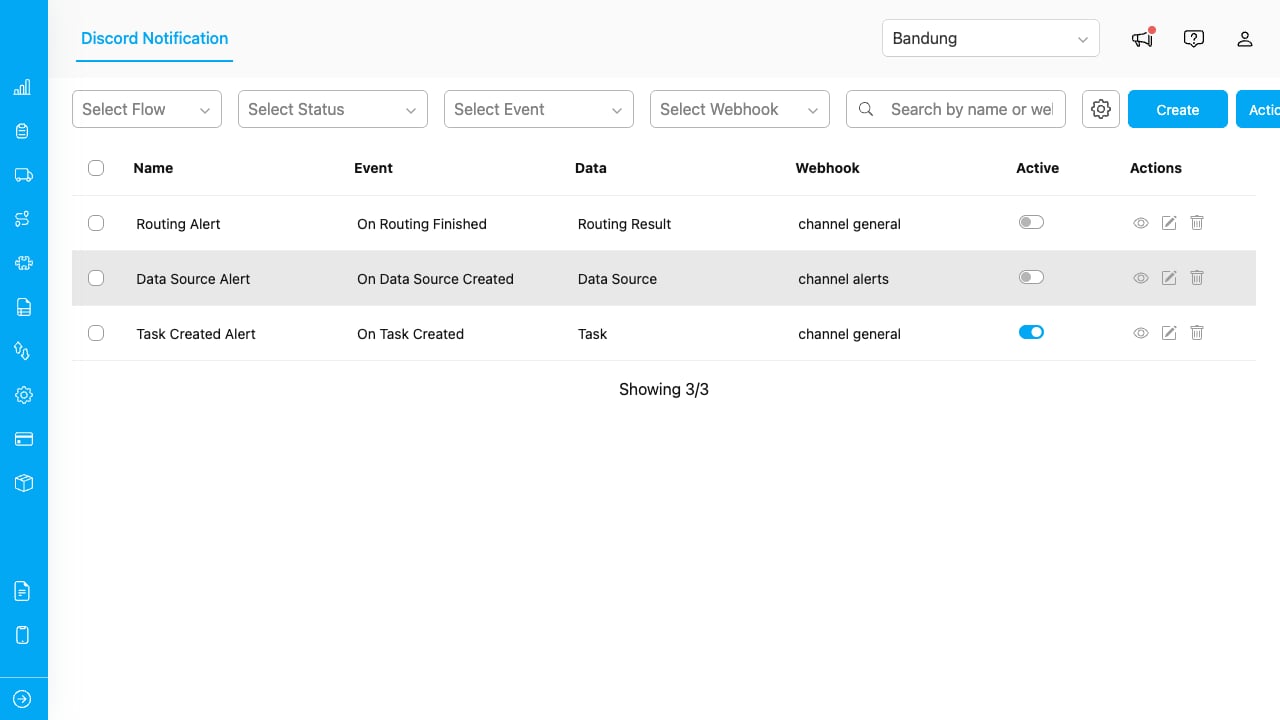
The automation table showing name, event, data type, webhook, status, and action buttons.
Each row displays:
The table loads 25 automations at a time. Click Load More to see additional entries.
Searching and Filtering
Use the controls above the table to narrow down automations.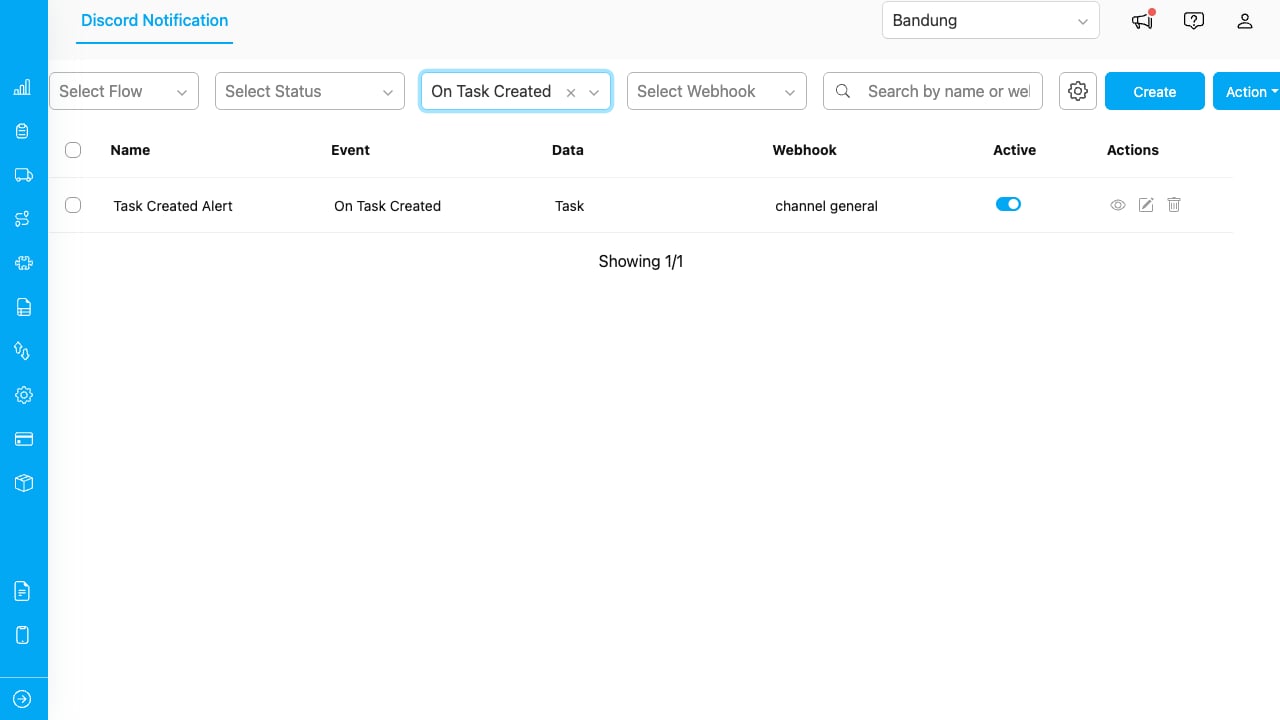
The filter bar with search, flow, status, event, and webhook filters.
Filters combine. For example, selecting Flow “Daily Visit” and Status “Active” shows only active automations for that flow.
Viewing an Automation
Click the eye icon on a row to open the details view.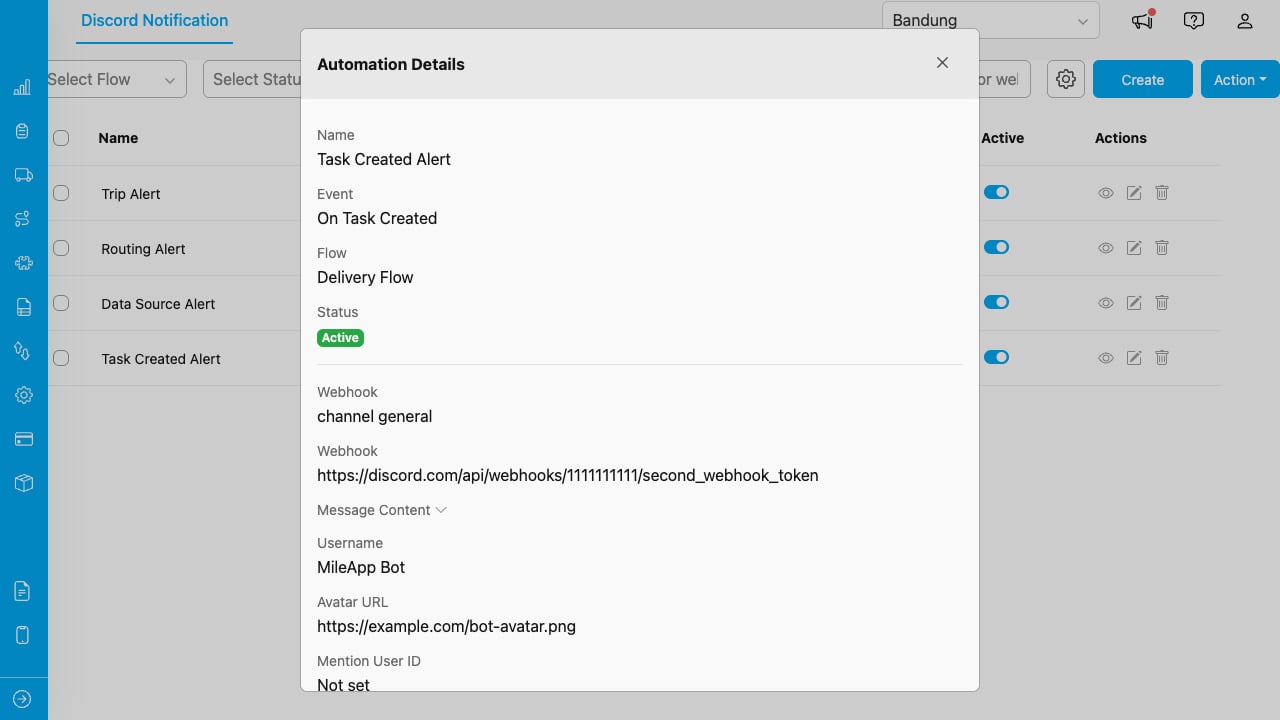
The read-only details view showing configuration, message content, and bot settings.
The details view shows:- Name, event, flow or data type, and status
- Webhook name and URL
- Message content with markdown preview (collapsible)
- Custom username and avatar URL (if set)
Editing an Automation
Click the pencil icon on a row to open the edit form. The form is the same as the Create Automation modal. The Event field is locked because changing the event would invalidate the existing message variables. Make your changes and click Save. If you close the modal without saving, a confirmation dialog asks whether to discard changes.Activating and Deactivating
Use the Status toggle switch in the table row to turn an automation on or off.- Active: The automation listens for the configured event and sends messages to Discord.
- Inactive: The automation is paused. No messages are sent, but the configuration is preserved.
Webhook Reassignment
If the webhook assigned to an automation has been removed from the settings, the automation is automatically deactivated. When you try to reactivate it, a dialog appears asking you to select a new webhook.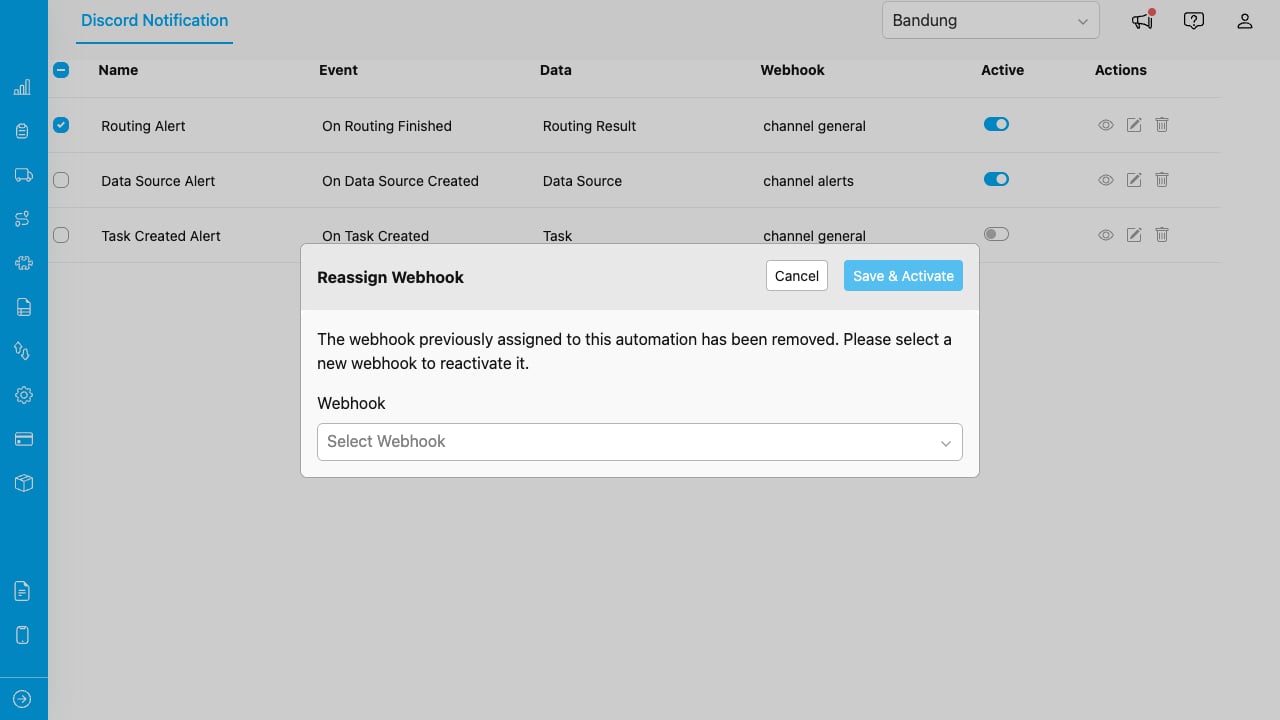
Select a new webhook when the original one has been removed.
Choose a webhook from the dropdown and click Save & Activate.Deleting Automations
Single Delete
Click the trash icon on a row. A confirmation dialog shows the automation name, event, and flow or data type for verification.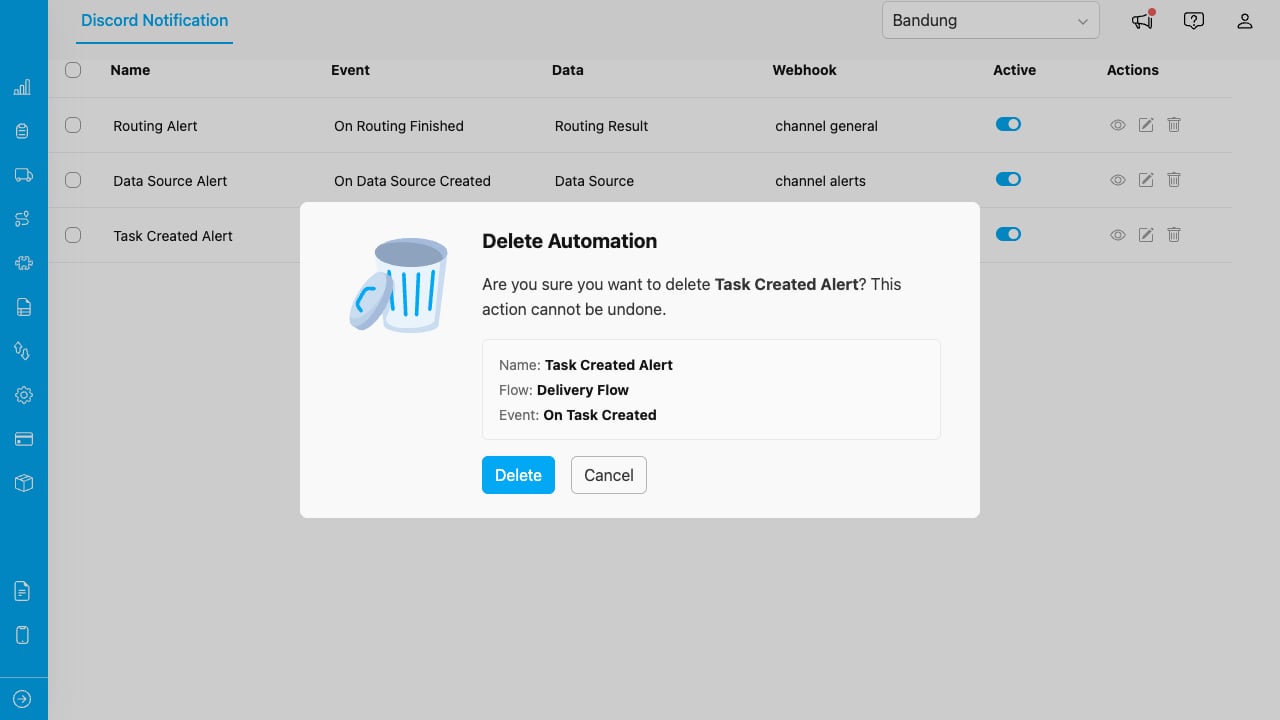
Confirm before deleting. The dialog shows the automation details so you can verify.
Click Delete to confirm, or Cancel to go back.Bulk Delete
- Select multiple automations using the checkboxes in the table.
- Click the Action dropdown in the filter bar.
- Select Delete Selected.
- Confirm the bulk deletion in the dialog.
Required permission:
- Delete automation