

Required permission:
- Create automation
- View flows
Creating an Automation
- Click the Create button in the top-right of the Manager page.
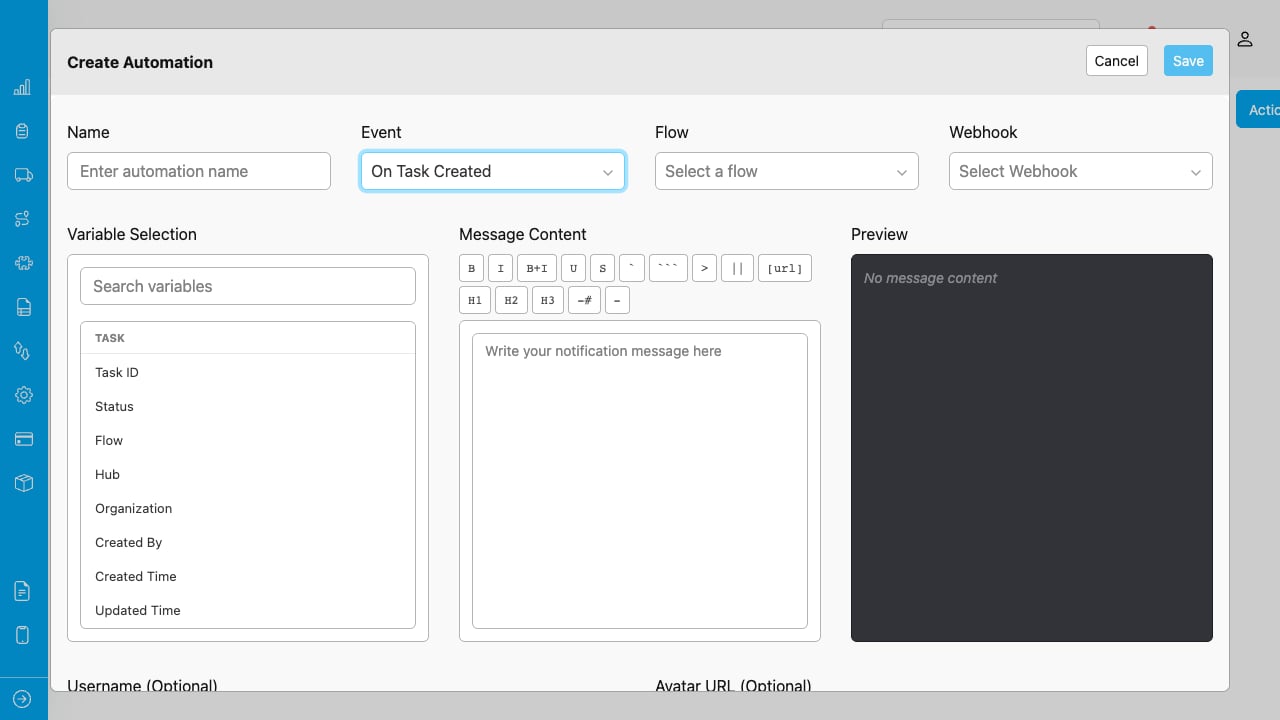
The Create Automation modal with all required fields and the message builder.
- Fill in the fields:
- Click Save. The automation is created and immediately active.
Choosing an Event
The Event dropdown determines what triggers the automation and what variables are available in the message.Task Events
These events require you to select a Flow. Only tasks from the selected flow trigger the automation.Data Source Events
This event requires you to select a Data Type.Routing and Trip Events
These events do not require additional configuration.Using the Message Builder
The Message Builder is a three-column editor for composing your Discord message.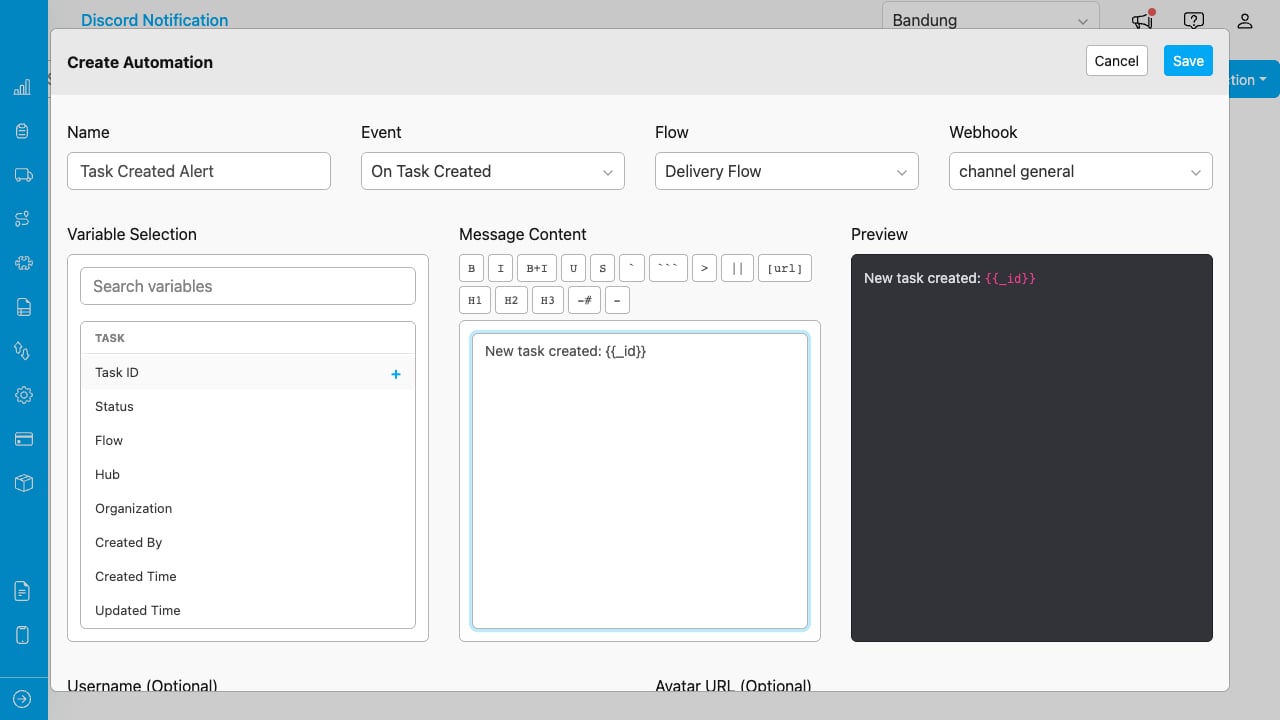
Left: available variables. Center: message editor with formatting toolbar. Right: live preview.
Inserting Variables
The left column shows all available variables based on the event type and selected flow or data type.- Task variables (task events): Task ID, Status, Flow, Hub, Organization, Created By, Assignee, Timestamps, and more.
- Flow fields (task events): Dynamic fields from the selected flow (text, number, date, select, etc.).
- Data source variables (data source events): Data ID, Data Type ID, Created By, Organization ID, and more.
- Data type fields (data source events): Dynamic fields from the selected data type.
- Mentions: All configured mentions plus @here and @everyone.
{{variable_name}} in the editor and are replaced with actual values when the message is sent.
Use the search box to find variables quickly.
Formatting Messages
The formatting toolbar above the editor provides buttons for all Discord markdown styles:
Select text in the editor, then click a formatting button to wrap it. Or click the button first and type inside the inserted markers.