

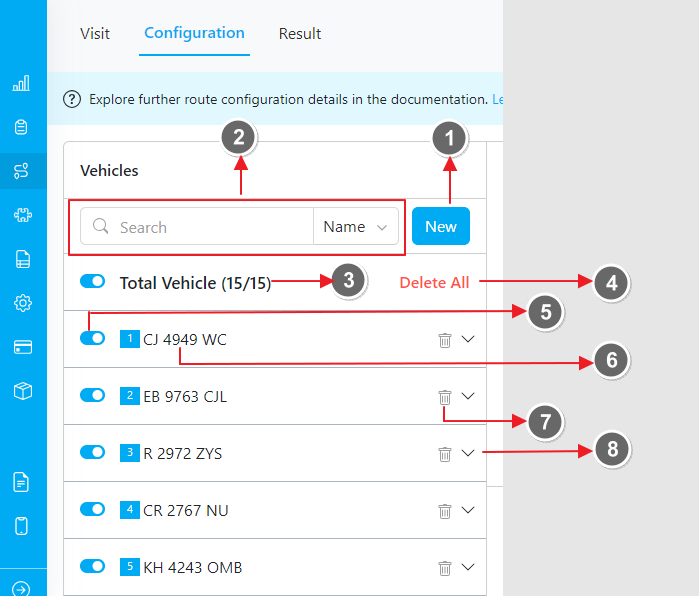
- New Vehicle Button: Click this button to add a new vehicle. A dialog box will appear, prompting you to enter the necessary details for the vehicle. Refer to this section for more detail about create new vehicle.
- Filter Vehicle: Use this feature to filter vehicle data by name or tag. Simply type the relevant text into the search bar.
- Total Vehicle: This displays the number of selected vehicles out of the total available vehicles.
- Delete All: Click this to delete all vehicle data at once. Please exercise caution when using this option.
- Select Vehicle: Choose which vehicles will be included in the routing optimization.
- Vehicle Name: Displays the name of each vehicle.
- Delete: Remove a specific vehicle from the list.
- Expand Vehicle Data: Click to view detailed vehicle data. Here, you can update the vehicle’s information as needed.