- Use our template — Download a ready-made spreadsheet for your flow, fill in your data, and upload it back.
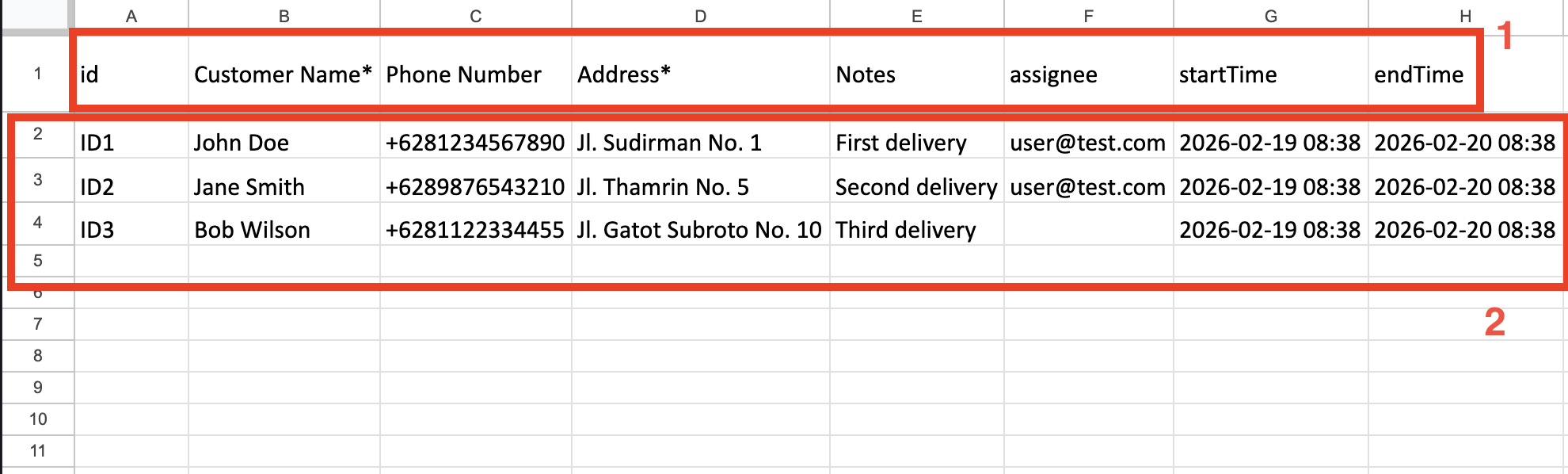
- Use your own spreadsheet — Upload your existing Excel file and map each column to the corresponding task field using the column mapping tool.
- Enter manually — Skip the file upload and enter task data manually.
Required permission:
- View Task
- Create Task
Getting Started
- Go to the Task page.
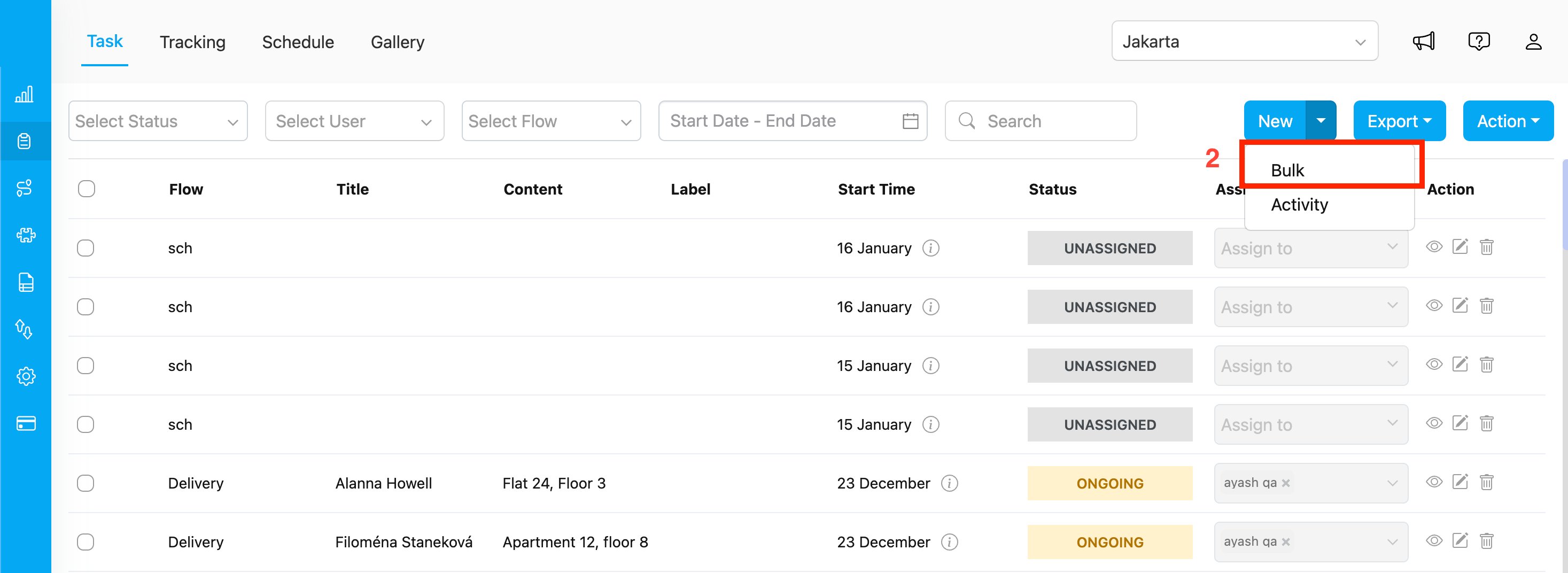
- Click the arrow button next to the New button, then click Bulk button.
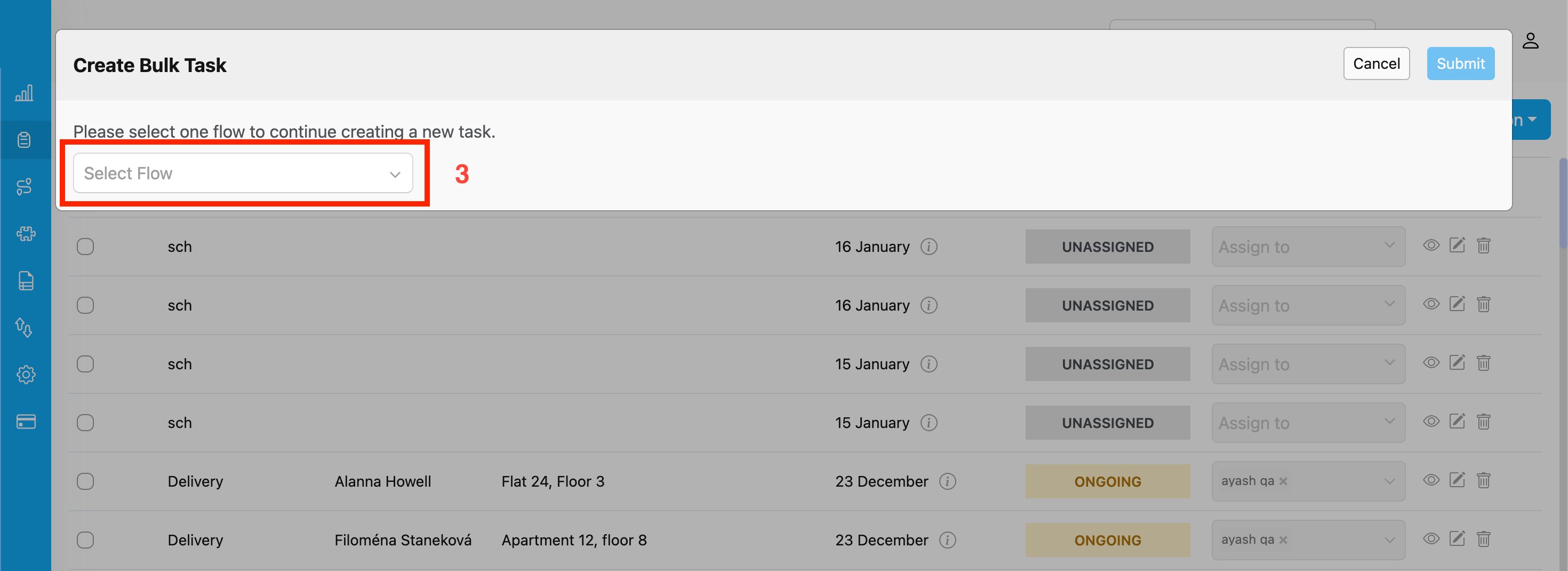
- Choose the Task Flow you want to use. This determines which fields are available for your tasks.
Step 1: Upload Your File
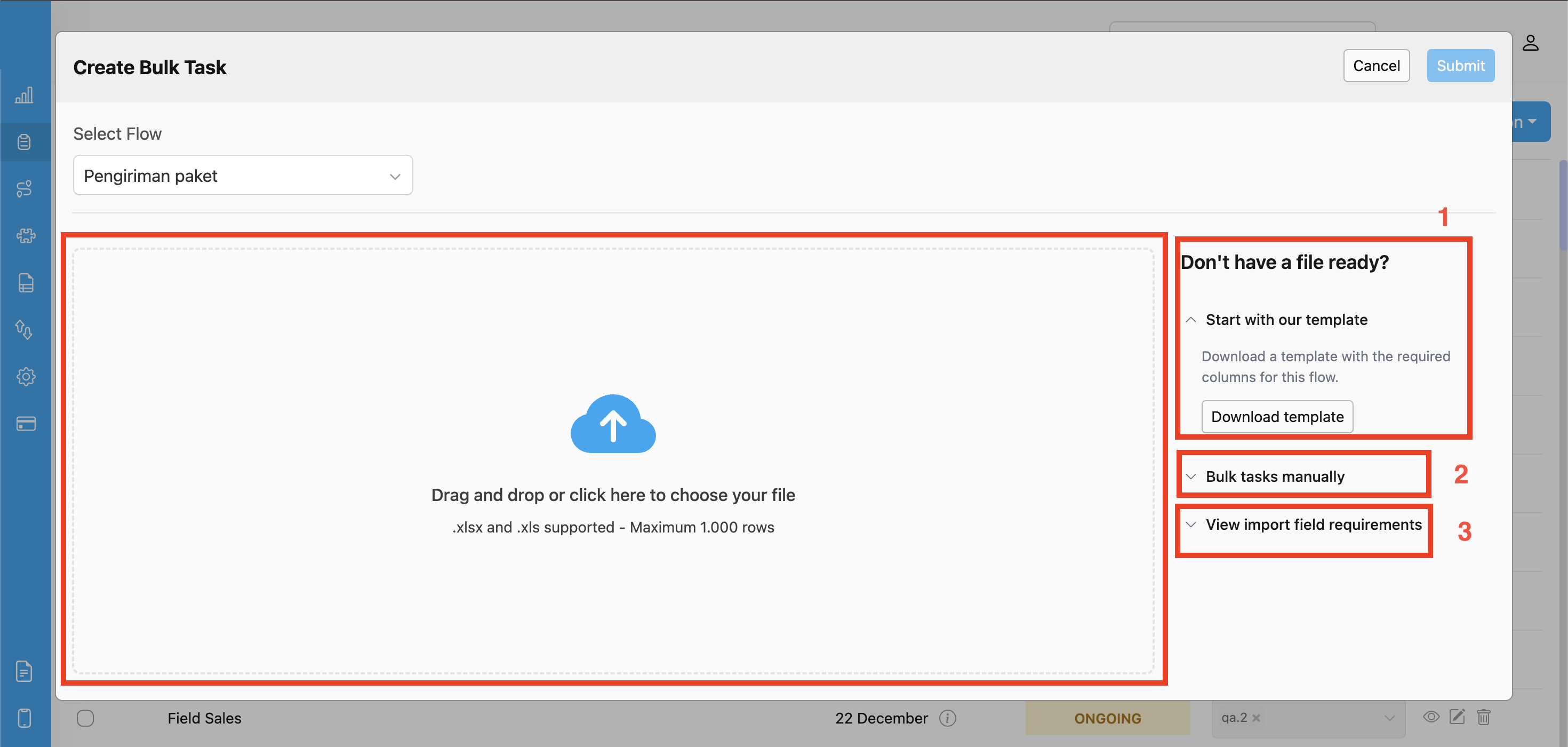
Once you have selected a flow, you will see two sections: Upload area — Drag and drop your Excel file here, or click to browse your computer. We support.xlsx and .xls files with up to 1,000 rows.
Options panel — Three helpful shortcuts:
- Start with our template — Download a pre-made Excel template that already has the right columns for your flow. Just fill in your data and upload it.
- Bulk tasks manually — Skip the file upload and type in your tasks manually.
- View import field requirements — See which fields are required, what formats are accepted, and other helpful details.
Step 2: Map Your Columns
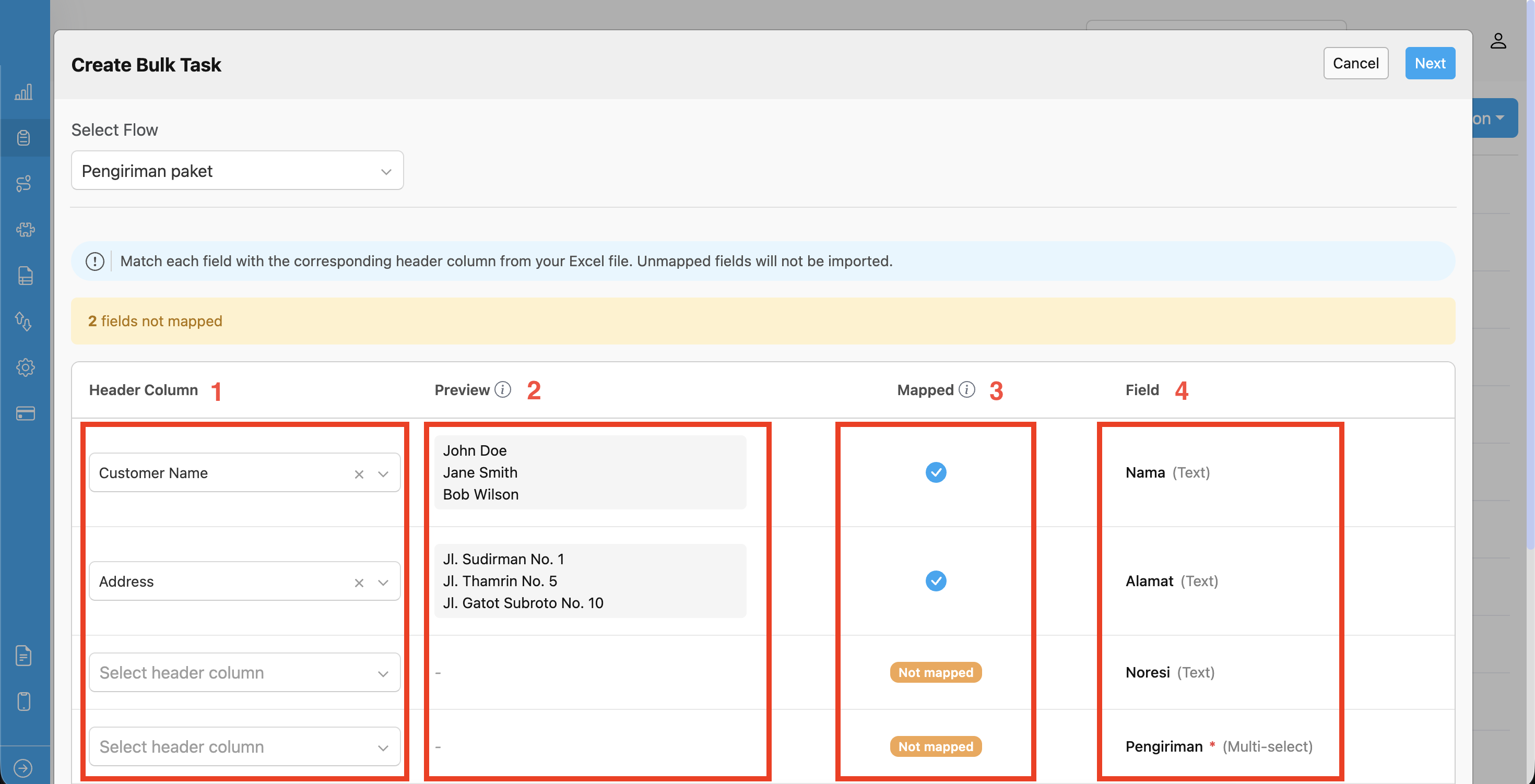
If you uploaded your own spreadsheet (not our template), this step helps you tell the system which Excel column goes with which field. The mapping table has four columns:- Header Column — A dropdown showing all the column headers from your Excel file. Select which Excel column maps to each field.
- Preview — Shows the first few rows from the selected Excel column, so you can verify the data looks right.
- Mapped — The status of the field mapping. A blue checkmark means the field is mapped successfully. If it says “Not mapped”, pick a column from the Header Column dropdown.
- Field — The field name and type from your task flow.
Mapping Bill, List, and Subpage Components
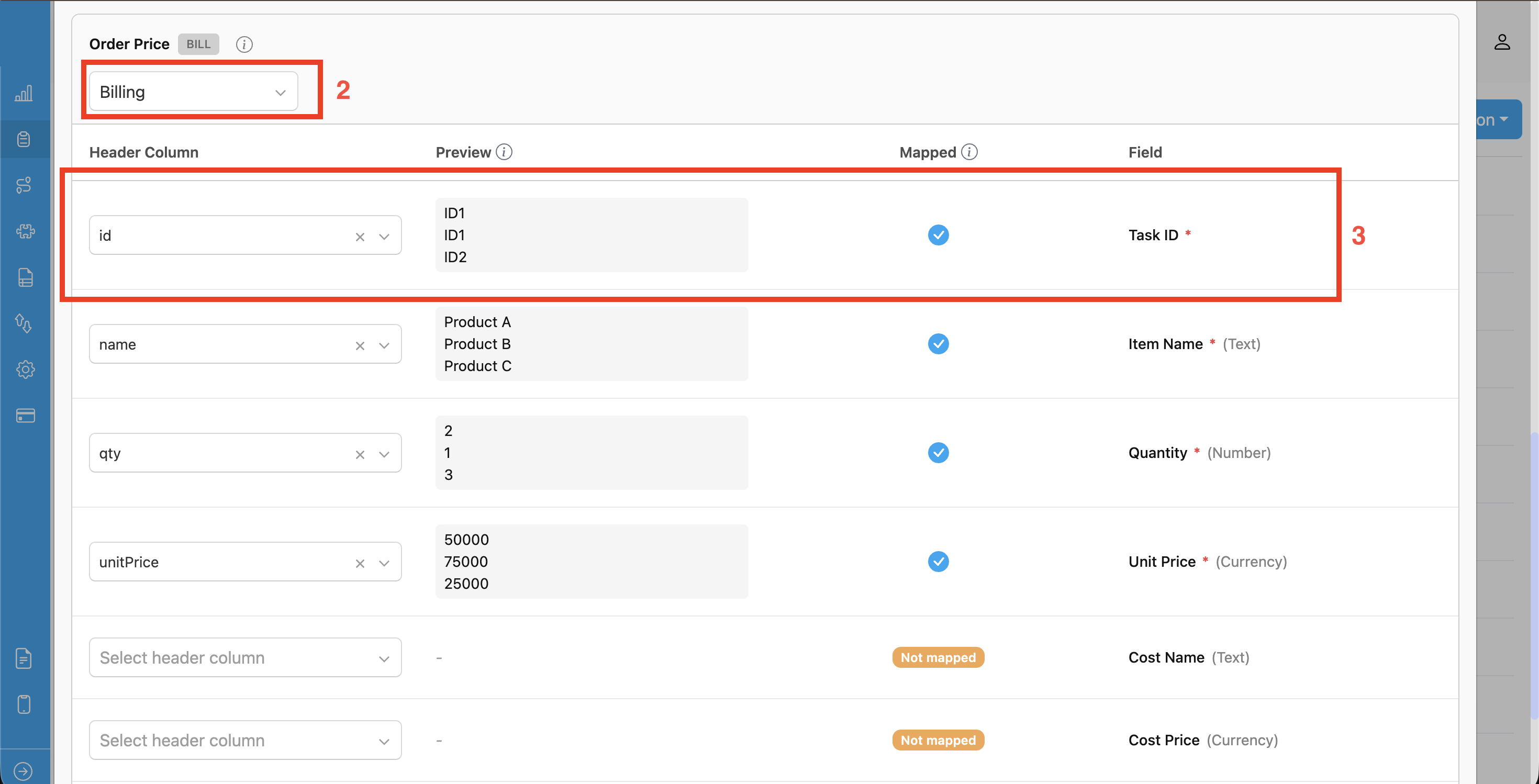
If your flow includes Bill, List, or Subpage components, these fields contain sub-fields that require a separate sheet in your Excel file to map correctly.- We will automatically try to match each sheet to the right component based on the sheet name. If we can not find a match, the first sheet will be used.
- Once a sheet is selected, map the sub-fields to the columns in that sheet.
- Use a Temporary Task ID column in the extra sheet to link each row back to the correct task.
Nested List inside a Subpage
When a Subpage contains a nested List component, the list items live in their own sheet (separate from the subpage sheet), and anentry column links each list row to the correct subpage entry.
- Sheet naming: each nested list gets a sheet named after the list’s title (sanitized to fit Excel’s 31-character limit and to remove forbidden characters
/ \ * ? [ ]). entrycolumn: 1-based integer.entry=1refers to the first subpage entry for that task (the first row with thatidin the subpage sheet),entry=2the second, and so on.- Type-specific columns:
Example — flow with
Inspection subpage containing a quantity list titled Parts:
Main sheet:
Inspection sheet (two rows = two subpage entries for TASK1):
Parts sheet (entry column scopes rows to subpage entries):
List rows whose
entry value is out of range, non-numeric, or whose id does not match any task are silently dropped during import. Valid rows still import successfully.Nested Bill inside a Subpage
When a Subpage contains a nested Bill component, bill items and costs live in their own sheet (separate from the subpage sheet), and anentry column links each row to the correct subpage entry.
- Sheet naming: each nested bill gets a sheet named after the bill’s title (sanitized to fit Excel’s 31-character limit).
entrycolumn: 1-based integer, same convention as nested lists.- Items vs Costs: distinguished by the
reasoncolumn —-for items,CostorDiscountfor costs/surcharges. - Columns:
Example — flow with
Delivery subpage containing a bill titled Charges:
Main sheet:
Delivery sheet:
Charges sheet:
Bill rows follow the same
entry + id join convention as list rows. Invalid entry values are silently dropped.Check for Issues
After mapping, we automatically check your data for common problems. You will see a status indicator next to each field:- Blue checkmark — Everything looks good.
- Not mapped — The field is not linked to any Excel column. Pick a column from the Header Column dropdown.
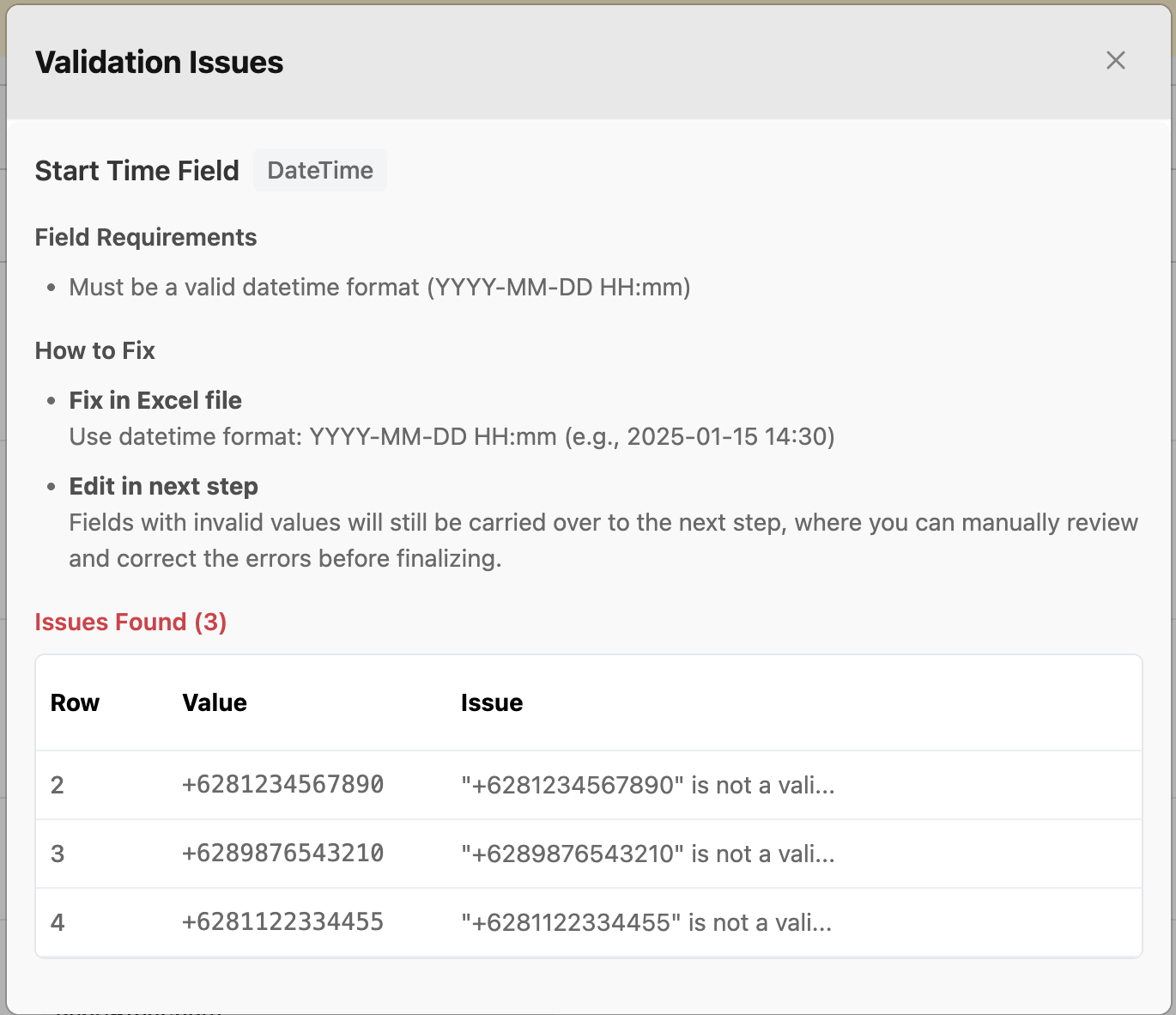
- Issue badge — Shows how many rows have problems and what kind (e.g., “3 issues found (required empty, invalid format)”).
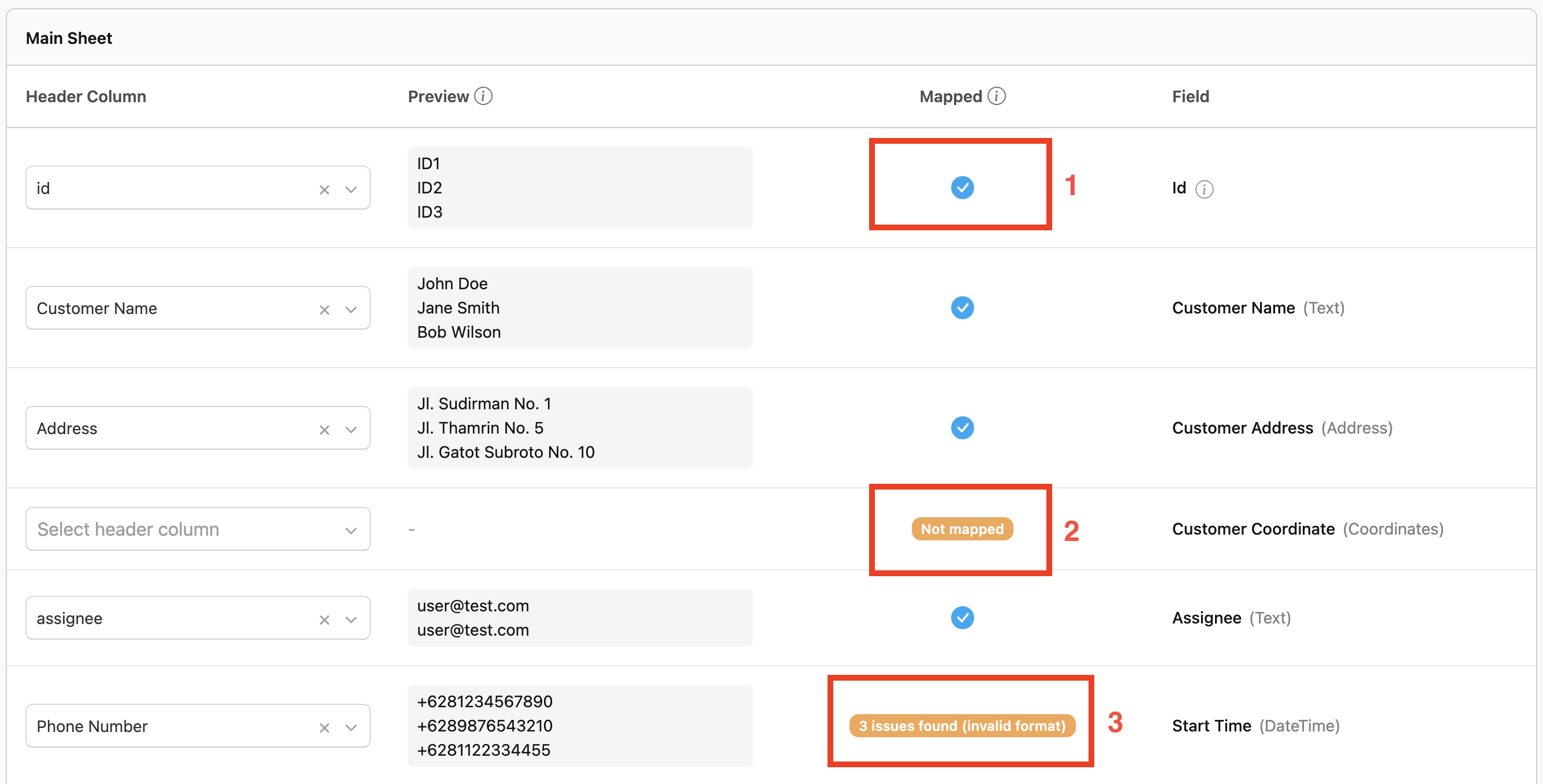
Click the badge to see which rows need fixing, the field requirements, and how to fix it.
Step 3: Review, Edit, and Submit
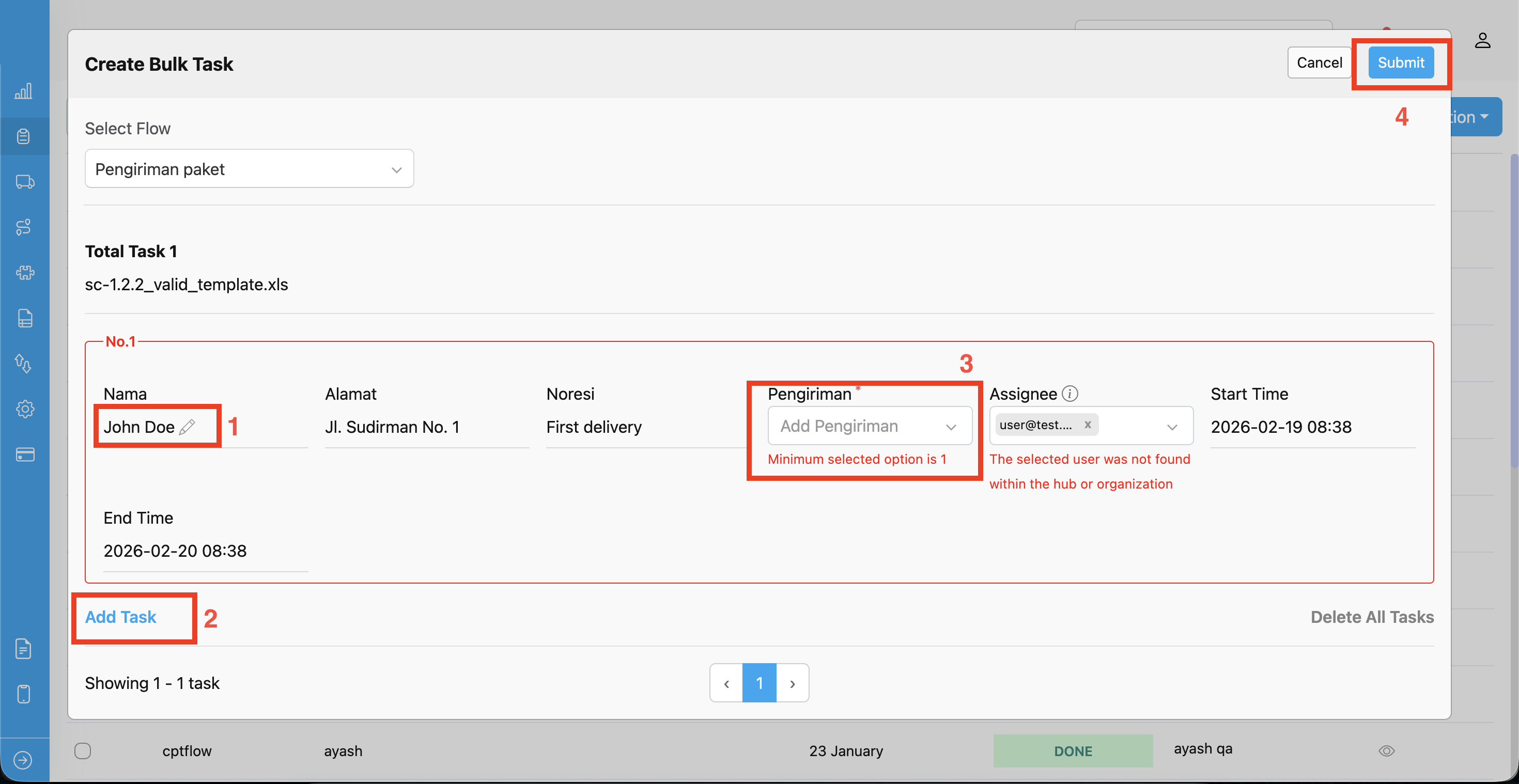
Your imported data now appears as a task form. Each row represents one task with all the fields filled in from your spreadsheet.- Click on any field to edit its value.
- You can add more tasks or delete ones you do not need.
- Fields with errors are highlighted. Review and fix any incorrect values before submitting.
- When everything looks good, click Submit to create all your tasks.