

How to Create a Geotag
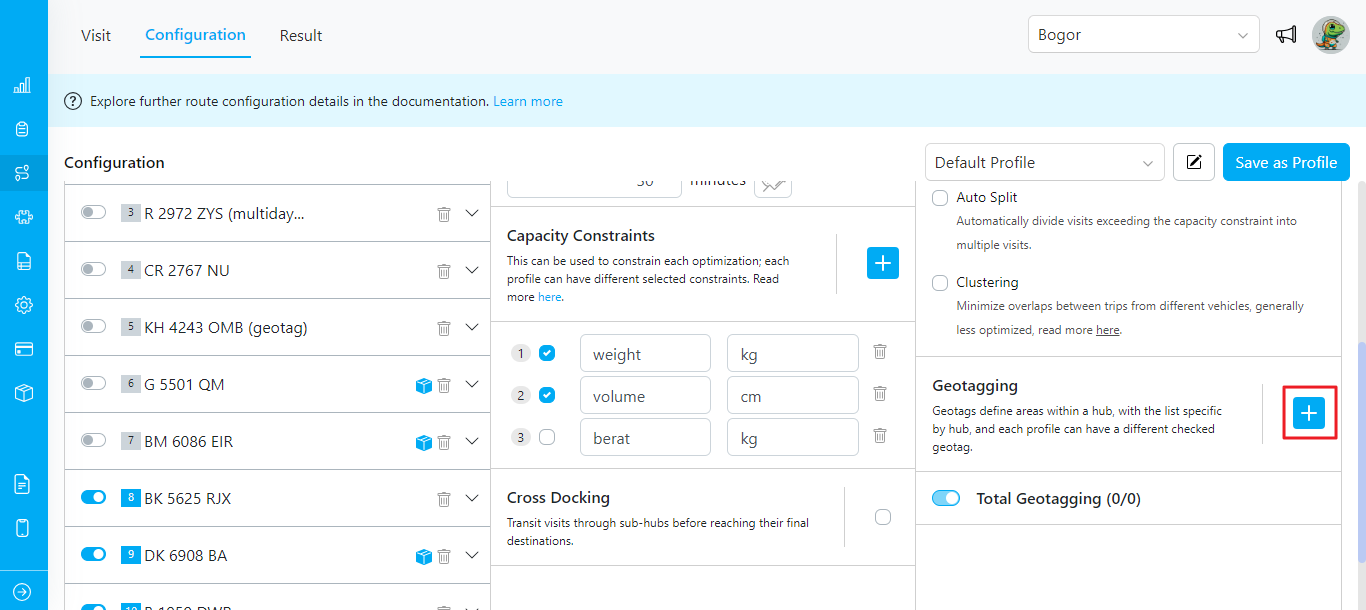
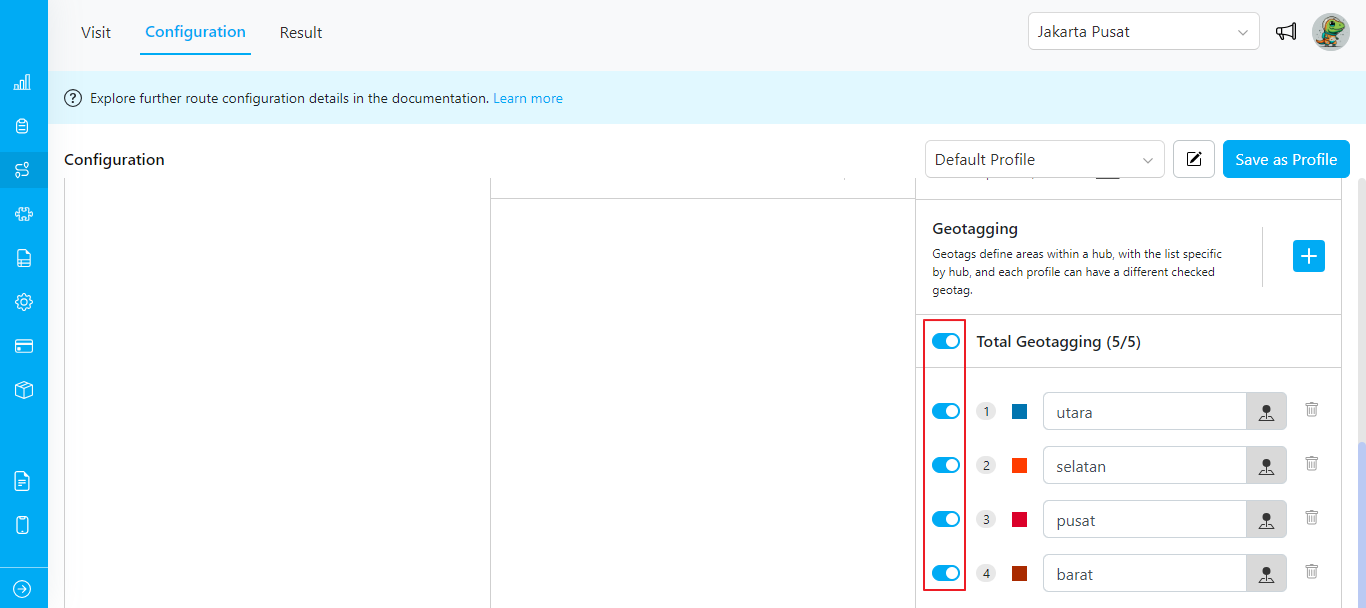
- Navigate to the Routing/Configuration menu and scroll down to the Geotagging section.
- Click on the + icon to start creating a new tag.
- Enter the tag name, for example, “Selatan”. This name usually corresponds to a specific area. Note: The geotag name must be unique and cannot be duplicated.
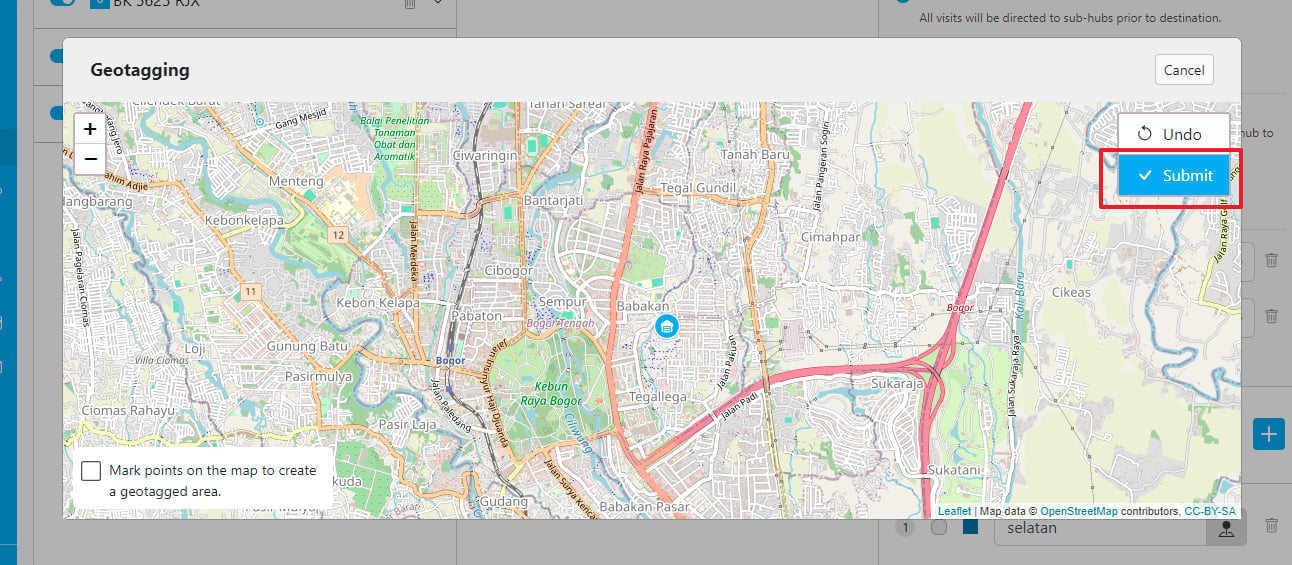
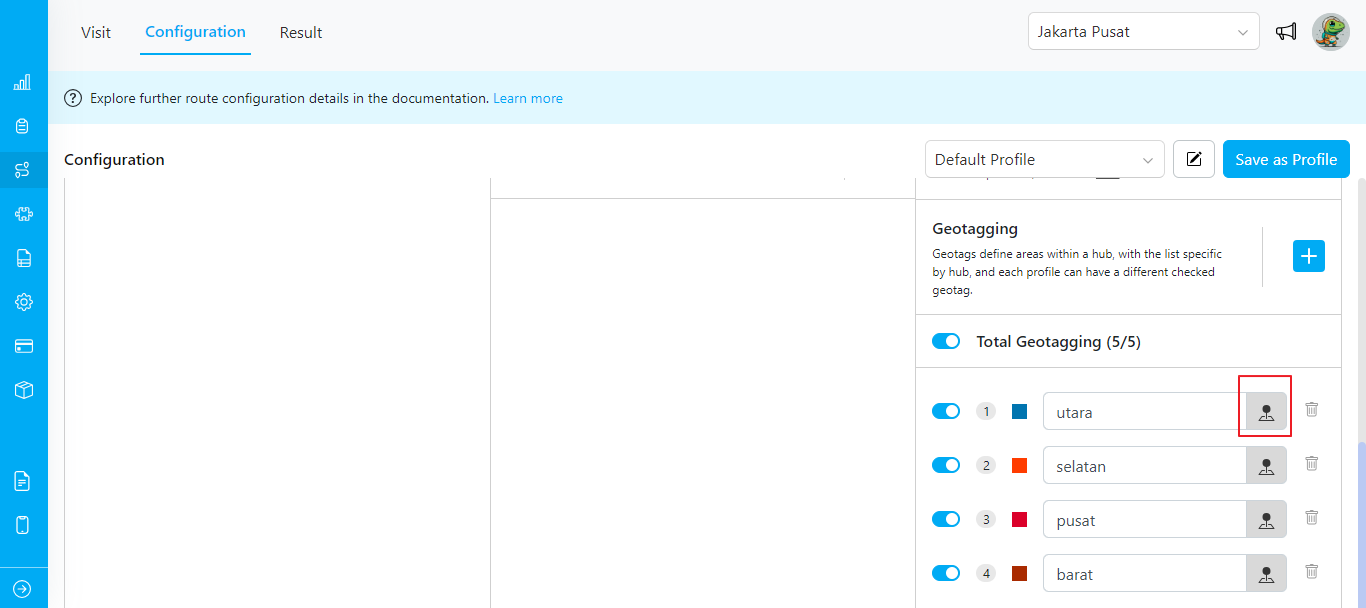
- Click on the map icon to start creating a polygon by dropping points on the map to outline the area.
- Click Submit when you have finished defining the area.
- The list of geotags is specific to each hub. Whenever you change the filter hub in the top right corner, the geotag list will update accordingly.
- If a visit already has a manually input tag, the geotag will be added to the existing visit tag.
- When polygons overlap, a visit within the overlapping area will be tagged with all relevant geotags.
Example
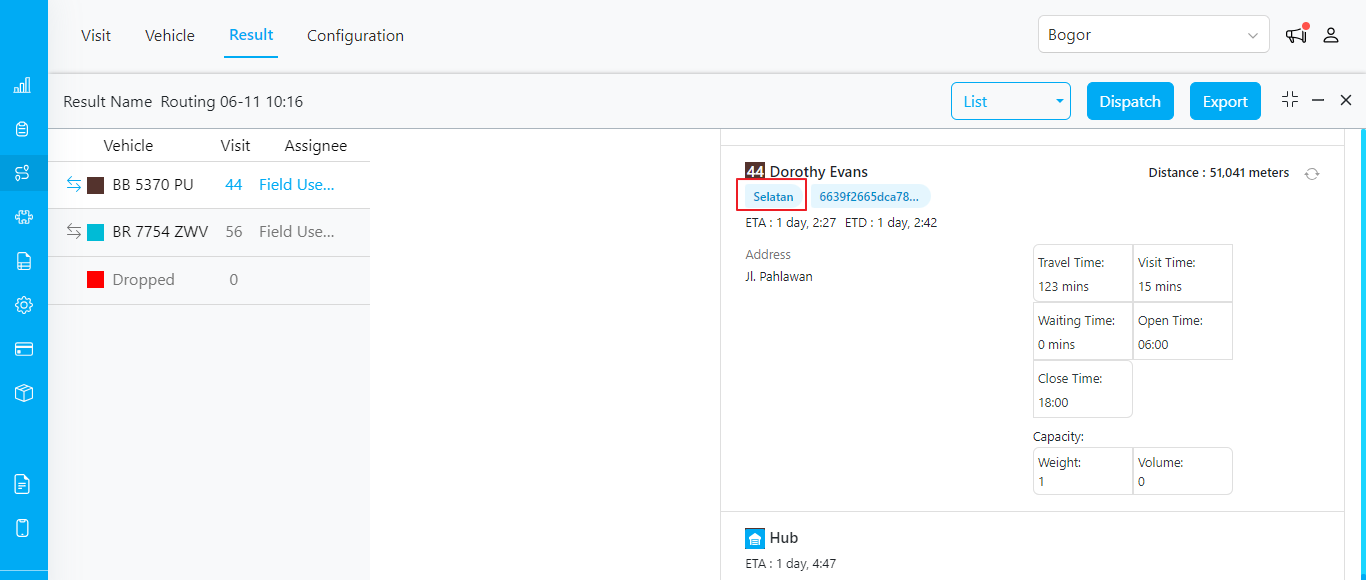
Once geotagging is set up, any visit within the defined area will automatically receive the corresponding tag. For instance, if you create a geotag named “Selatan” for the area below: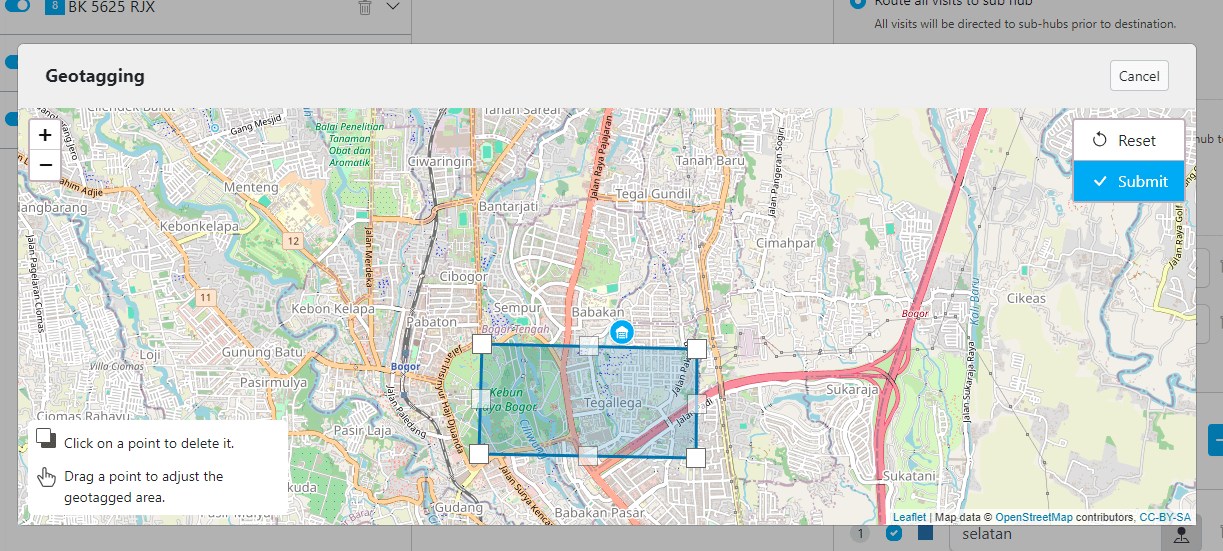
How to Edit Geotag
If you need to modify the area of a saved geotag, follow these steps:- Click on the map icon associated with the specific geotag you wish to edit.
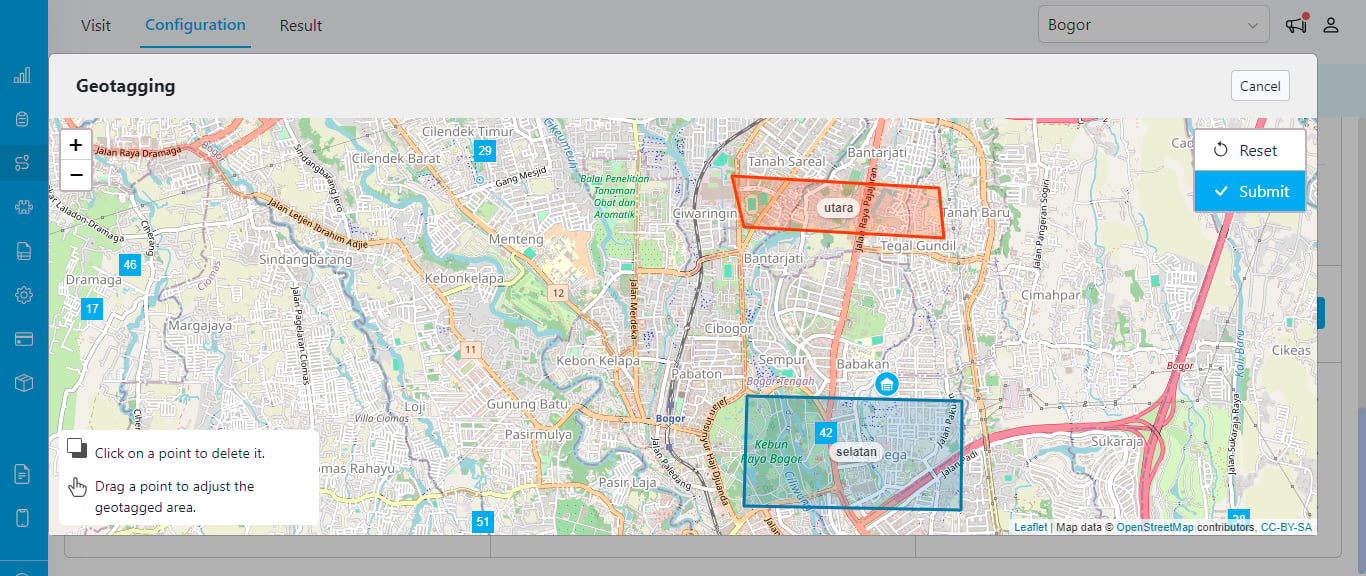
- A map will appear, displaying the current geotagged area. You can adjust this area in two ways:
- Delete a Point: Click on a point to remove it from the geotagged area.
- Adjust a Point: Drag a point to a new location to reshape the geotagged area.
Geotagging vs. Clustering
Geotagging and Clustering both deal with dividing work across geographic areas, but they solve different problems and are controlled differently. Geotagging is manual and planner-controlled. You draw the zone boundaries yourself as fixed polygons on the map. Every visit that falls inside a zone automatically receives that zone’s tag, and when you give the same tag to specific vehicles, only those vehicles are allowed to serve that area. The boundaries you draw stay the same on every optimization run, so the areas are stable and predictable — you decide exactly where each zone begins and ends, and which vehicles serve it. Clustering is automatic and engine-controlled. You do not draw any areas. Instead, the routing engine groups nearby visits into clusters and assigns each cluster to a vehicle, with the goal of minimizing overlap between different vehicles’ routes. The engine derives the territory boundaries from the actual distribution of visits, so they can change from one optimization to the next, and the engine — not you — decides which vehicle gets which area.The two features can be combined. Use Geotagging to enforce which vehicles are allowed in an area (via tags), and enable Clustering to keep the resulting routes compact and non-overlapping. See Clustering for the full configuration.