

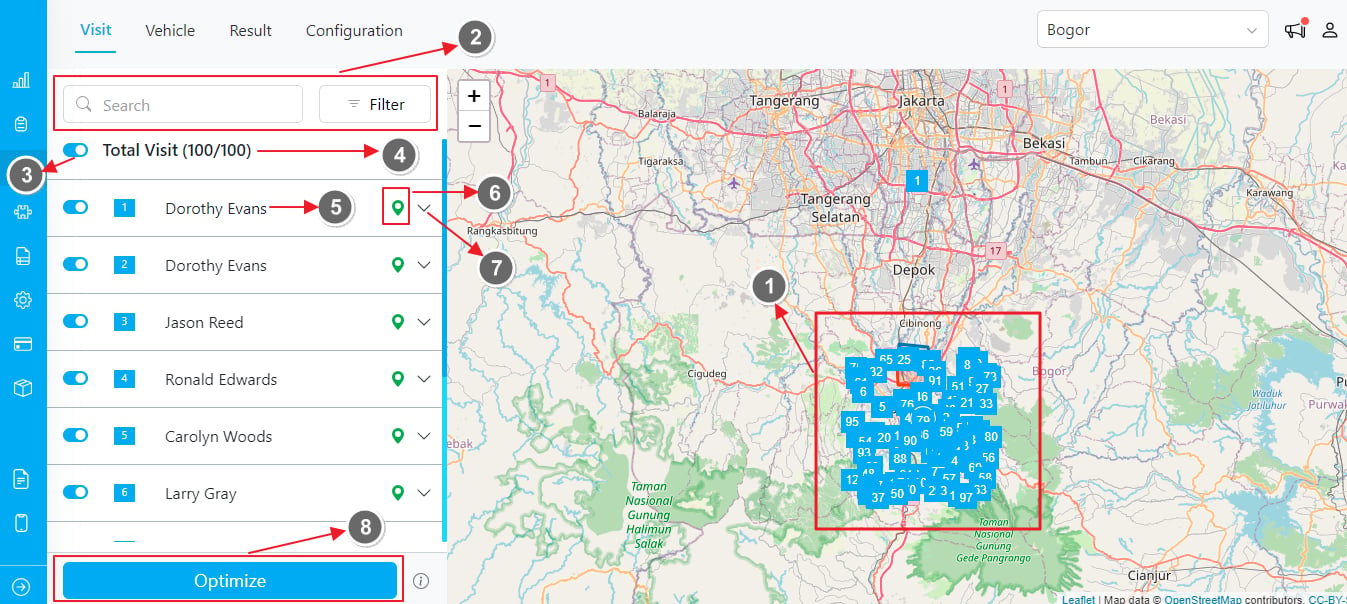
- Map View: This map displays all visit coordinates. The numbers indicate the visit order as shown on the left.
- Filter: You can filter visits by typing a name or address. You can also filter by task status or flow name.
- Select All: Use this toggle to select or unselect all visits. Unselected visits will not be included in the routing optimization process.
- Total Visit: This shows the number of selected visits out of the total visits.
- Visit Name: Displays the name of each visit.
- Coordinate Validation Indicator: Ensure the pin icon is green. If it is not, it means our system failed to geocode the coordinates or they are in an incorrect format. To fix this:
- Input the coordinates manually using this format: latitude,longitude.
- Adjust the address to a more readable format to help our system geocode it successfully.
- Expand Visit: Click the dropdown arrow to view and edit each visit’s parameters. See this section for more detail.
- Optimize Button: Click this button when you are ready for routing optimization. If you do not have any vehicles, the Optimize button will not be shown. In that case, go to the “Vehicle” submenu to set up your vehicles.