

Required permission:
- View brief
- Create brief
- Edit brief
- Delete brief
Add a brief
Click Add Brief on the Brief list.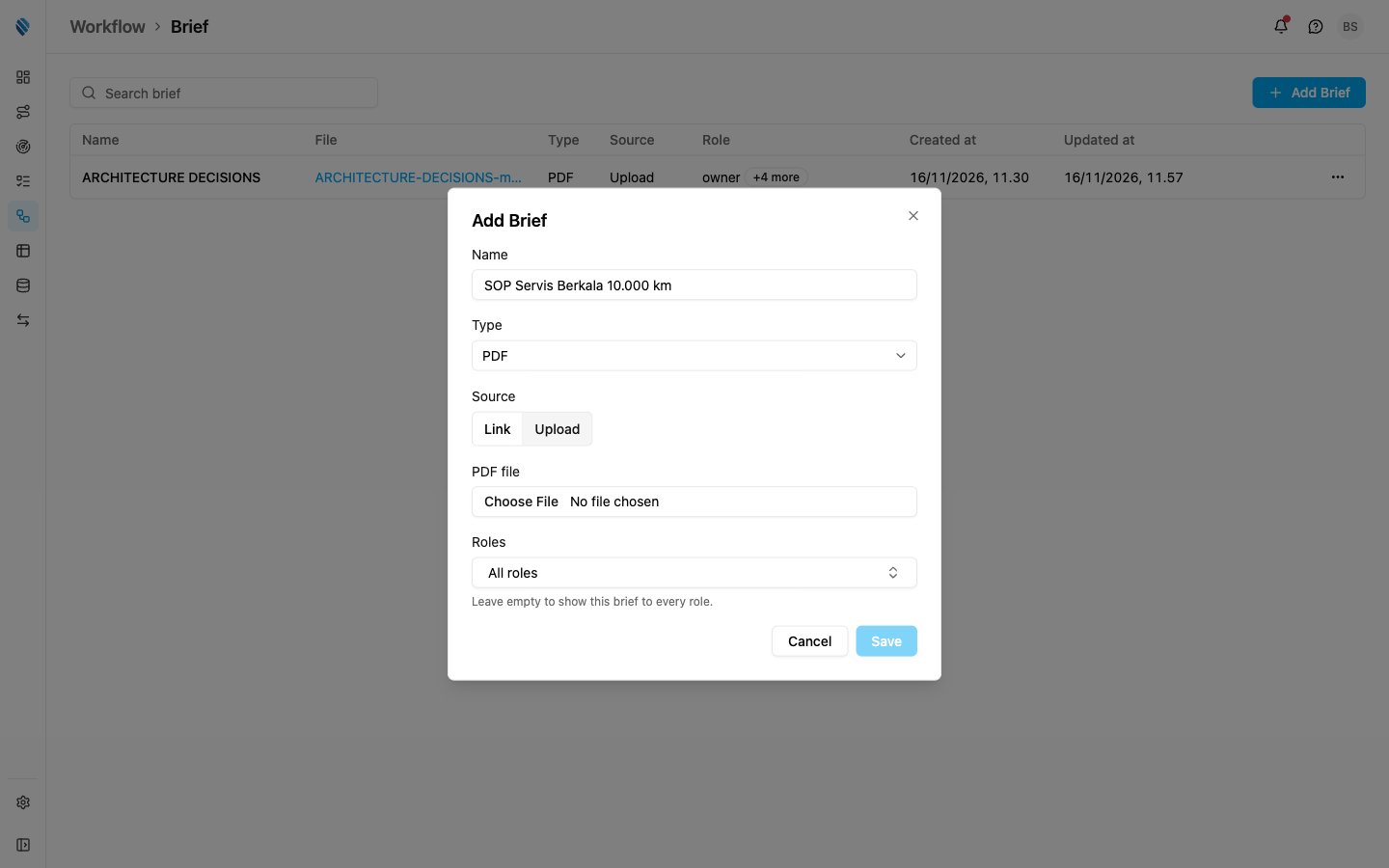
- Name
- Type
- Source
- Link: type the PDF’s address in URL. It must start with
https://. - Upload: choose a PDF in PDF file. The file must be a PDF of at most 20 MB.
- Roles
Add Brief appears only for a role with Create brief.
Edit a brief
Open the ⋯ menu at the end of a row and click Edit.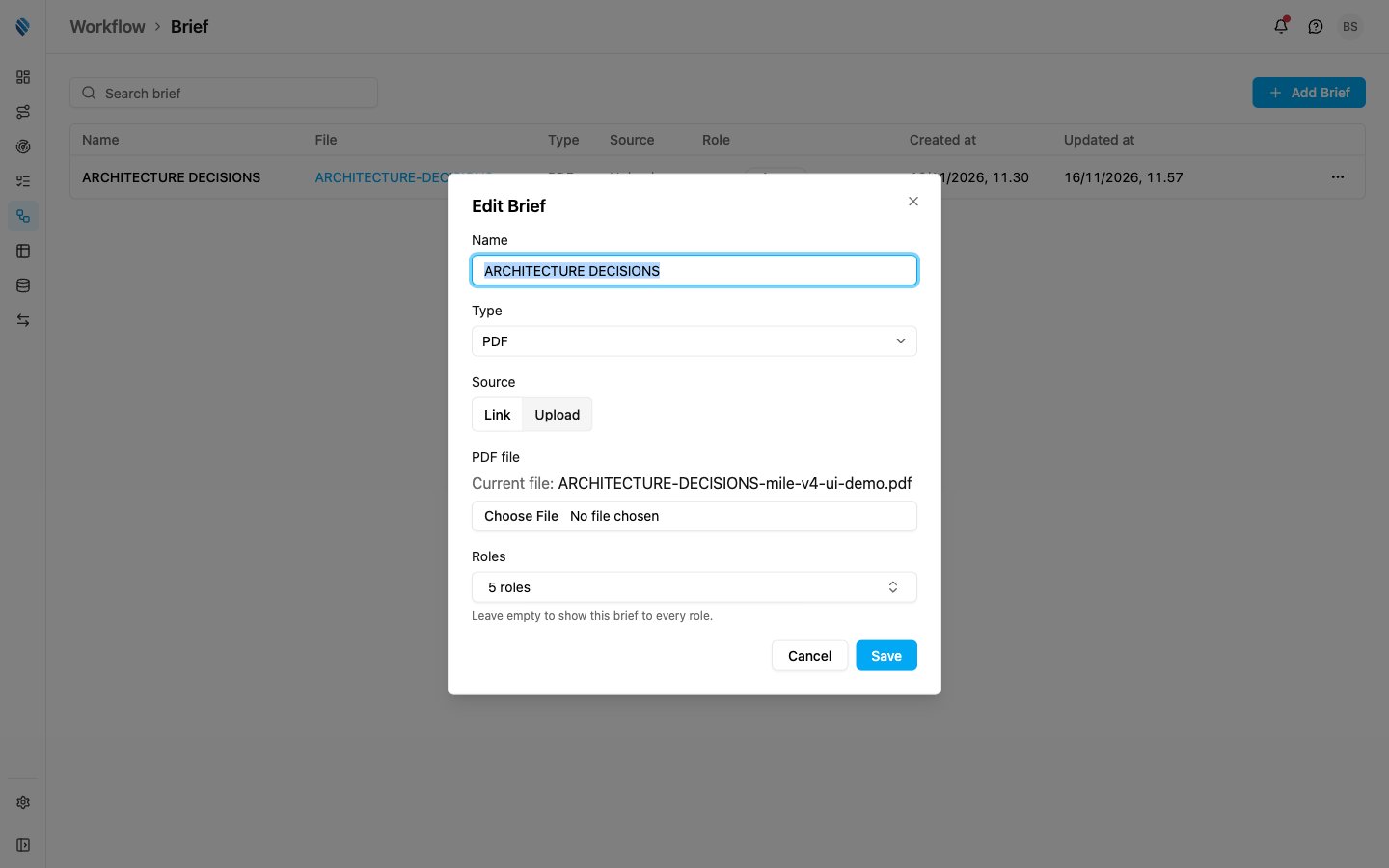
- Leave PDF file empty to keep the current PDF.
- Choose a new PDF to replace it.
- Switch Source to Link to use a URL instead.
Delete a brief
Open the ⋯ menu at the end of a row and click Delete, then confirm.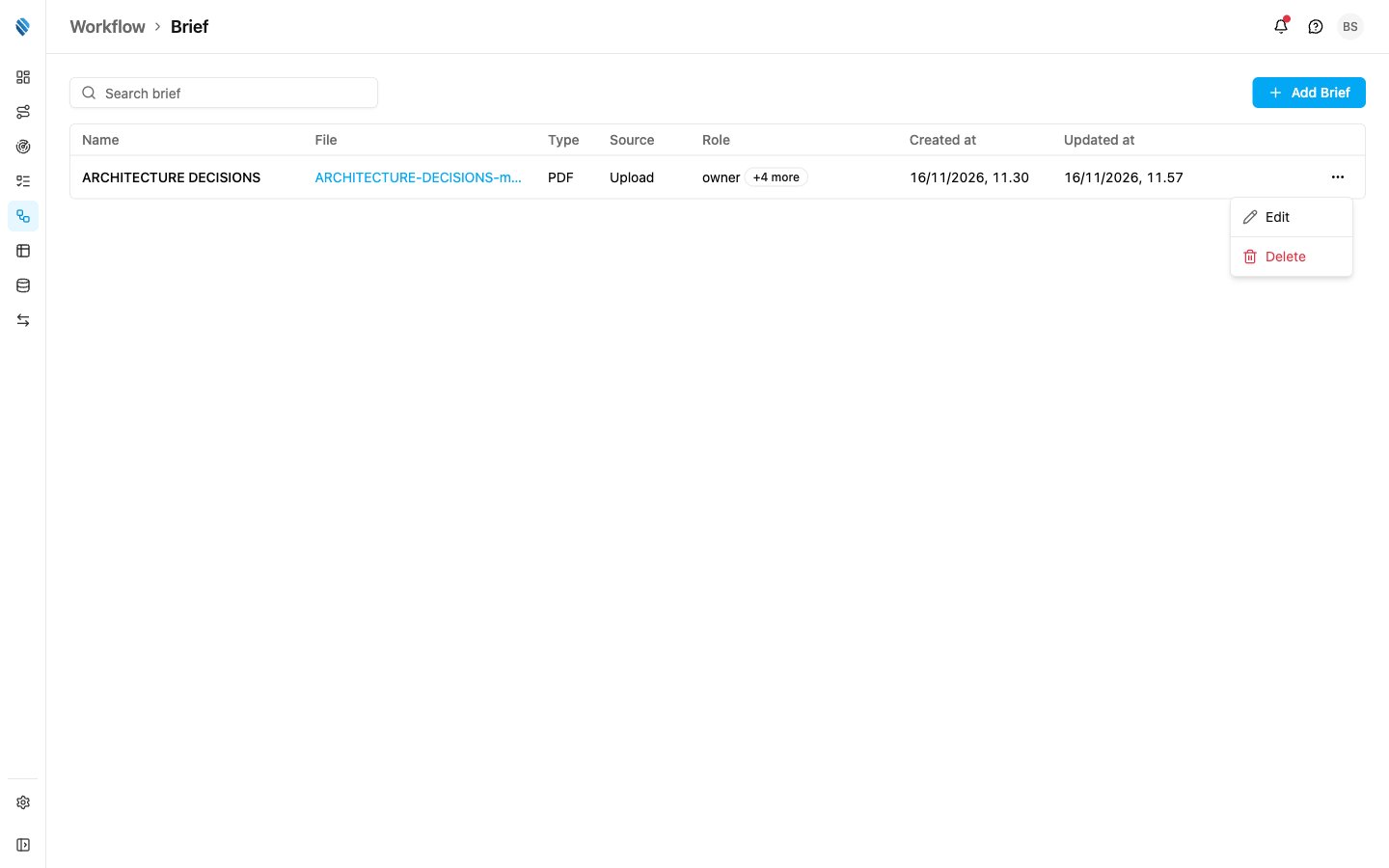
Edit appears only for a role with Edit brief, and Delete only for a role with Delete brief.
Brief permissions
Set them in Settings › Permission, in the Brief section of the Workflow card.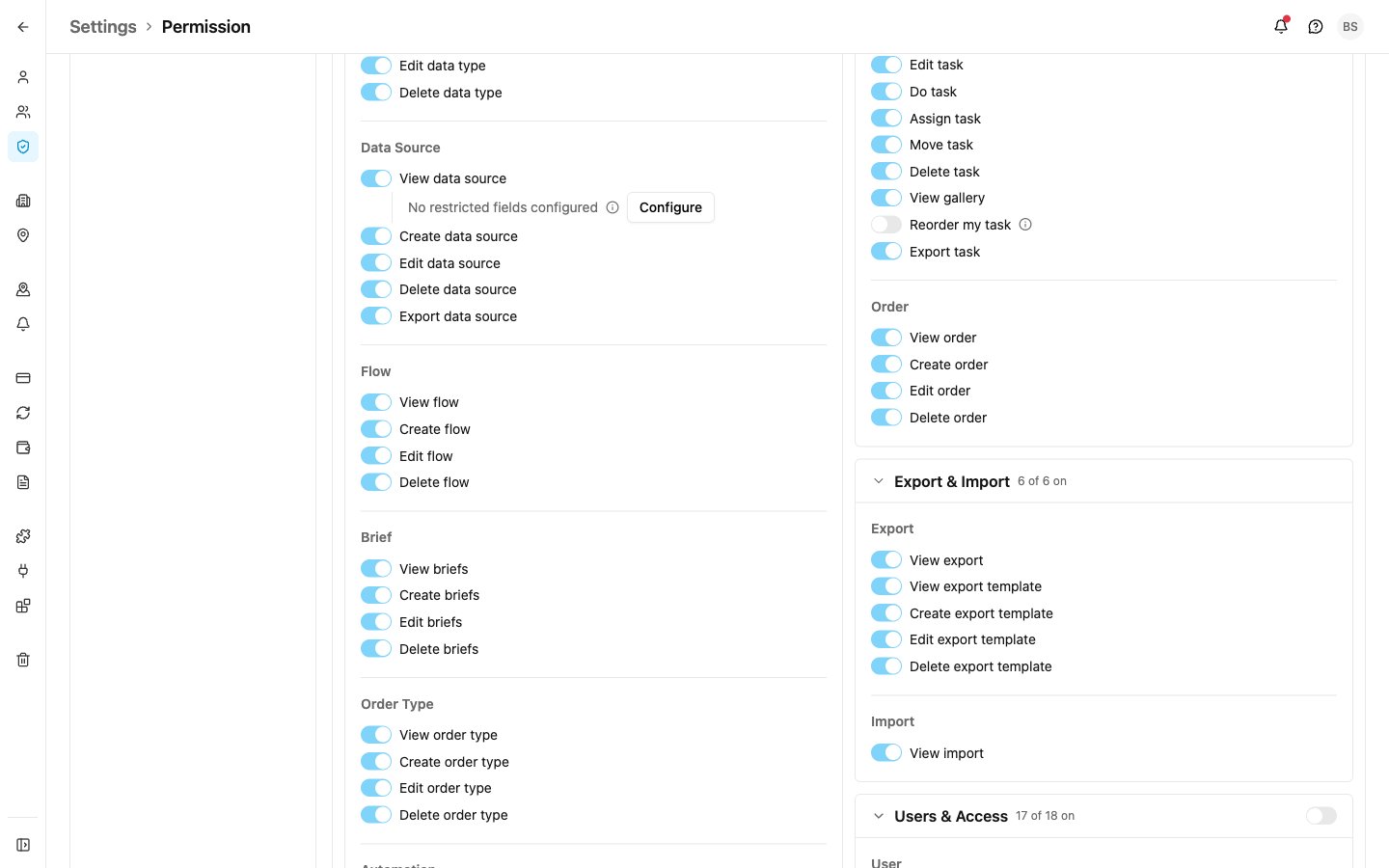
Only the owner sees every brief. Every other role, admins included, sees the briefs for its own role and the briefs for every role, whatever Brief permissions it has.
Field users need no Brief permission to read their briefs in the mobile app.