

Required permission:
- View result
- Edit result (move a dropped visit to a vehicle)
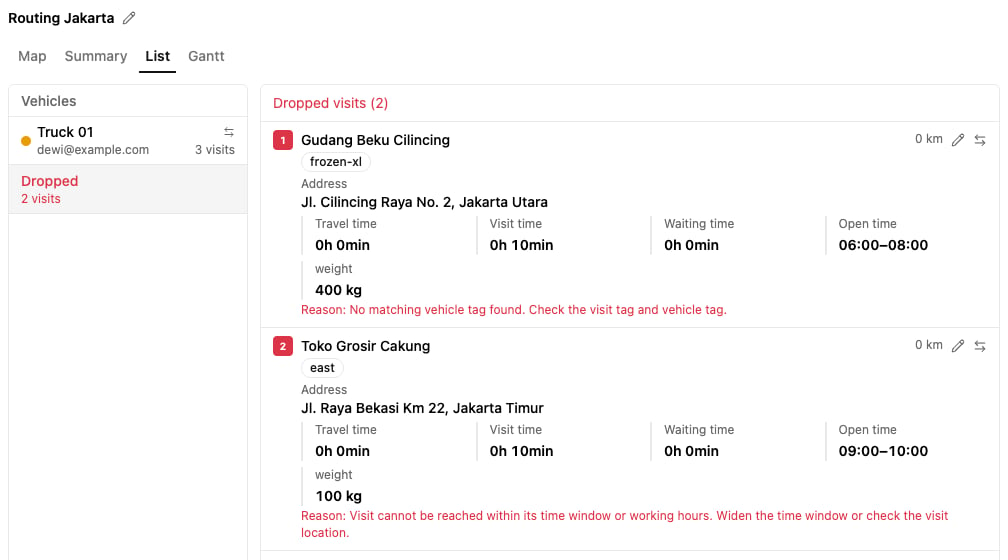
Why a visit is dropped
When the visit belongs to a visit group, the reason names the real cause for the visit, such as capacity or time. Results made before this change can also show Visit Group ‘group’ exceeds vehicle limits. Reduce visits, adjust vehicle settings, or split the group. To fix it, reduce the visits in the group, change the vehicle settings, or split the group.
Next steps
After fixing the data, optimize again. Or move the dropped visit to a suitable vehicle by hand with Move visit (see Editing).Avoiding dropped visits
- Check the coordinates: make sure every visit has a valid location (a green pin on the Visit page).
- Balance capacity: match what the visits need with what the vehicles can carry.
- Line up times: make sure the visits’ open times fit the vehicles’ working times.
- Keep tags consistent: tag visits and vehicles the same way.