> ## Documentation Index
> Fetch the complete documentation index at: https://docs.mile.app/llms.txt
> Use this file to discover all available pages before exploring further.

# Emergency Alerts from Field Users

When a field user runs into trouble on the road, such as an accident, a breakdown in an unfamiliar area, or a threat to their safety, they can press the Panic Button in the MileApp mobile app. Everyone in your organization who is allowed to receive emergency alerts is told straight away on the web dashboard, so the right person can reach the field user and act.

<Note>
  Required permission:

  * View panic alert, to receive and resolve emergency alerts
  * Trigger panic button, for the field user who presses the button
  * View tracking, to open the alert on the Tracking page
  * View Chat on Web, to message the field user from the alert
</Note>

## A Real Case: Rizky's Breakdown on Jalan Asia Afrika

Rizky is a courier delivering to the Braga area of Bandung in the afternoon. His motorbike breaks down on Jalan Asia Afrika and a stranger starts pressuring him to hand over his packages. He presses the Panic Button in the mobile app.

Dewi is the dispatcher on duty at the Bandung hub. The rest of this page follows what Dewi sees and does, step by step.

<Note>
  The screenshots on this page come from a test account, so the field user's name shows as "test" rather than Rizky. Everything else, including the address, appears exactly as it does for a real alert.
</Note>

## 1. The Emergency Alert Appears

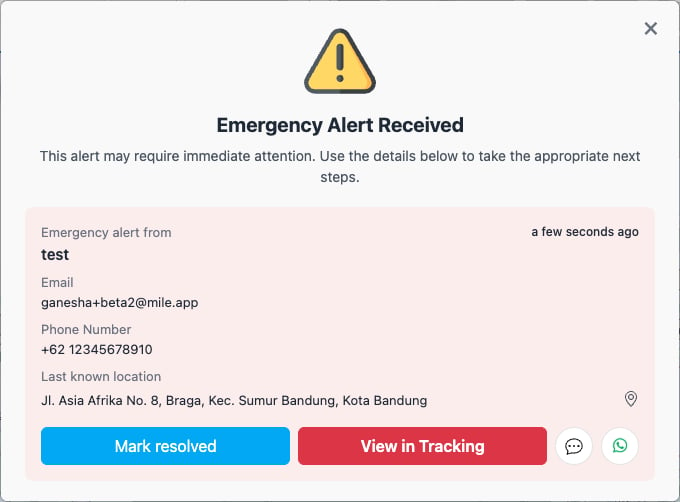
Within a few seconds of Rizky pressing the button, an Emergency Alert appears over whatever page Dewi has open. It cannot be missed, so an emergency never waits in the background.

<div align="center">
  <img src="https://mintcdn.com/mileapp-e5b5ea5a/feU2lSZGtP_tc8TX/images/task/tracking/emergency-alerts-01.png?fit=max&auto=format&n=feU2lSZGtP_tc8TX&q=85&s=00e428947da440d342ef109bb04d4507" alt="image" width="600" data-path="images/task/tracking/emergency-alerts-01.png" />
</div>

<p><em>The Emergency Alert, showing who pressed the button and where</em></p>

The alert shows:

* **Emergency alert from**: the field user who pressed the button. MileApp takes this from their own account, so an alert always shows the person who actually pressed it.
* **Email** and **Phone Number**: taken from that field user's MileApp account.
* **Last known location**: the address where the button was pressed. If the phone had no GPS signal at that moment, MileApp uses the most recent location it has for that user.
* **How long ago** the alert was raised, in the top right corner.

If several field users raise an alert at the same time, each one appears as its own card, newest first.

## 2. Choose What to Do

Each card has four actions in one row:

* **Mark resolved**: marks the emergency as handled. Use it once the field user is safe.
* **View in Tracking**: opens the Tracking page on the field user, so you can see where they are on the map.
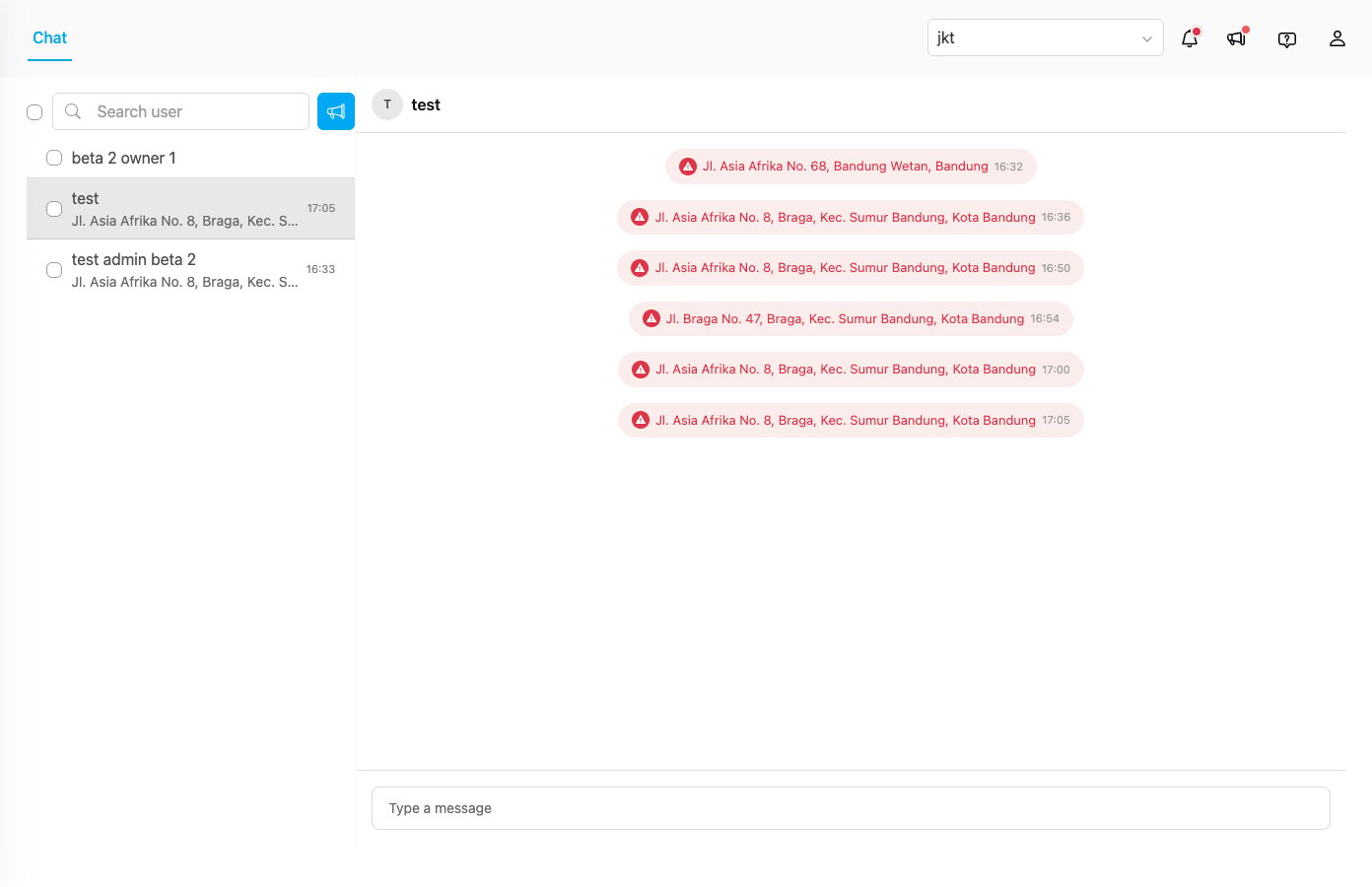
* **Chat Driver** (the chat bubble): opens a MileApp chat with the field user. This closes the alert so you can see the conversation.
* **WhatsApp** (the green icon): opens WhatsApp with the field user's phone number already filled in.

Chat Driver only appears if you have the View Chat on Web permission. WhatsApp only appears when the field user's account has a phone number.

In Rizky's case, Dewi clicks **Chat Driver** first to ask whether he is safe to talk.
<div align="center">
  <img src="https://mintcdn.com/mileapp-e5b5ea5a/feU2lSZGtP_tc8TX/images/task/tracking/emergency-alerts-02.png?fit=max&auto=format&n=feU2lSZGtP_tc8TX&q=85&s=a7273c02b0e8db3f21d751a5189b8f0a" alt="image" width="600" data-path="images/task/tracking/emergency-alerts-02.png" />
</div>

<p><em>Chat Driver opens a conversation with the field user who raised the alert</em></p>

## 3. See the Field User on the Map

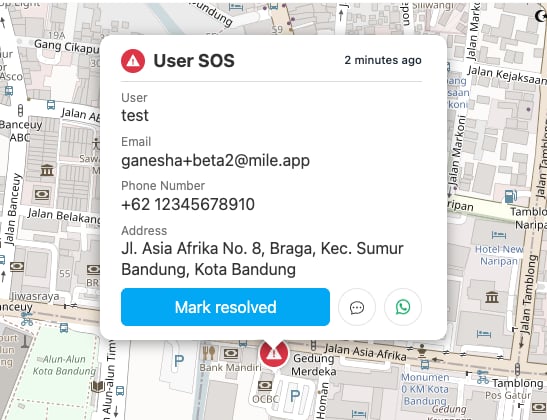
Dewi clicks **View in Tracking**. The Tracking page opens with a red emergency marker at the place Rizky pressed the button. Clicking the marker shows the same details and actions as the alert.
<div align="center">
  <img src="https://mintcdn.com/mileapp-e5b5ea5a/feU2lSZGtP_tc8TX/images/task/tracking/emergency-alerts-03.png?fit=max&auto=format&n=feU2lSZGtP_tc8TX&q=85&s=ff287a9e259942fbcb6b215ed7f5e094" alt="image" width="600" data-path="images/task/tracking/emergency-alerts-03.png" />
</div>

<p><em>The emergency marker and its details on the Tracking page</em></p>

## 4. Mark the Emergency as Resolved

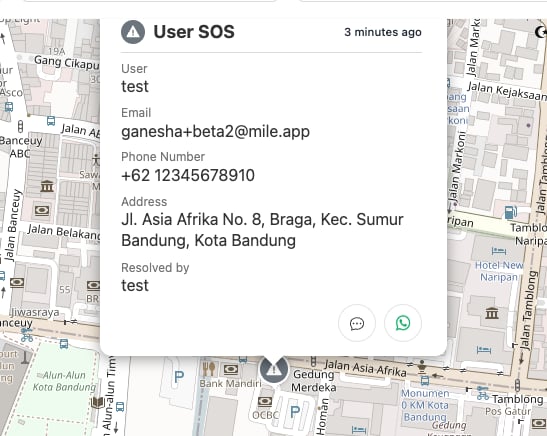
Dewi sends the nearest team to Rizky. Once he is safe, she clicks **Mark resolved** on the marker. The marker turns grey and shows who resolved it. Hover over the name to see that person's email.
<div align="center">
  <img src="https://mintcdn.com/mileapp-e5b5ea5a/feU2lSZGtP_tc8TX/images/task/tracking/emergency-alerts-04.png?fit=max&auto=format&n=feU2lSZGtP_tc8TX&q=85&s=c9148dbac705f0d3d510f17973a1373d" alt="image" width="600" data-path="images/task/tracking/emergency-alerts-04.png" />
</div>

<p><em>A resolved emergency, showing who handled it</em></p>

Resolving an emergency closes the alert for **everyone** in your organization, not only for you. Other dispatchers no longer see it appear, so nobody acts on an emergency that is already handled.

## Closing the Alert Without Resolving It

If you need to see the page behind the alert, click the **X** in the top right corner. This hides the alert for now, but does not resolve the emergency:

* It stays hidden while you keep working on other pages.
* It appears again when you reload the page, because the emergency is still open.
* It stays in your notifications, unread.

Only **Mark resolved** stops an emergency from coming back, and it does so for everyone.

## Emergency Alerts in Your Notifications

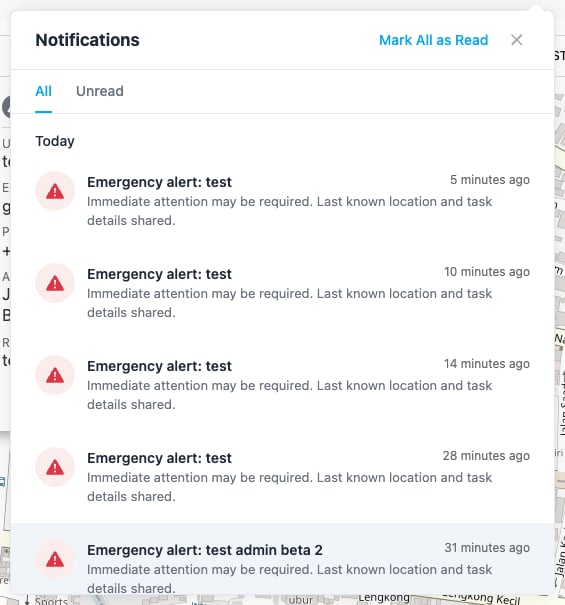
Every emergency alert is also added to the notification bell at the top of the page, so you have a record even after the alert is closed. Click an entry to open it on the Tracking page.
<div align="center">
  <img src="https://mintcdn.com/mileapp-e5b5ea5a/feU2lSZGtP_tc8TX/images/task/tracking/emergency-alerts-05.png?fit=max&auto=format&n=feU2lSZGtP_tc8TX&q=85&s=2a386441063dadd04e13b4baf39006e8" alt="image" width="600" data-path="images/task/tracking/emergency-alerts-05.png" />
</div>

<p><em>Emergency alerts are kept in the notification list</em></p>

The full-screen alert only appears for emergencies raised today. An older emergency that was never resolved does not interrupt you again, but it stays in your notifications so you can still follow it up.
