> ## Documentation Index
> Fetch the complete documentation index at: https://docs.mile.app/llms.txt
> Use this file to discover all available pages before exploring further.
# Connect Accurate.id
> Sync data between MileApp and Accurate Online in both directions using the built-in no-code integration.
This guide explains how to connect your MileApp organization to **Accurate Online** (Accurate.id), Indonesia's cloud accounting platform by CPSSoft. Once connected, you can sync in **two directions**:
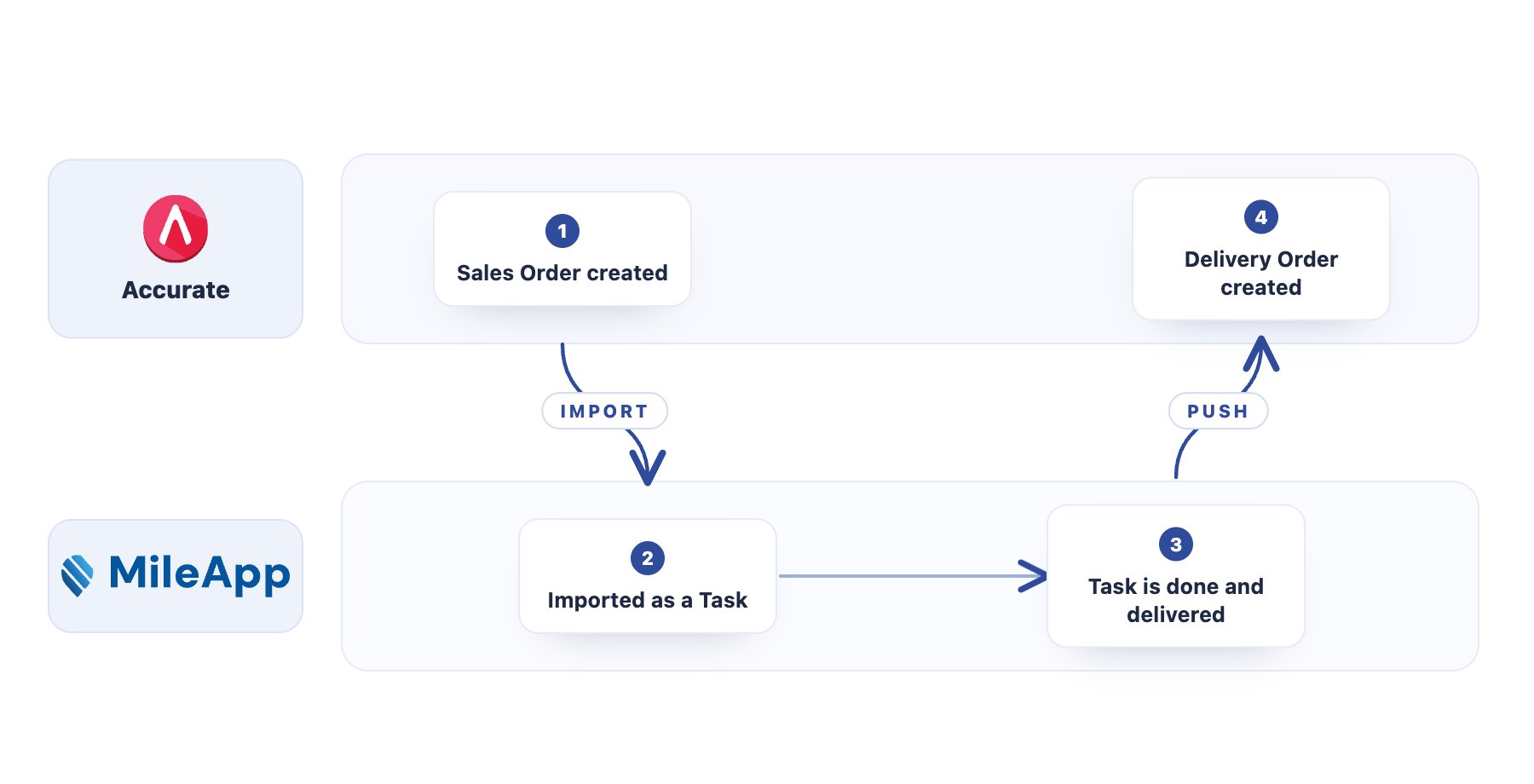
* **Accurate → MileApp**: a Sales Order created in Accurate becomes a MileApp task automatically.
* **MileApp → Accurate**: finishing that task pushes a Delivery Order back into Accurate.
Each direction is configured separately, and you can use one or both. The full round trip looks like this:
A Sales Order in Accurate imports as a MileApp task; when the task is done and delivered, a Delivery Order is pushed back into Accurate.
Required permission:
* View integration
* Create integration
## Prerequisites
Before connecting, confirm you have:
1. **An Accurate Online account**: the cloud version, which is the one that provides the Open API this integration uses.
2. **At least one business data (data usaha)** set up in your Accurate Online account.
3. **Admin access in MileApp**: you need Create Integration permission to complete the connection.
4. **One Accurate account per MileApp organization**: an Accurate account holds a single active connection at a time, so connecting it to another MileApp organization ends the first one. Use a separate Accurate account for each organization you want to sync.
## Step 1: Connect Your Accurate Account
1. In MileApp, go to **Setting → Integration**.
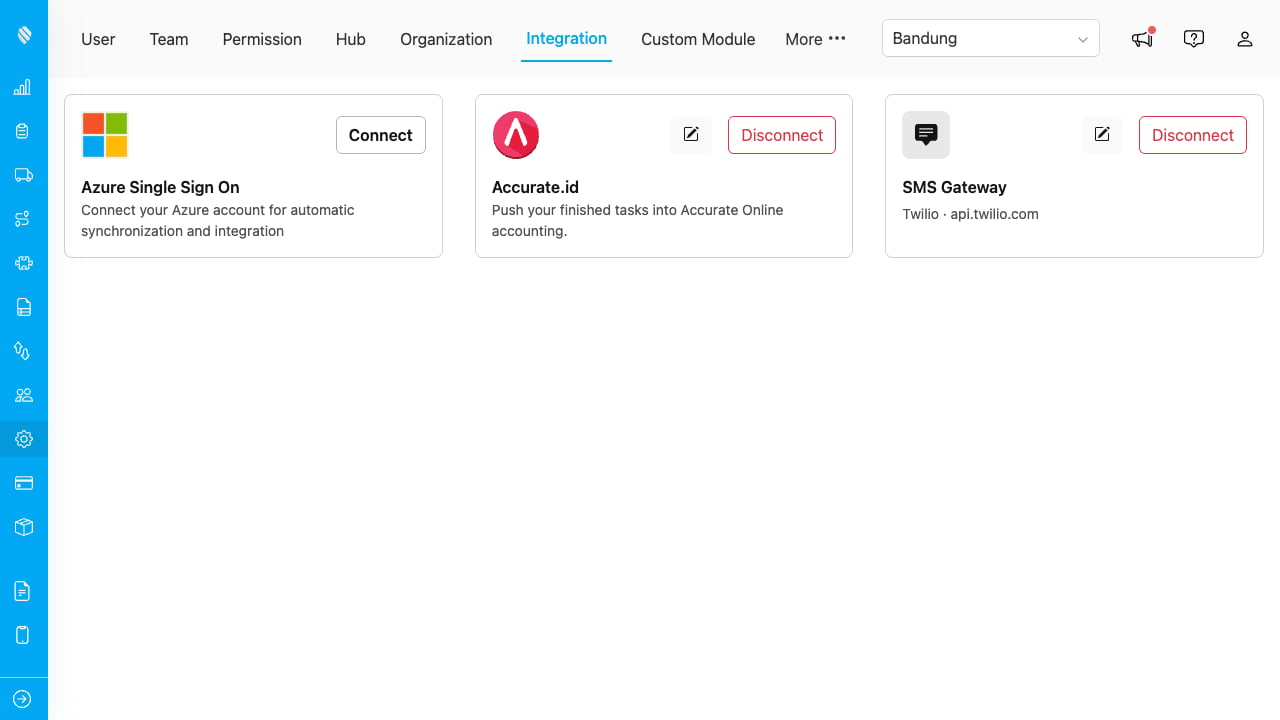
2. Find the **Accurate.id** card and click **Connect**.
3. You are redirected to Accurate's authorization page. Log in with your Accurate credentials and click **Grant Access**.
4. Accurate redirects you back to MileApp. A success message confirms the connection, and the Accurate.id card shows **Connected**.
## Step 2: Choose Your Business Data
On the Accurate.id card, click the **pencil** icon to open the rules view. If your Accurate account holds several business data (companies), select the ones you want MileApp to work with.
Every sync rule targets **one business data**, since values such as Customer, Item and Branch are identifiers that live inside a single company. To sync a second company, add a second rule.
## Step 3: Add a Sync Rule
The rules view has one tab per direction. Rules are grouped by business data, so all the rules for one company read together.
### Accurate → MileApp
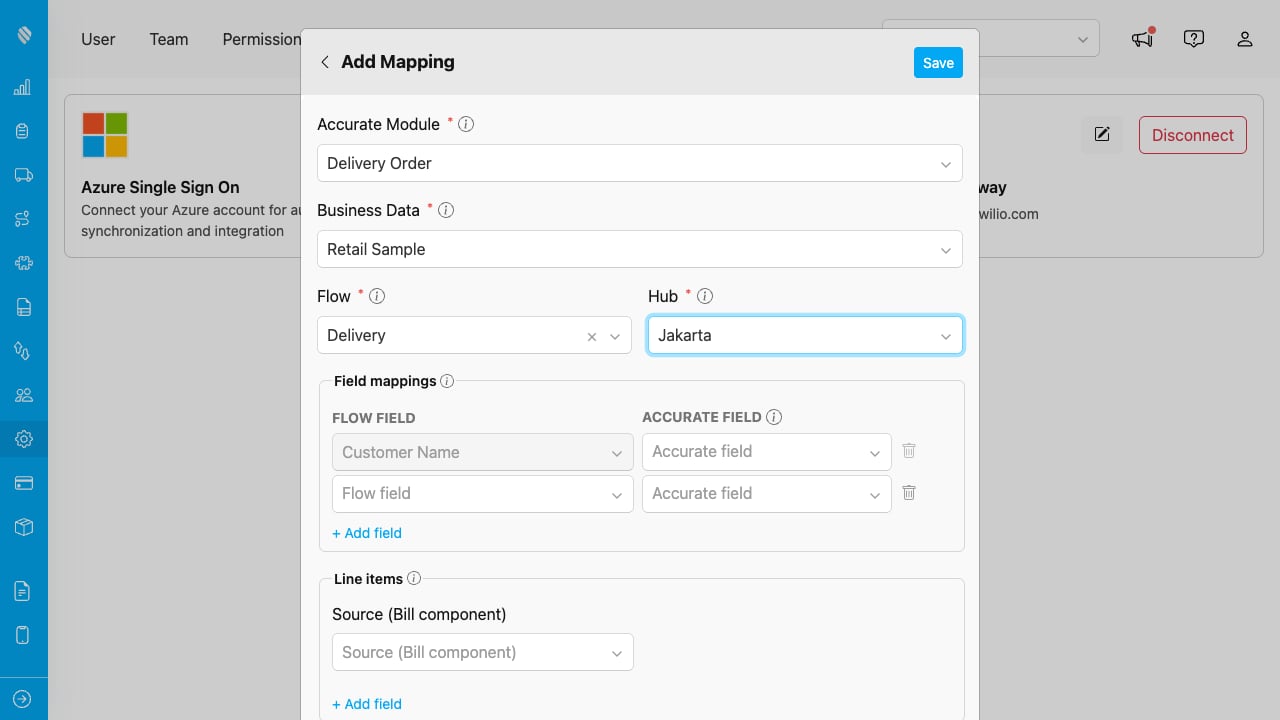
Click **Add Mapping** on the **Accurate → MileApp** tab.
1. **Select the Accurate module**: Sales Order.
2. **Select the business data** it comes from.
3. **Select the Flow** the new tasks should be created in, and the **Hub** they belong to.
4. **Auto-create a follow-up task for the remaining quantity (optional)**: turn this on and a Sales Order that is only partly delivered raises a new task for the undelivered remainder, so the rest of the order stays on someone's list. See [Partial delivery and the remainder task](#partial-delivery-and-the-remainder-task).
5. **Map the fields**: for each MileApp flow field (on the left), choose which Accurate field it reads from (on the right). Your flow's **required** fields appear automatically; you only choose where each one gets its value. Only Accurate fields whose type fits the flow field are offered.
6. **Map line items (optional)**: point a MileApp Bill component at the order's item rows, then map each column (item code, quantity, unit price, and so on).
7. Click **Save**.
The same Accurate module and business data can feed **several flows**. One Sales Order then creates one task in **each** mapped flow.
Finishing an imported task creates a **Delivery Order** in Accurate that links back to its Sales Order and advances the order's fulfilment. If the task's Bill contains a row that was not on the original Sales Order, that row is added to the Sales Order first, which can increase the order's total.
### MileApp → Accurate
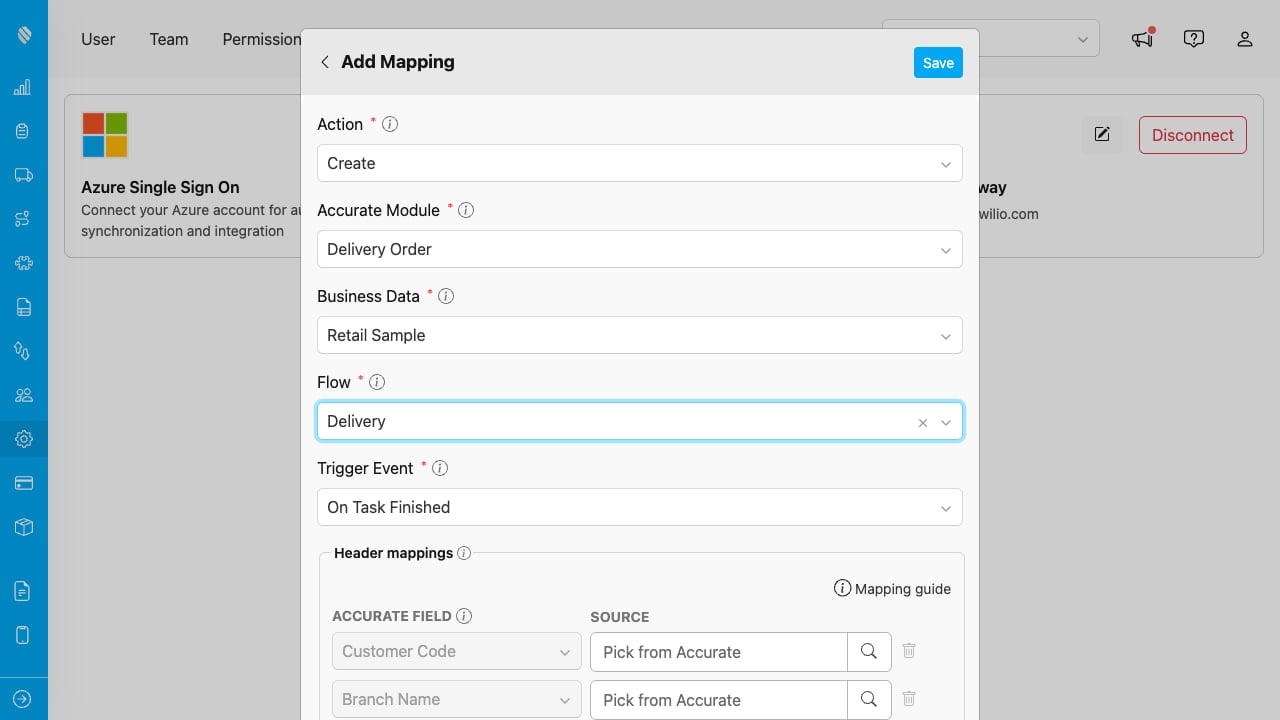
Click **Add Mapping** on the **MileApp → Accurate** tab. Each field appears once the one above it is answered, so the form reads as one decision at a time.
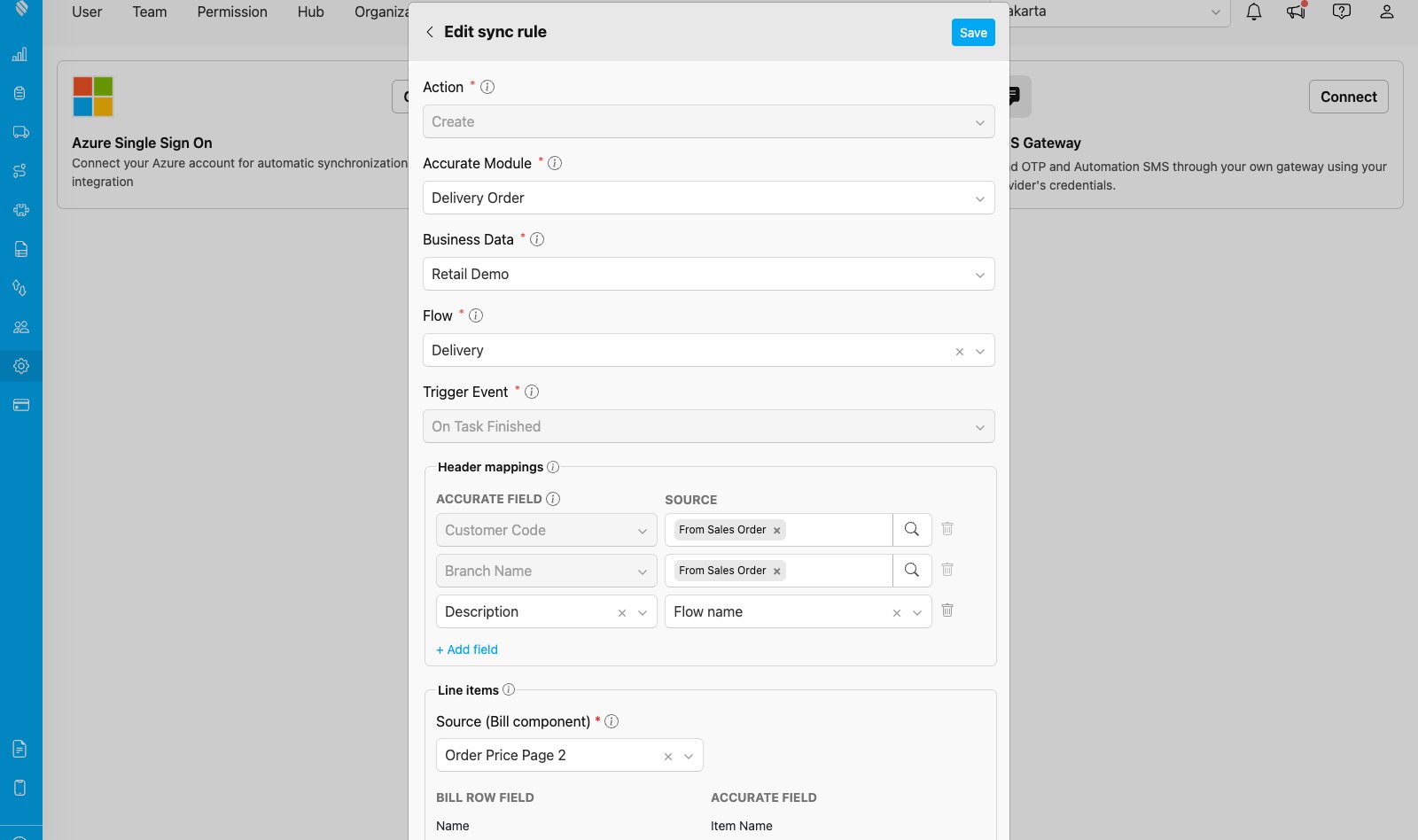
1. **Select the Action**: Create.
2. **Select the Accurate module**: Delivery Order.
3. **Select the business data** to create the record in.
4. **Select a Flow**: the Flow whose tasks should be pushed.
5. **Select the trigger event**: On Task Finished, so the push carries what the driver actually delivered.
6. **Map each Accurate field**: pick a source from the **Source** list, which groups your Flow fields and Task system fields. The value type (date, number, currency, text) is detected automatically.
7. **Fill dependency fields from Accurate**: fields such as Customer, Branch, Item or Unit are picked from your live Accurate records using the search button, so the value always matches a real record.
8. **Map line items**: point the flow's **Bill** component at the Delivery Order's item rows. The Bill's rows are what gets pushed, so the flow needs a Bill component for the rule to save. If any Bill item is **serial-managed** in Accurate, you also choose how its serial numbers are supplied, see [Serial-number capture](#serial-number-capture) below.
9. Click **Save**.
Required Accurate fields are marked and added for you. Press **Save** at any point and the form checks every one of them, showing what is still missing under the field itself. A field already used by another row is greyed out, so one Accurate field is filled once.
Any Bill item not yet in Accurate is created there automatically when the task finishes, so you do not need to pre-create every product before turning on the rule.
### Serial-number capture
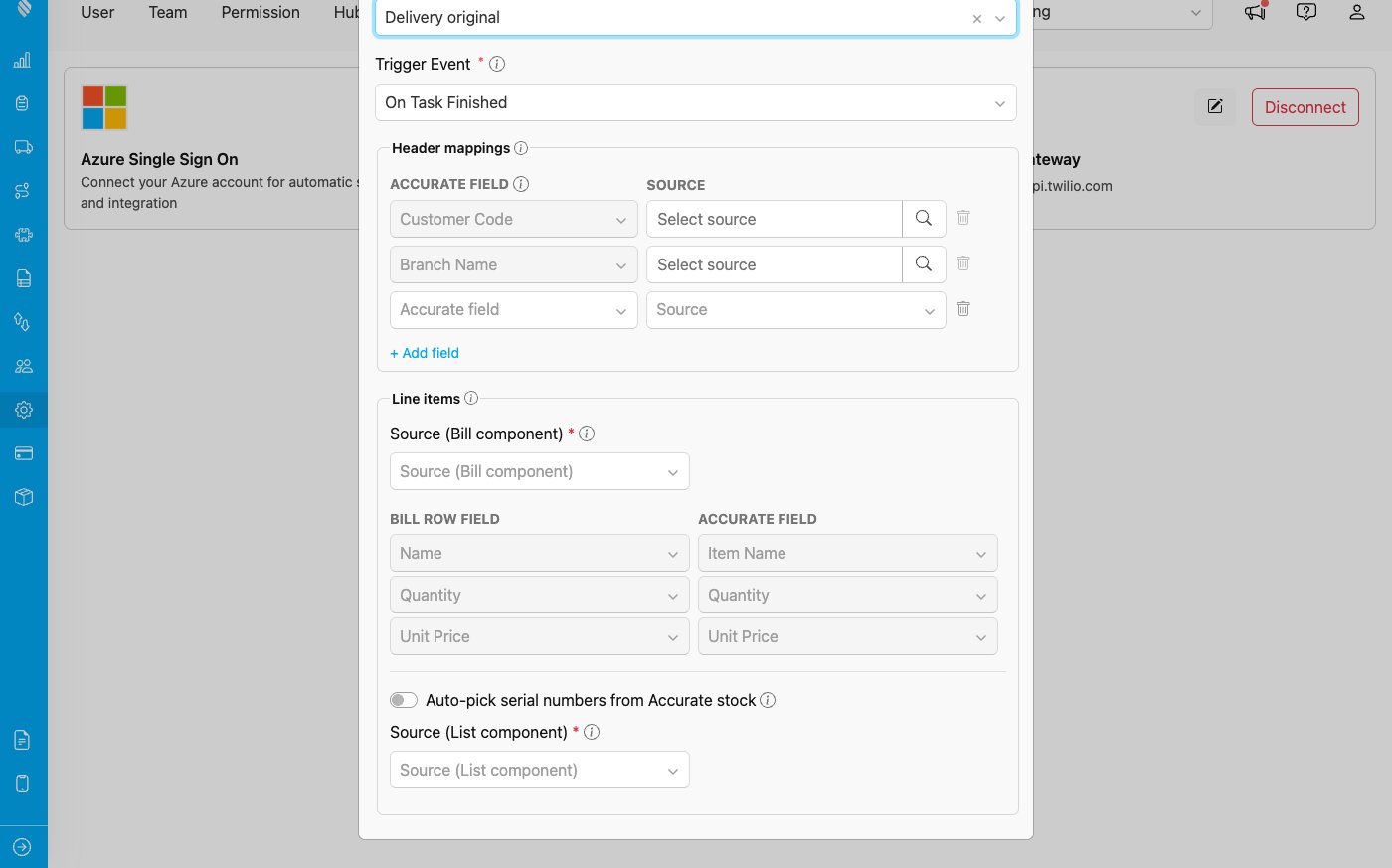
Some Accurate items are **serial-managed** (each unit has a unique serial or batch number). When a Delivery Order line uses such an item, Accurate requires one serial number per delivered unit, or it rejects the whole document. A push rule lets you supply those serials in one of two ways, chosen in the **Line items** section.
The Line items section: the Bill source and its locked rows, then the Auto-pick toggle, then the Source (List component) used to capture scanned serials.
* **Auto-pick from Accurate stock**: turn on **Auto-pick serial numbers from Accurate stock** and MileApp fills each line's serials automatically from the item's in-stock serials in the delivery warehouse. A confirmation appears first, because auto-picked serials are simply the ones on hand and may not be the exact units your field team handed over.
* **Capture the scanned serials**: leave Auto-pick off and map **Source (List component)** to a flow **List** component (type Text, "add new" enabled). Your field team scans or types one serial per unit into that List, and those exact values are written to the Delivery Order. With Auto-pick off this is where the serials come from, so the form asks for it before saving.
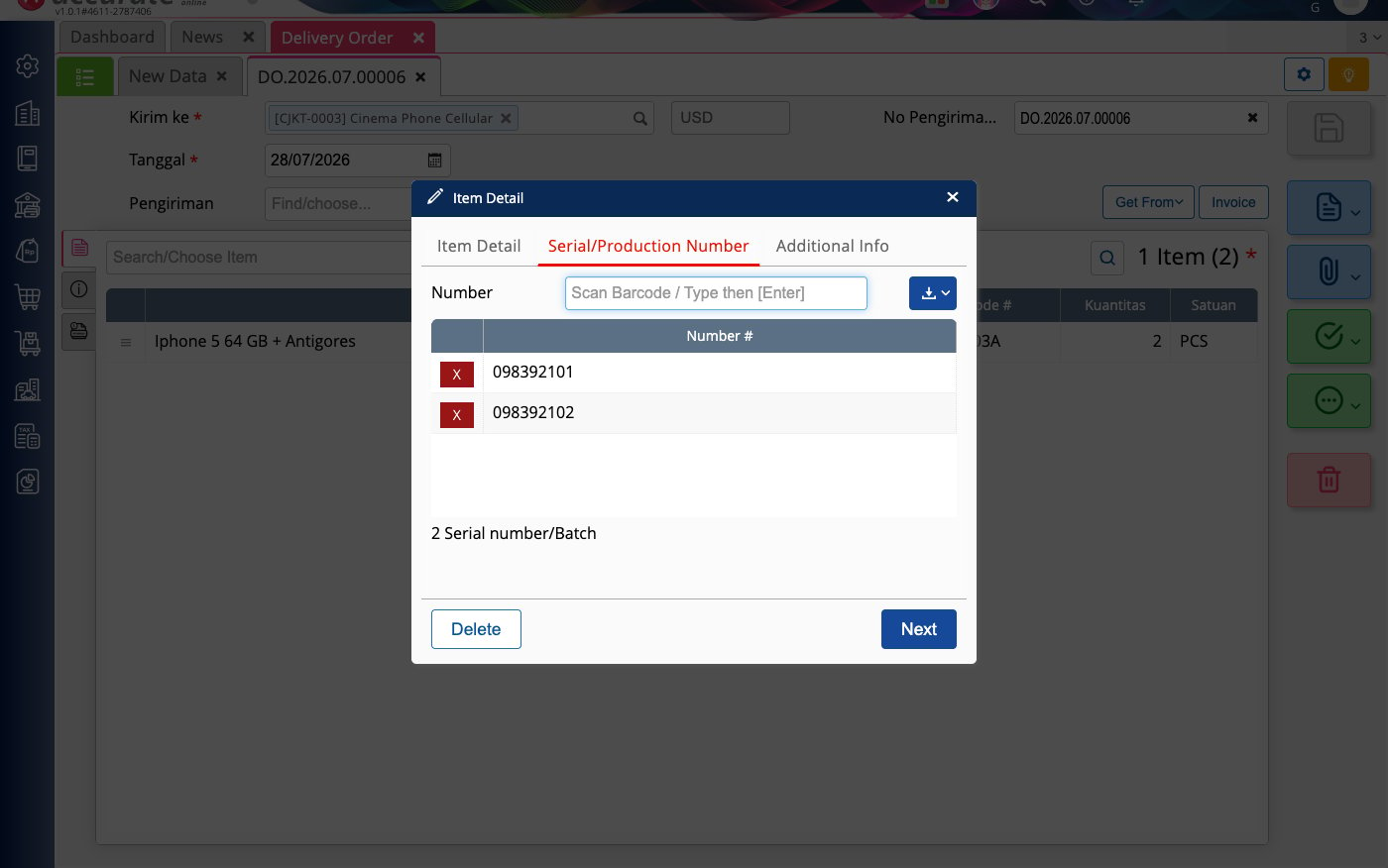
When the task finishes, the pushed Delivery Order carries the serial numbers on the matching item line, in the delivery warehouse:
The same serials, now on the Delivery Order in Accurate (Item Detail - Serial/Production Number).
Serial matching is forgiving of surplus but strict on shortfalls. **Extra, unrecognized, or surplus** scanned serials are ignored or trimmed, and the push still succeeds, writing only the serials the line needs from a single warehouse (preferring the item's default). Only delivering **fewer** valid serials than the line's quantity **fails** the push, with a clear message, so a genuine shortfall is never silently accepted.
### Auto-resolve customer and branch from a Sales Order
When a task was created from a Sales Order (the Sales Order to Delivery Order flow), its **Customer** and **Branch** already belong to that Sales Order. Rather than mapping them, you can have the Delivery Order take them straight from the originating Sales Order.
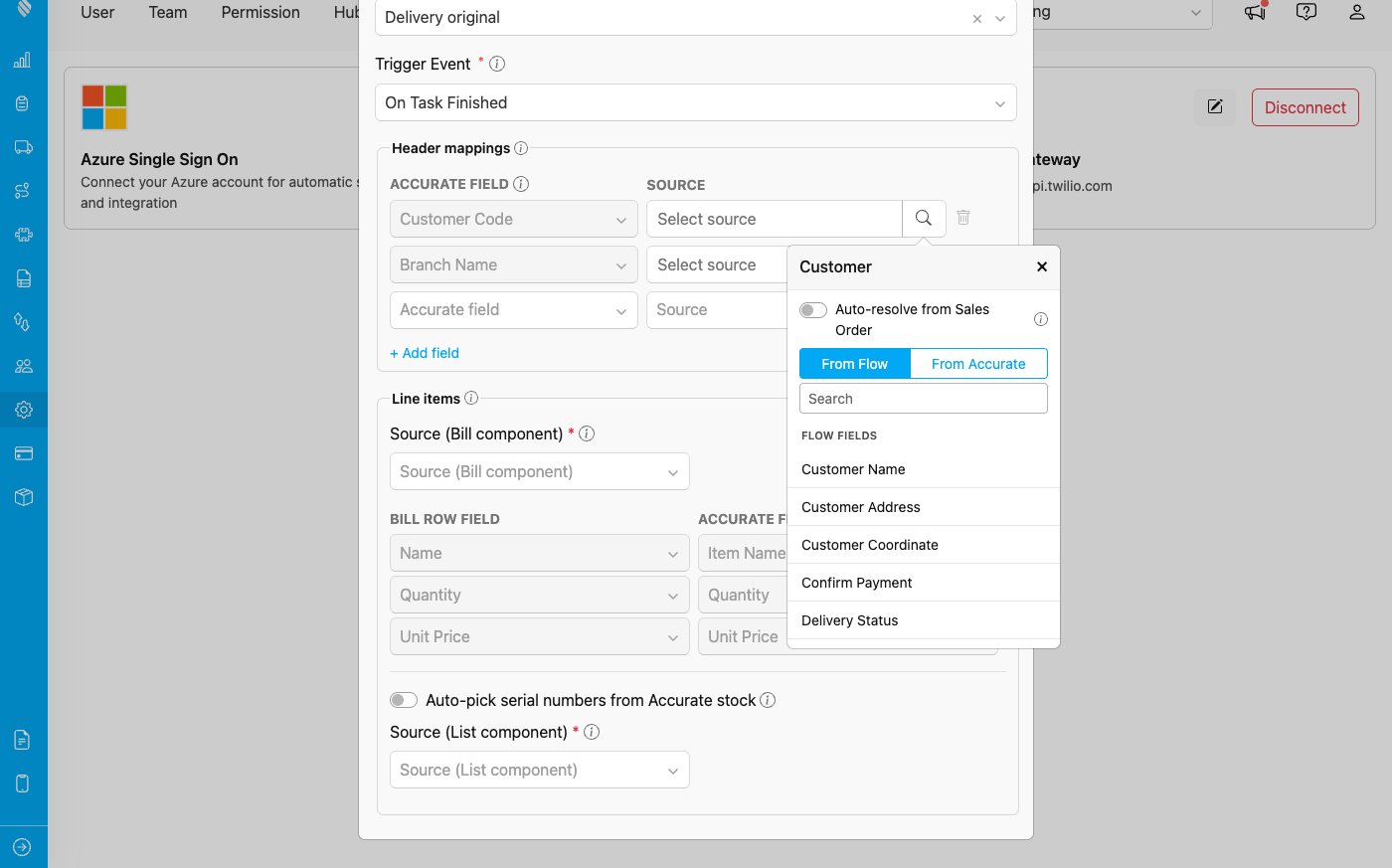
On the **Customer Code** and **Branch Name** rows, open the **Source** picker and turn on **Auto-resolve from Sales Order** (off by default). The field then reads **From Sales Order**, and no manual mapping is needed.
Auto-resolve from Sales Order sits at the top of the Customer Code / Branch Name source picker.
This toggle appears for **Customer Code** and **Branch Name**. If instead you map an explicit value (From Flow or From Accurate), that value is used as-is, and the originating Sales Order never overrides a mapping you set on purpose.
**Branch Name matters when your business data has more than one branch.** Accurate requires a branch on a Delivery Order in a multi-branch company, and it should be the branch of the Sales Order the delivery fulfils. Auto-resolve handles that for you by reading the branch off the originating Sales Order, which is why it is the recommended setting for the Sales Order to Delivery Order round trip. The field is not marked required, since a single-branch company does not need it.
The Delivery Order created from the task carries the originating Sales Order's own customer; its branch is taken from the same Sales Order (shown on Accurate's Additional Info tab).
## Which Flow Components Can Be Mapped
Accurate stores five kinds of value: text, whole number, money, true/false and date. A MileApp component can be mapped only if it holds **one** such value, so not every component in your flow appears in the mapping pickers. The rules below are the same in both directions.
**Input components**, by their Type:
| Type | Can be mapped | Fills which Accurate fields |
| ------------ | ------------- | ------------------------------------------------------------------- |
| Text | Yes | Text fields |
| Address | Yes | Text fields, e.g. Shipping Address |
| Phone Number | Yes | Text fields |
| URL | Yes | Text fields |
| Number | Yes | Number and money fields |
| Currency | Yes | Money fields |
| Date | Yes | Date fields |
| Date Time | Yes | Date fields. Accurate stores a date only, so the time is dropped |
| Time | Text only | Text fields only. It has no date, so it can never fill a date field |
| Coordinate | Text only | Text fields only, as the raw coordinate text |
**Other components:**
| Component | Can be mapped |
| -------------------------------------------------------------------------------- | ------------------------------------------------------------------------------------------------------------------------------------------------------------------------------------------------------------------- |
| Select | Yes, into text fields. If several options are chosen, they arrive as one comma-separated line |
| Bill | Line items only, never a single field. Each Bill row becomes one order item (Sales Order or Delivery Order, matching the module) |
| List | Serial-number capture only, on a Delivery Order push (see [Serial-number capture](#serial-number-capture)). A Text List with "add new" enabled holds one scanned serial per unit. Not mappable as an ordinary field |
| Photo, Capture, Video, Voice Note, Signature, View, Subpage, Subflow, Timer, OTP | No |
If a field you expect is missing from a picker, check its component type in the tables above. Components that hold a file or a picture, group other components, or display something without storing a value have no value for Accurate to record, so the pickers list the ones that do.
Separately, **dependency fields** such as Customer, Branch, Item, Unit, Warehouse, Department, Project, Currency, Payment Term, Carrier and FOB point at a record that already exists in Accurate, so they are chosen with the search button rather than mapped from a flow field.
## Step 4: Syncing Happens Automatically
**MileApp → Accurate.** Saving a rule creates a webhook automation in the background, named "\[Accurate] {Flow} → {Module}". You can see it in the Automation list, but you do not need to manage it. From then on, every task in that Flow that reaches the trigger event is pushed to Accurate.
**Accurate → MileApp.** Once a rule exists, Accurate notifies MileApp whenever a Sales Order in that business data changes:
* **Created** → a task is created in each mapped flow.
* **Edited** → the linked task is updated. No duplicate is created, however many times the order changes.
* **Deleted** → the linked task is deleted.
A task that is already **Done** is never changed or deleted by a later edit in Accurate, so completed field work is protected.
### Partial delivery and the remainder task
A driver can deliver less than the order asked for. When that happens, the Delivery Order records what was actually handed over, and the Sales Order keeps the difference outstanding.
If you turned on **Auto-create a follow-up task for the remaining quantity** on the import rule, MileApp raises a new task for that outstanding quantity as soon as the first one finishes. It carries the same customer, address and mappings, with a Bill holding only what is still owed. Deliver it partly again and the cycle repeats, each round leaving a smaller remainder, until the Sales Order is fully delivered and reads **Processed** in Accurate.
Leave the toggle off and a partial delivery simply closes the task. The Sales Order still shows the outstanding quantity in Accurate, and you decide what happens next.
## Example Flow: A Complete Round Trip
This walkthrough follows one order the whole way: from the two mapping rules, through a Sales Order in Accurate, to a delivered task, and back to a Delivery Order in Accurate. Every screen below is a real run.
### 1. The integration is connected
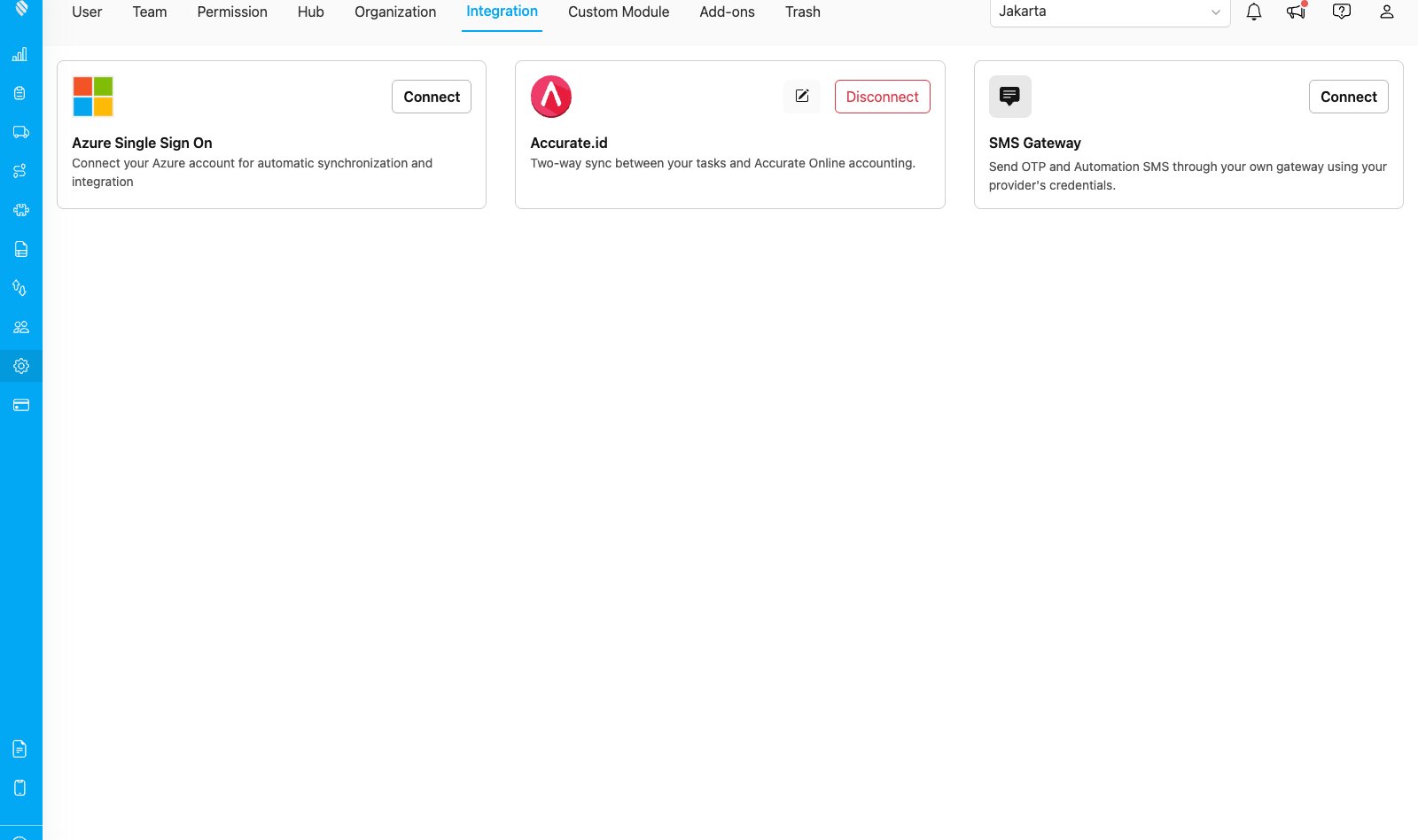
Setting → Integration shows the Accurate.id card in its connected state, with a pencil icon for the rules and a Disconnect button.
Once connected, the card gives you the pencil icon and Disconnect.
### 2. Two rules, one per direction
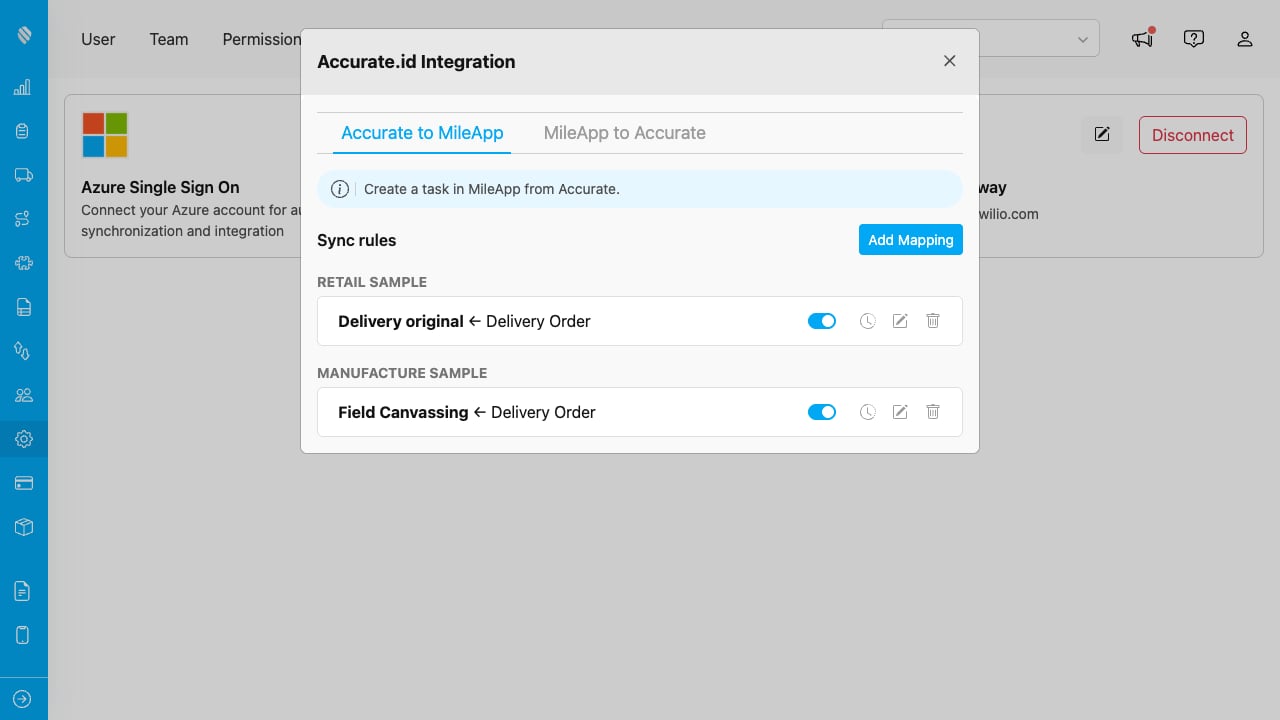
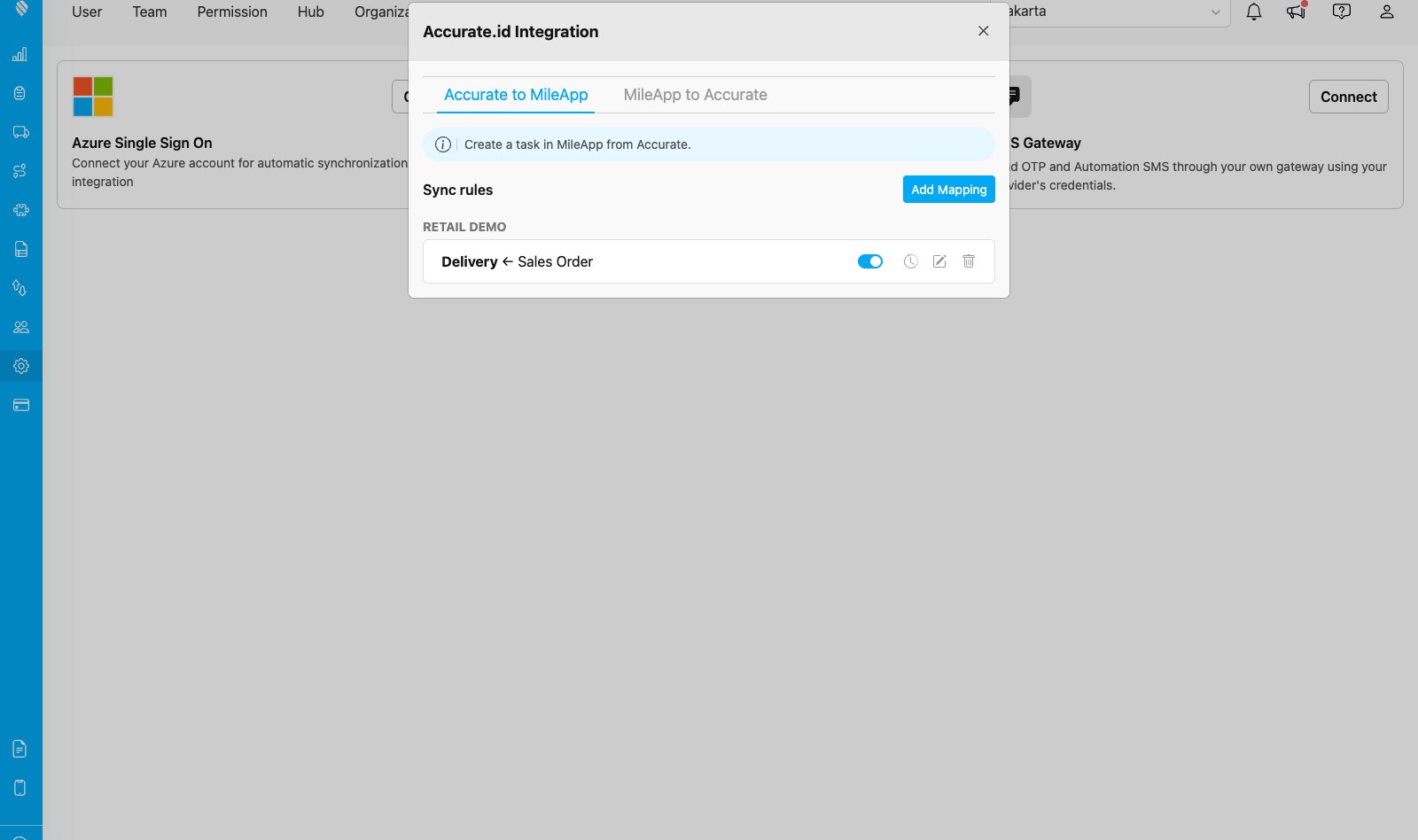
Click the **pencil** icon. Rules are grouped by business data, with one tab per direction. Here a single flow named **Delivery** carries both an import rule and a push rule.
Both directions live side by side, each on its own tab.
### 3. The import rule: Accurate → MileApp
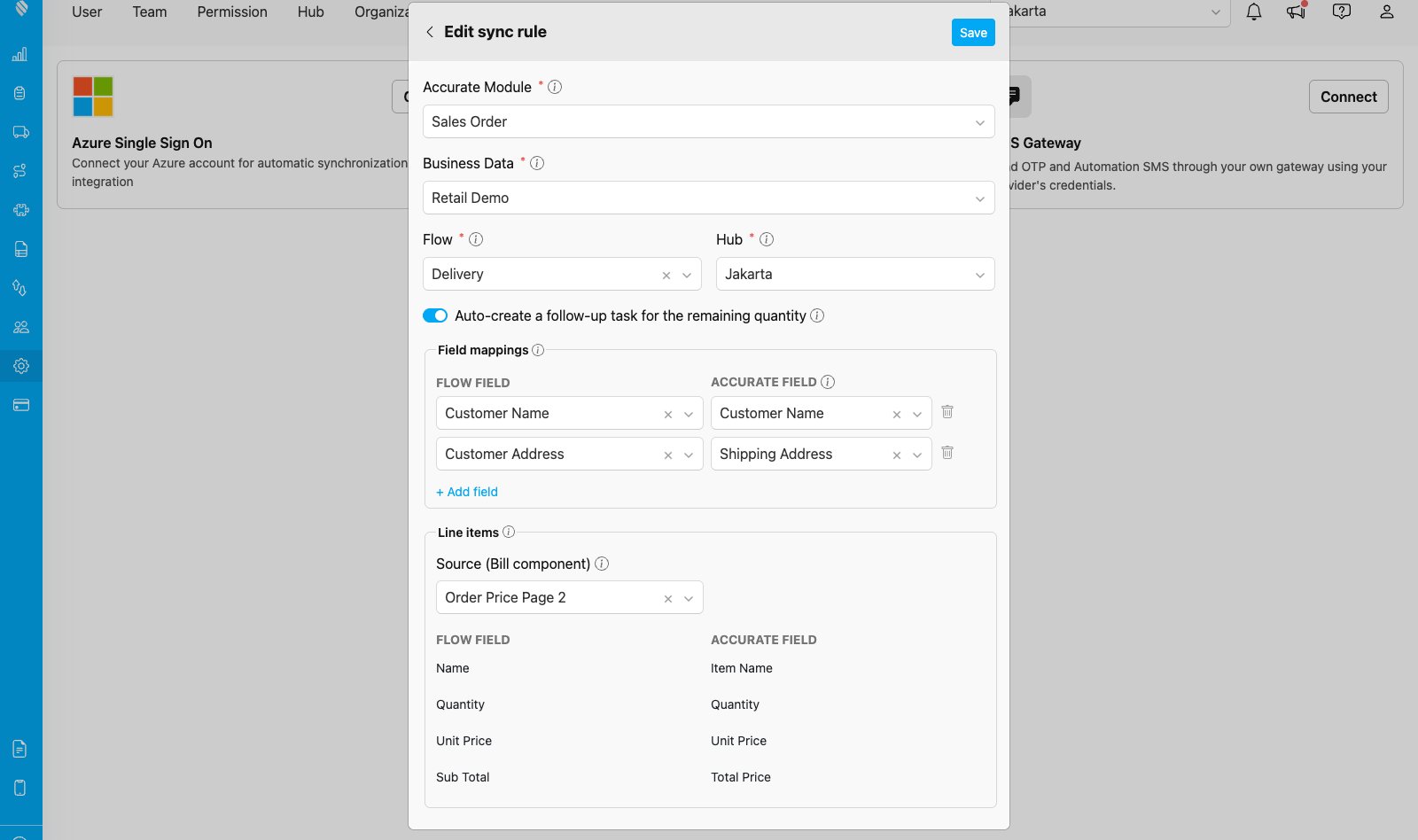
The import rule decides what a Sales Order becomes in MileApp. Header fields such as Customer Name and Customer Address map to flow fields, and the **Line items** section points at a Bill component so each order line arrives as a bill row.
Header mappings at the top, line items below, with Name, Quantity, Unit Price and Sub Total each mapped to a bill column.
### 4. The push rule: MileApp → Accurate
The push rule decides what a finished task creates in Accurate. Choose the **Action** (Create), the **Accurate Module** (Delivery Order), and the **Trigger Event** (On Task Finished). Customer Code and Branch Name can resolve themselves from the originating Sales Order.
Action, module and trigger event at the top, header mappings below.
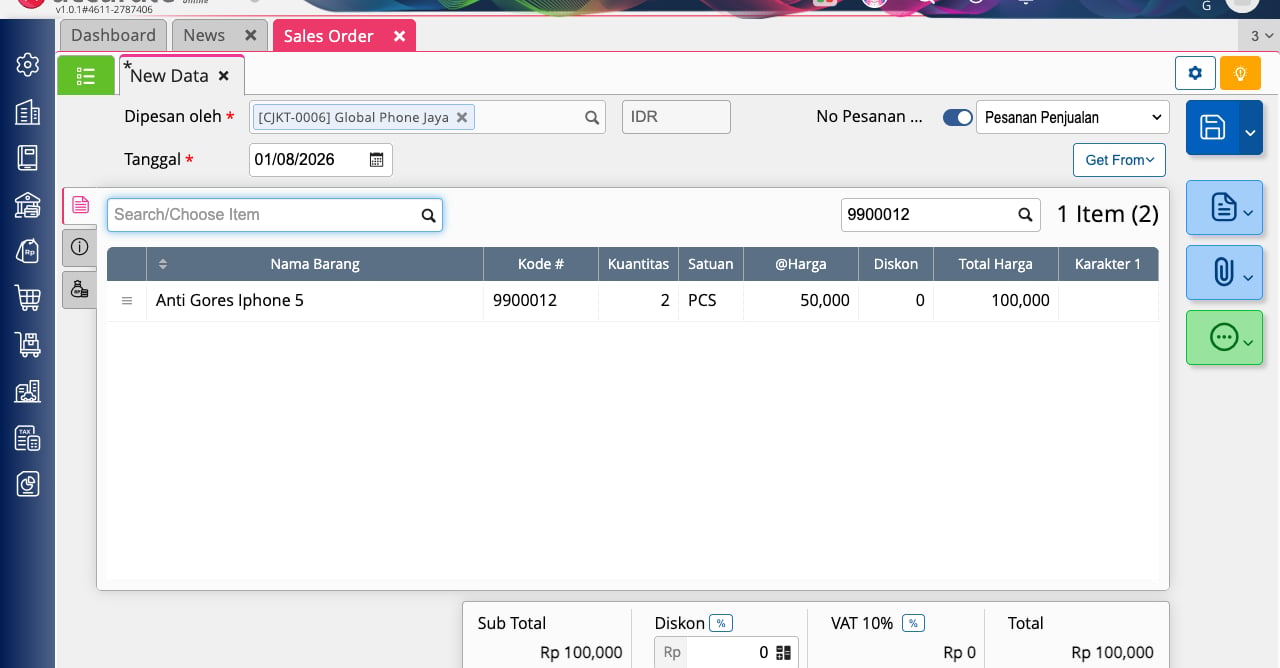
### 5. Create a Sales Order in Accurate
Now work in Accurate as you normally would. Pick a customer, add the items and quantities, and save.
An ordinary Sales Order, one customer and one line item.
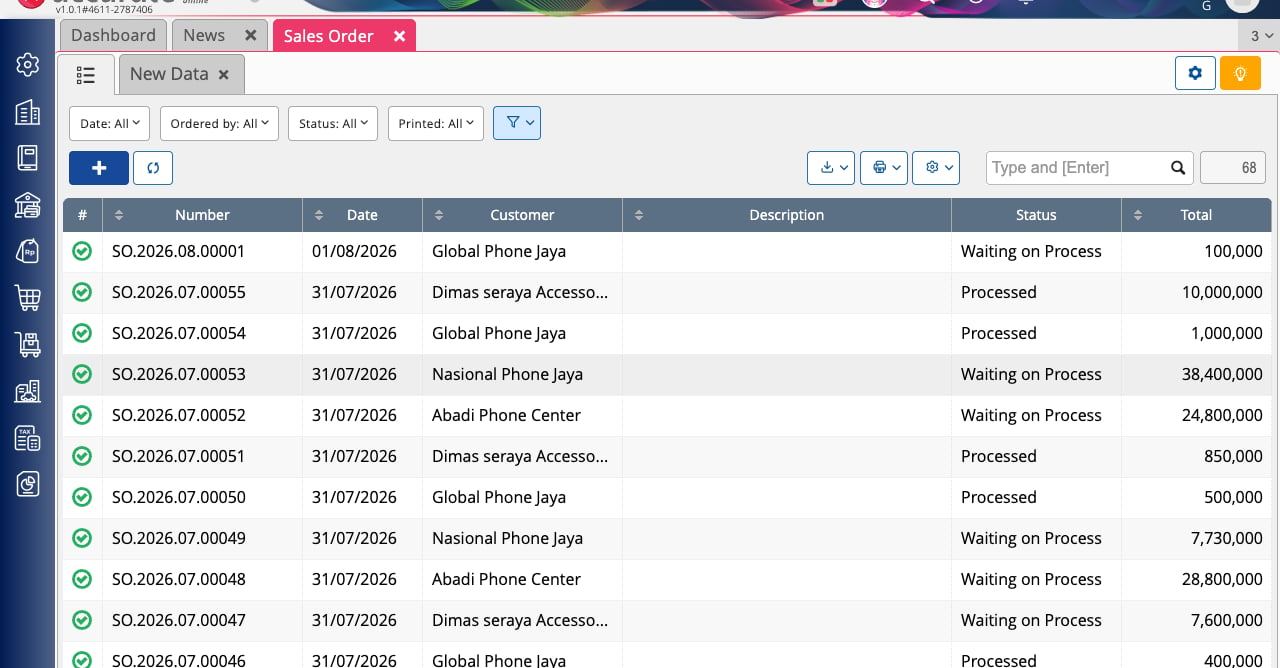
The saved order appears at the top of the Sales Order list with its number and a status of **Waiting on Process**.
The new order, waiting to be delivered.
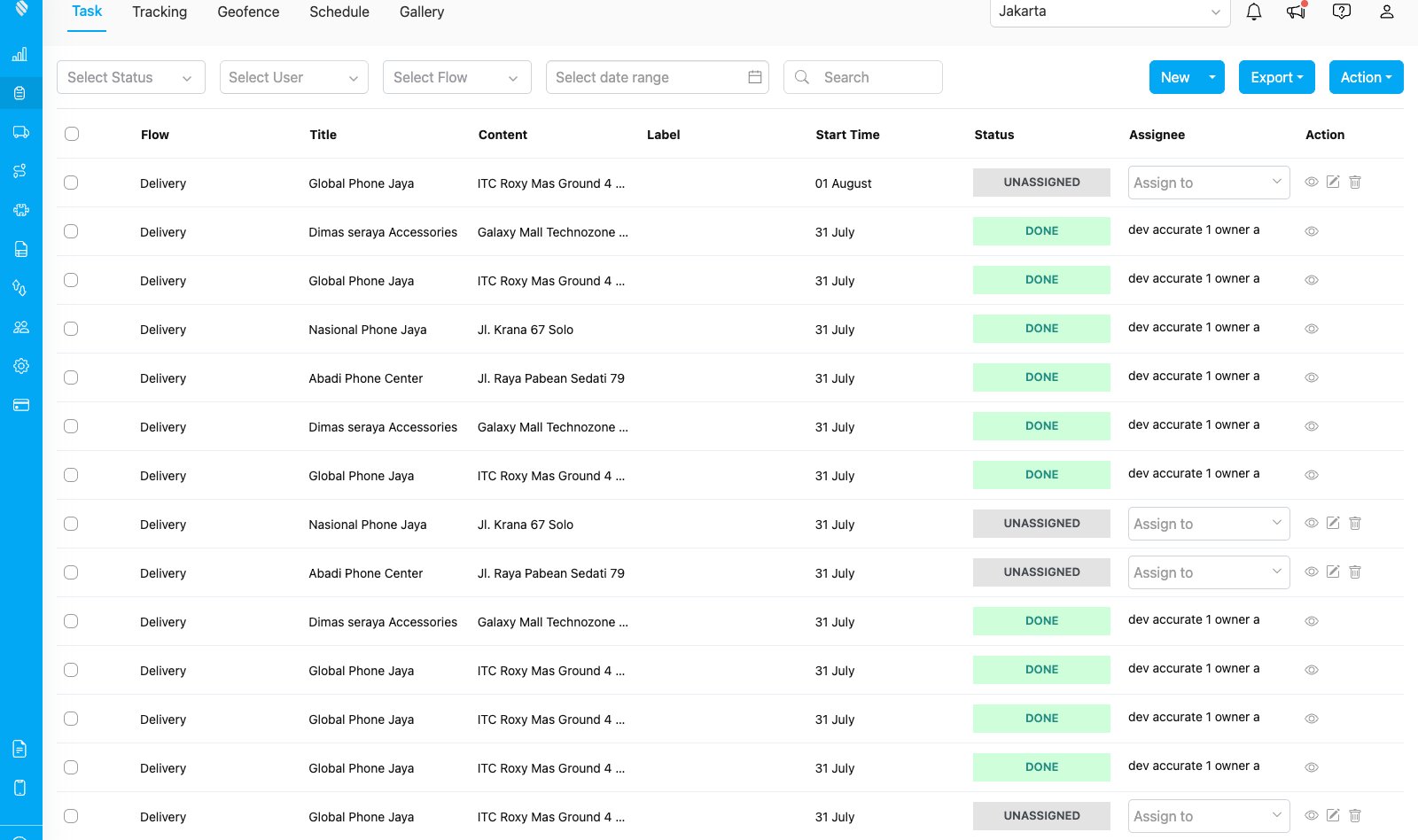
### 6. The task appears in MileApp
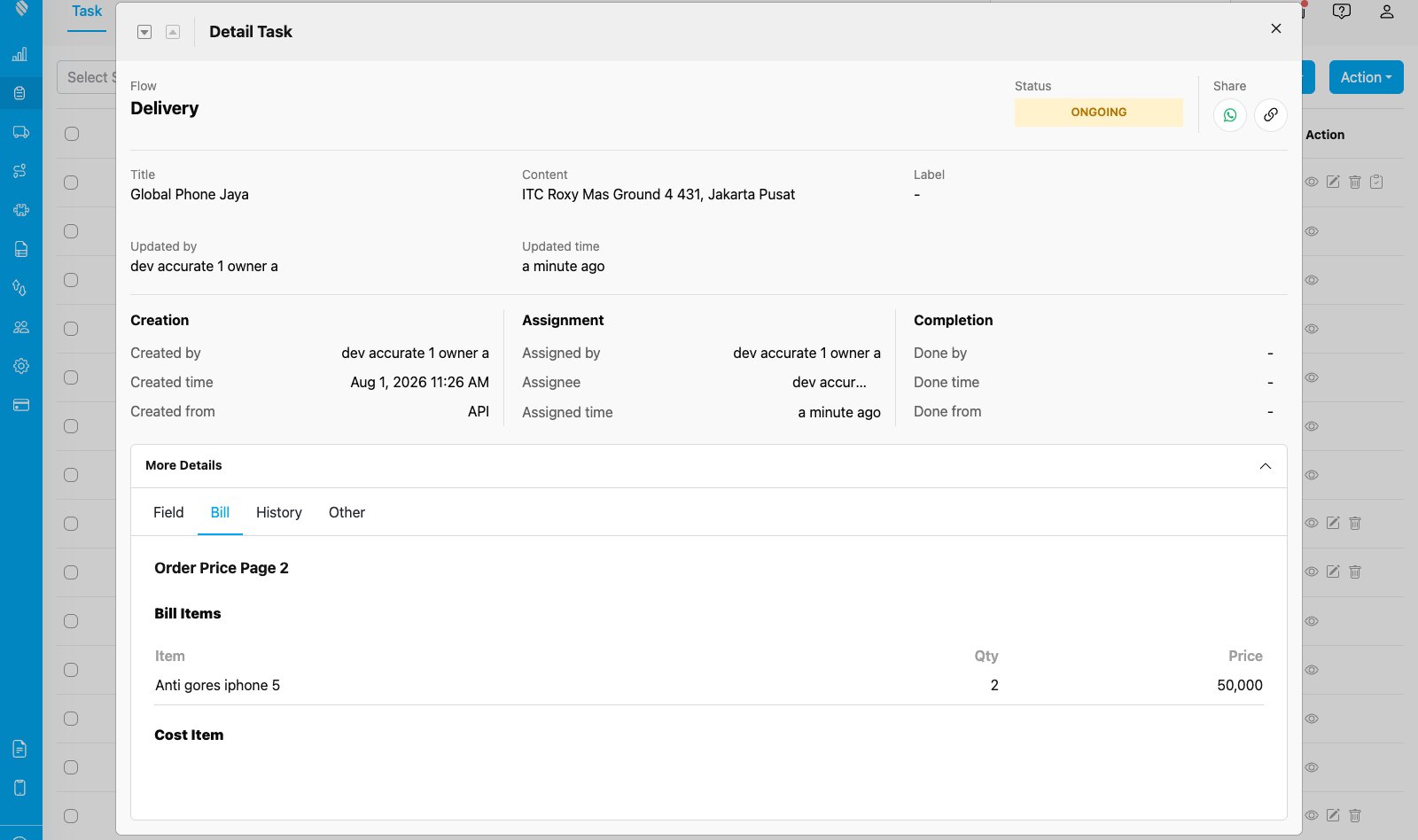
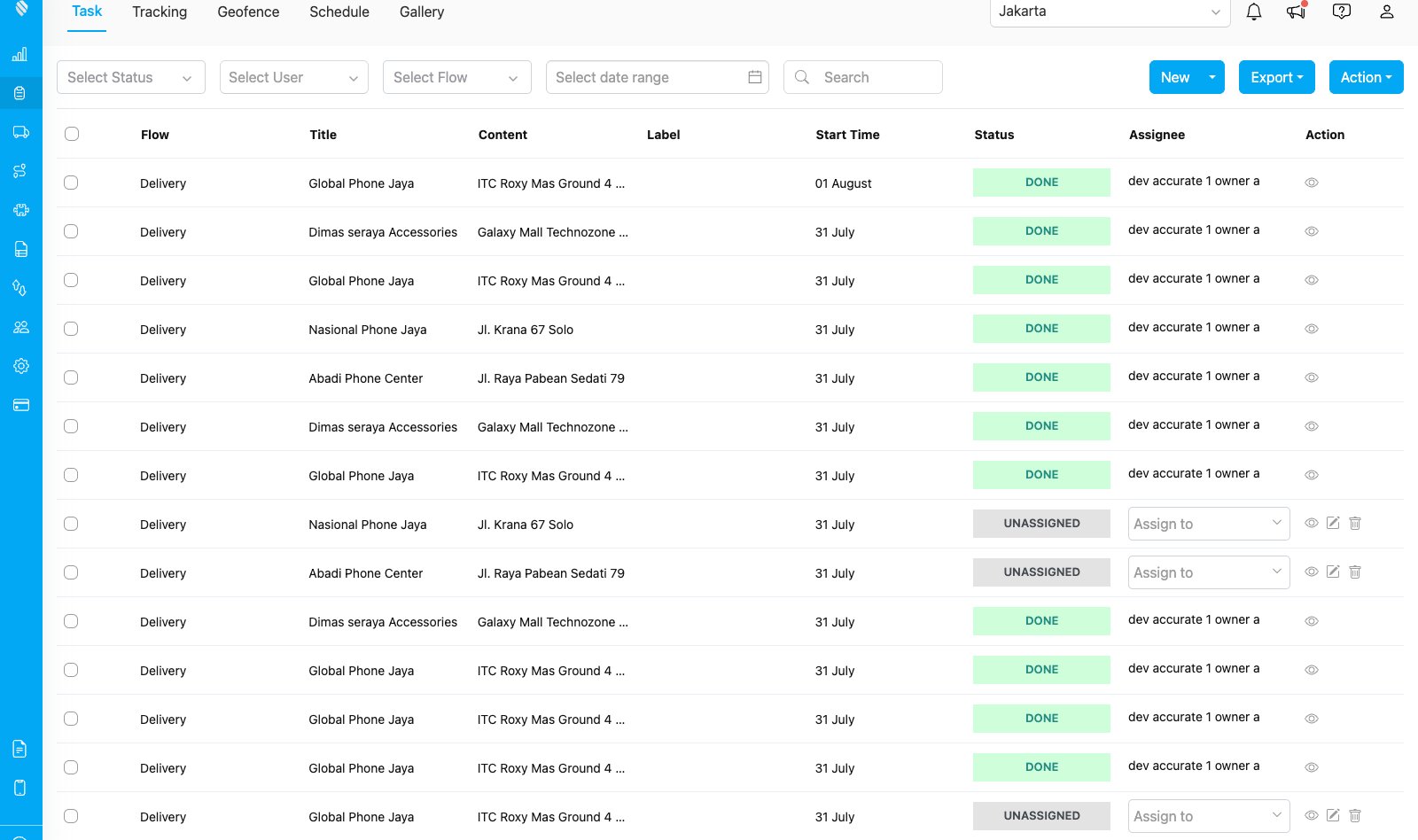
Within about half a minute the task is in your task list, created from API, titled with the customer name and addressed with the delivery address.
No action needed. The task arrives on its own.
Open the task and switch to the **Bill** tab to see the order lines that came across, with item name, quantity and price.
Every Sales Order line becomes a bill row, ready for the driver.
### 7. Do the task
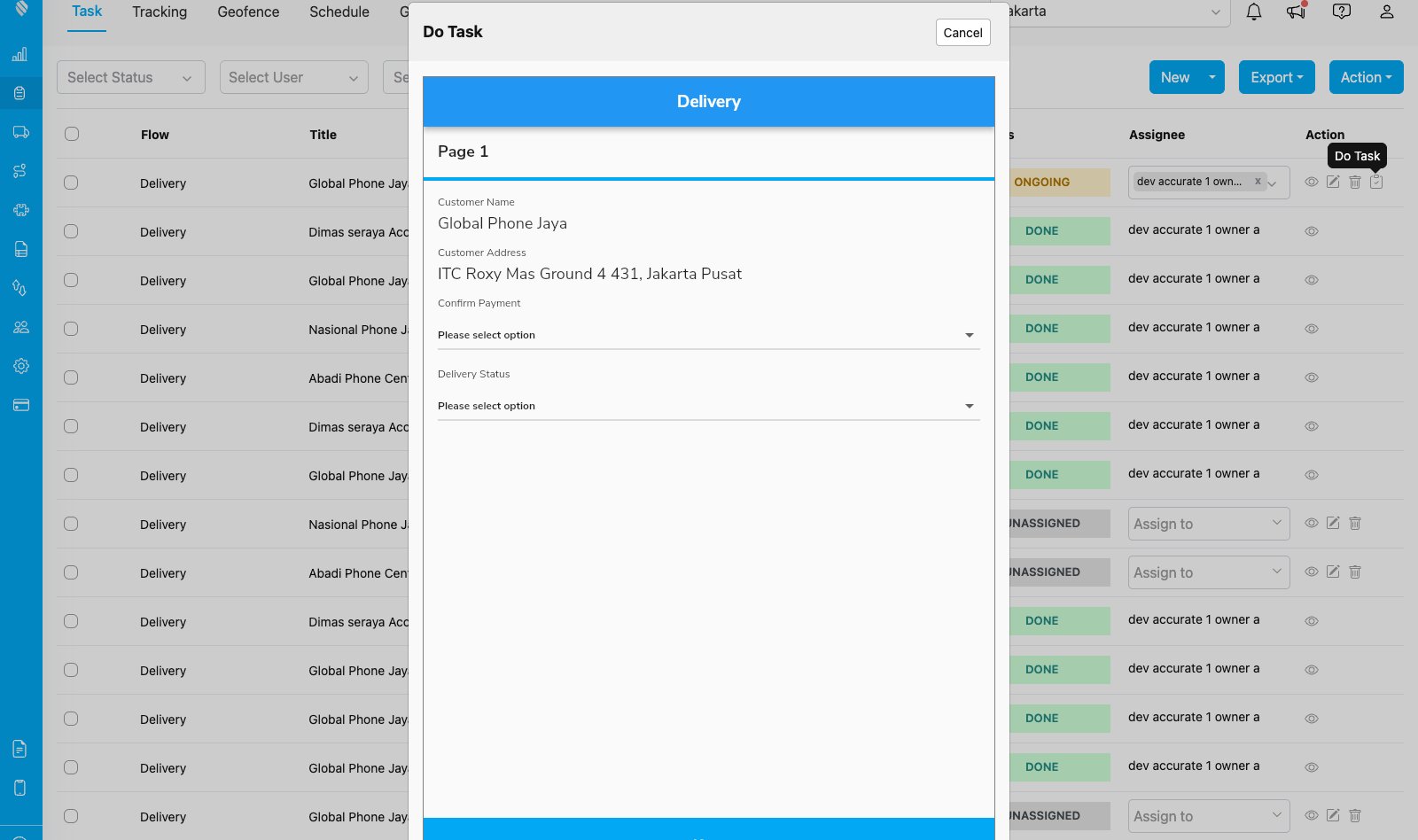
Assign the task, then click **Do Task**. The flow runs exactly as it does for any other task.
The first page of the flow, with the customer details already filled in from the order.
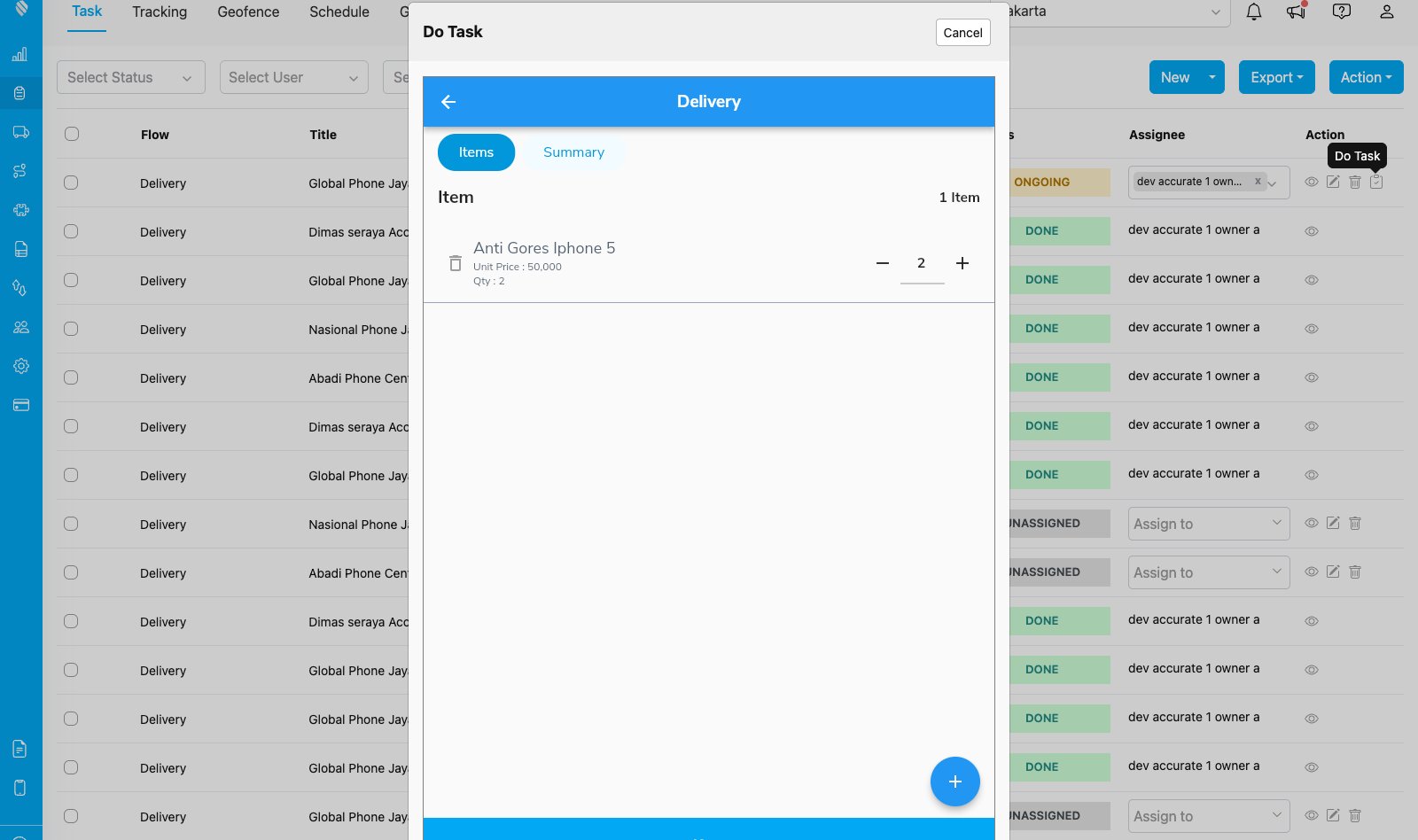
On the process page the driver confirms what is actually being delivered. The stepper starts at the ordered quantity and can be adjusted down when the delivery is partial.
The delivered quantity is what gets pushed back, not the ordered quantity.
### 8. Serial numbers, when the goods carry them
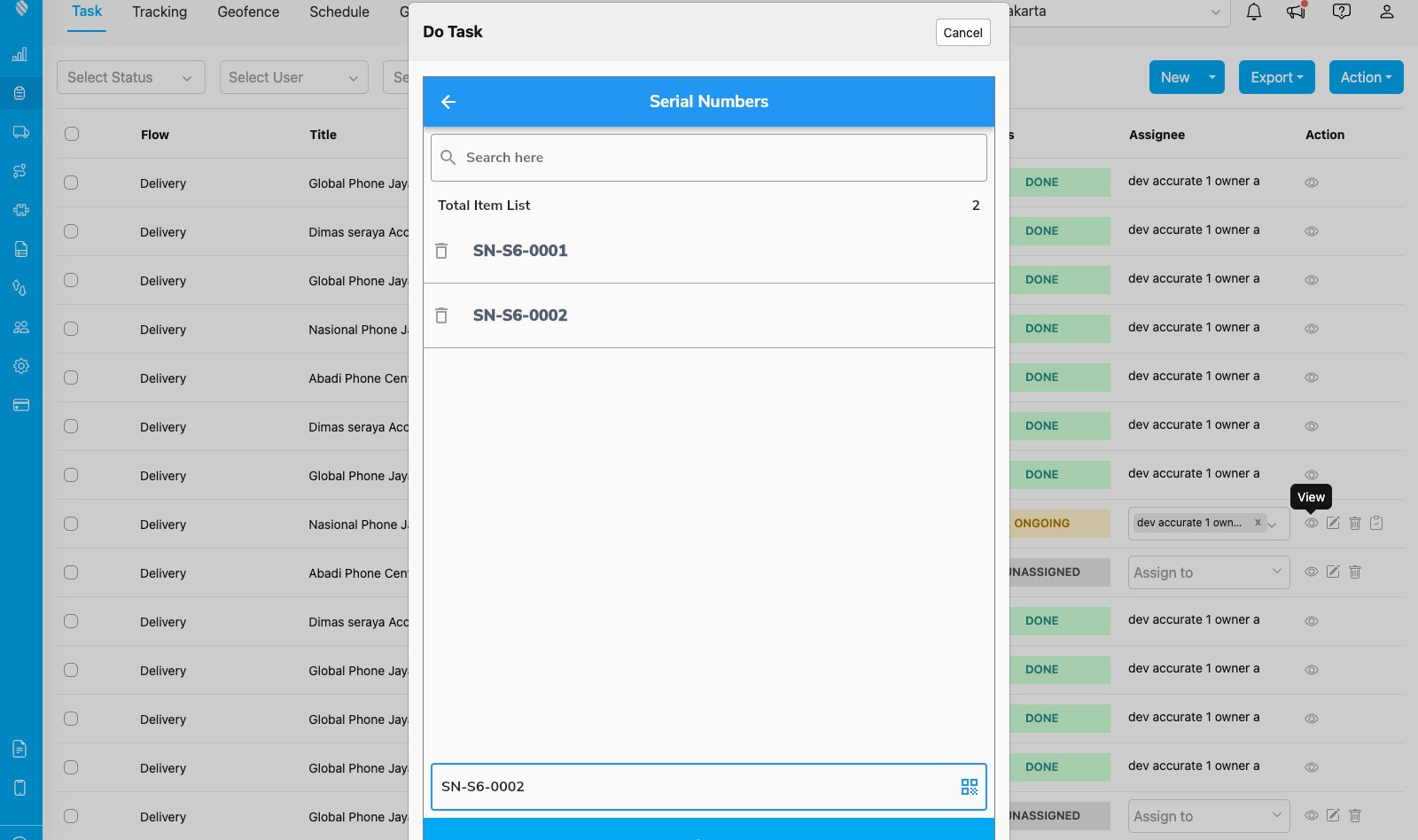
For products tracked by serial number, add a **List** component to the flow and point the push rule's serial source at it. The driver then records each unit as it is handed over, by typing it or by scanning the code, and the counter keeps the running total.
Two units delivered, two serials captured. They travel with the Delivery Order into Accurate.
You can also turn on **Auto-pick serial numbers** in the push rule, and MileApp selects the serials from the available stock for you, so the driver has nothing to enter.
### 9. Finishing the task
Complete the flow and the task reaches **DONE**.
Finishing the task is what triggers the push.
### 10. The Delivery Order arrives in Accurate
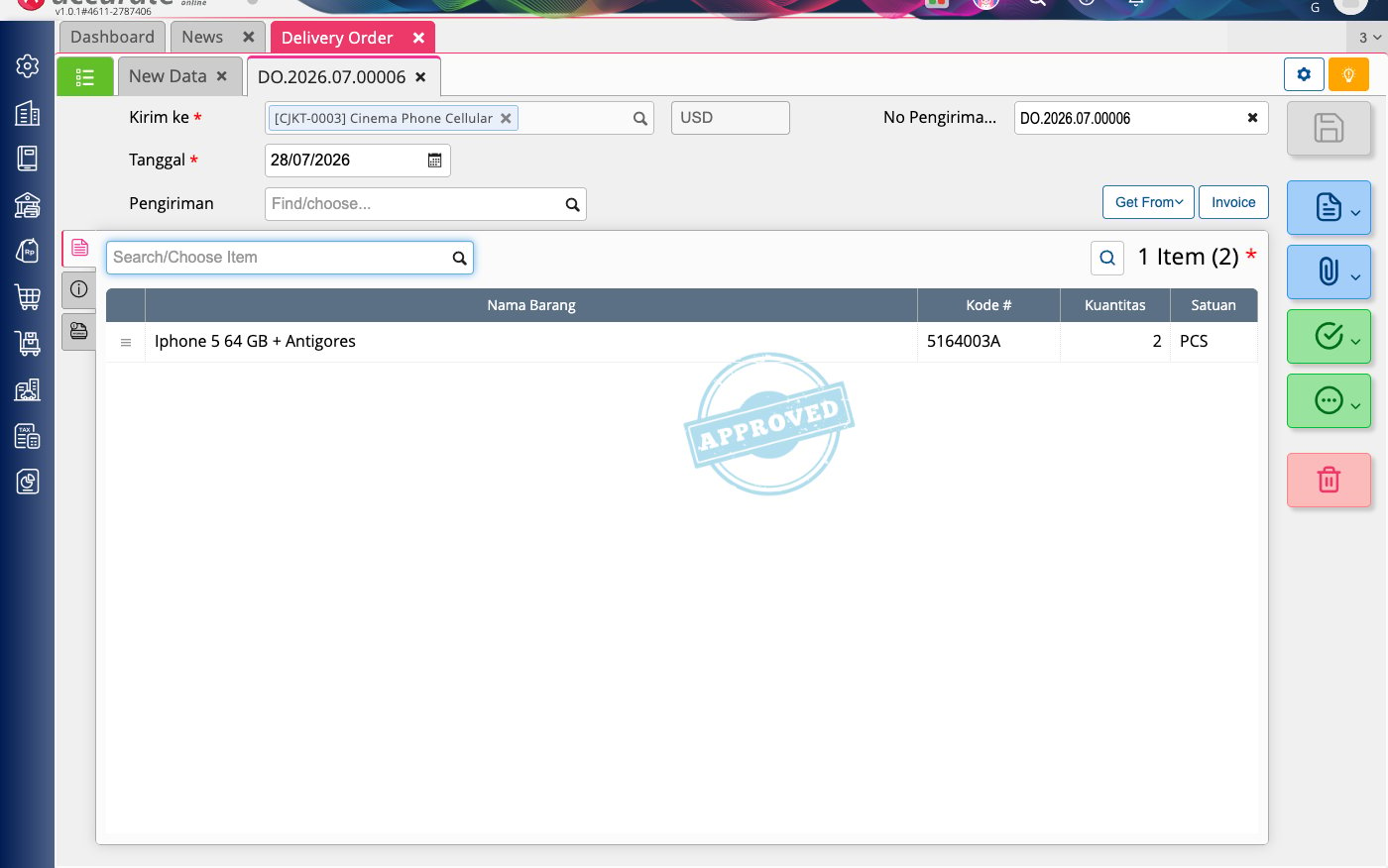
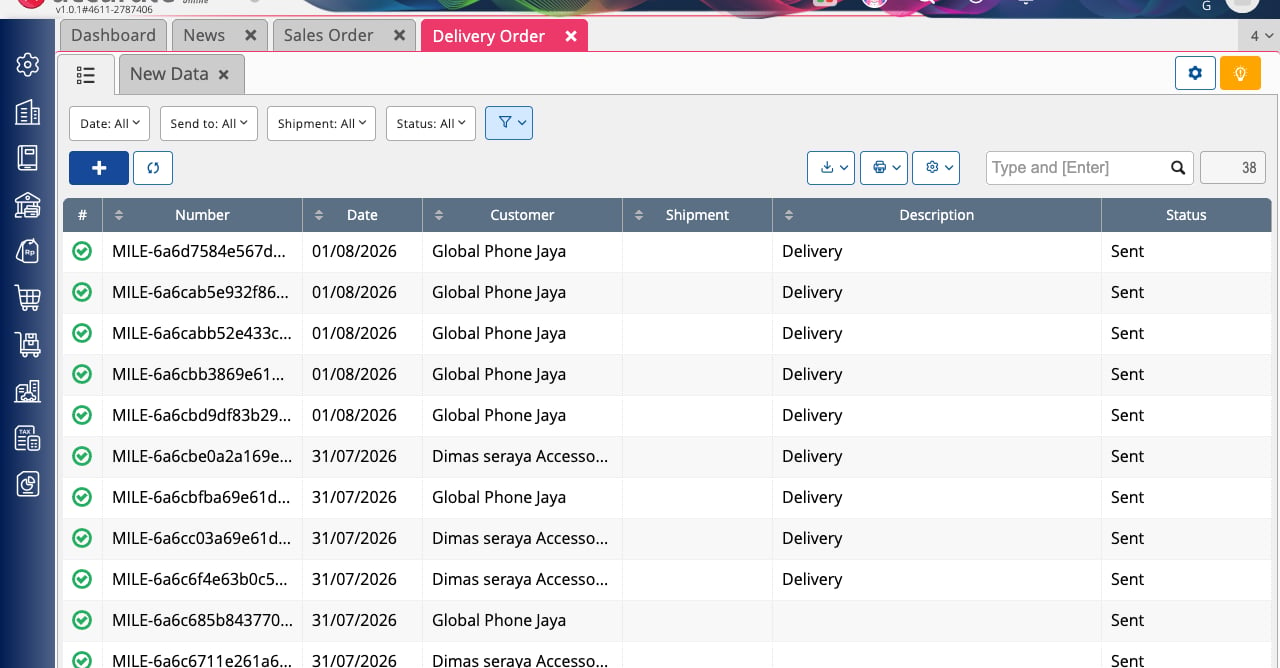
A Delivery Order is created automatically, carrying the delivered items and quantities.
Created by the finished task, with no manual entry.
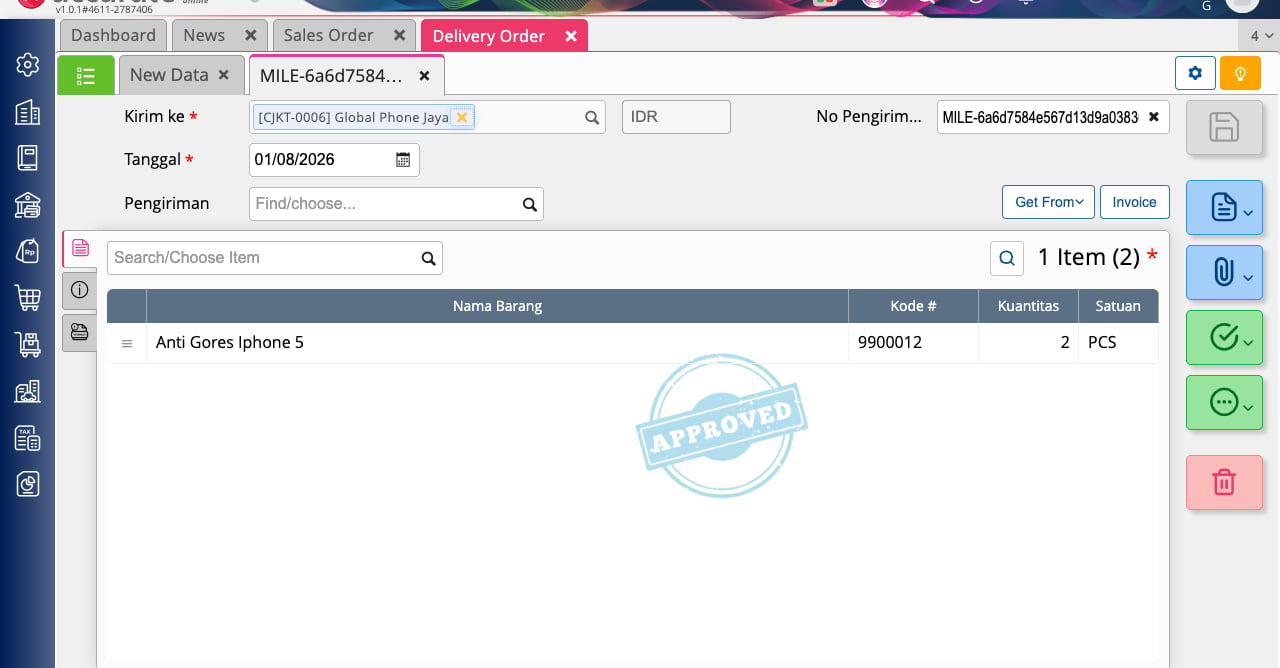
Open it to see the lines, matching what the driver actually delivered.
Item and quantity carried straight through from the task.
### 11. The Sales Order closes itself
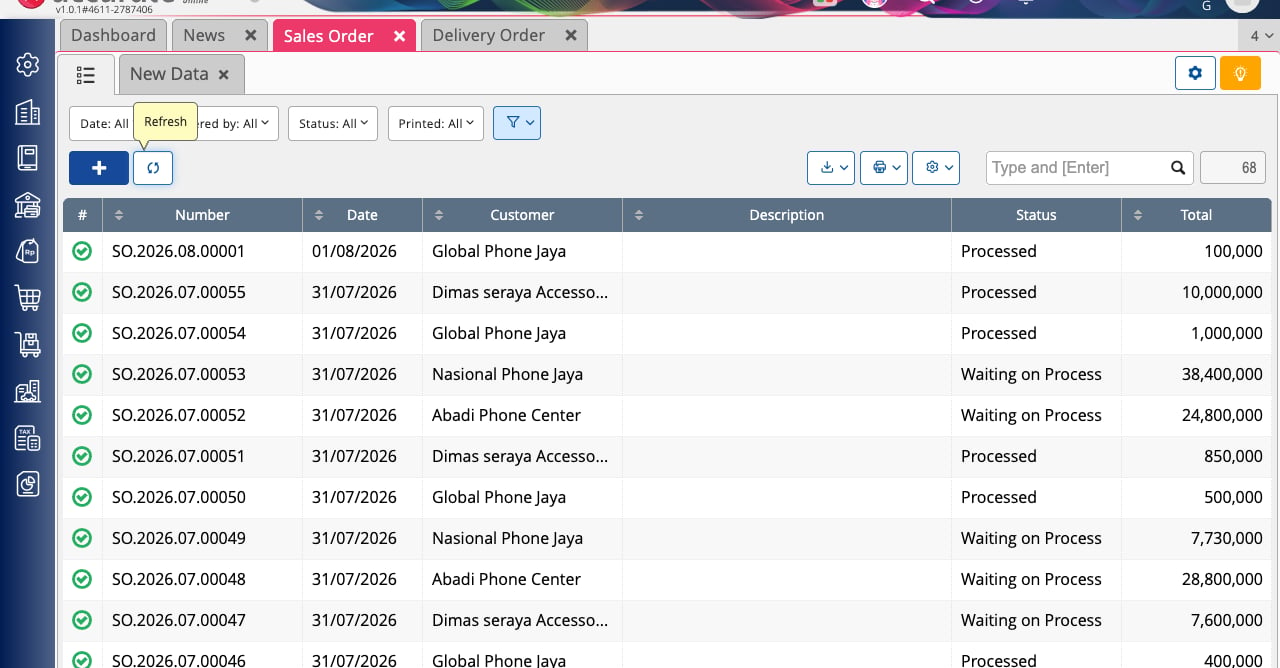
Back on the Sales Order list, the order that started all this now reads **Processed**.
Order to delivery to accounting, with the driver's app as the only place anyone typed anything.
### What this gives you
* An order raised by your sales team reaches the driver without anyone re-keying it.
* The quantity the driver confirms is the quantity your books record.
* Serial numbers are captured at the moment of handover, by the person holding the goods.
* The Sales Order closes itself once delivery is complete, so your accounting stays current on its own.
## Managing the Integration
### Edit or delete a rule
Click the **pencil** icon on the card, find the rule, and click the edit or delete icon. Deleting a rule removes the configuration only, records already created in Accurate, and tasks already created in MileApp, are not affected.
### Automation health (MileApp → Accurate)
Each rule in this direction owns one webhook automation. The toggle on the rule row turns it on and off. If that automation is edited or deleted from the Automation page, the row says auto-sync is not active for the rule; click **Fix** and it is restored.
### Reconnect
A **refresh** icon appears on the card, next to the pencil, when your connection needs renewing, with a banner explaining why. Click it and authorize again. Reconnecting refreshes your account's permissions **and keeps every sync rule**.
Two things bring it up:
* **A new capability needs a permission your connection predates.** MileApp marks the affected module in the pickers, and one reconnect grants it.
* **Accurate ended the connection**, which happens when the same Accurate account is connected somewhere else. Reconnect to resume syncing, and see the Prerequisites above on keeping one account per organization.
### Disconnect
Click **Disconnect** and confirm. **Your sync rules and business data are kept.** Disconnecting clears the stored credentials and pauses every automation in both directions; connecting again reactivates them. Use **Reconnect** instead if you only need to refresh permissions.
To also remove MileApp's access from the Accurate side, open your Accurate account, go to **Aplikasi Terhubung**, and remove MileApp there.
## Good to Know
* **A flow can carry both directions.** The same flow can hold a Sales Order import rule (Accurate → MileApp) and a Delivery Order push rule (MileApp → Accurate), which is exactly the round trip shown above. Flows already claimed by the opposite direction for a document type are greyed out in the picker, with the reason on hover.
* **Keep rules in step with your flows.** If a flow is edited after a rule is saved and a mapped field is gone, open the rule and point that mapping at its new field.
* **Syncing is go-forward.** A rule starts working on the next order or task, so create the rule before the work you want synced.