> ## Documentation Index
> Fetch the complete documentation index at: https://docs.mile.app/llms.txt
> Use this file to discover all available pages before exploring further.

# Advanced Discount on Bill Component

## What is Advanced Discount?

Advanced Discount is a feature on the Bill component that lets admins define discount rules directly inside the flow. When a field worker creates or does a task, they select at most one discount from the configured rules, and the bill total updates automatically. The server re-validates and recomputes the discount on every save.

A per-bill toggle controls whether it is active. Turning the toggle off leaves the Bill exactly as it is today (classic Cost and Discount add-ons).

***

## Enabling Advanced Discount on a Bill

Advanced Discount is configured in the Flow Builder, inside the Bill component's settings.

1. Open the Flow Builder and select the Bill component you want to configure.

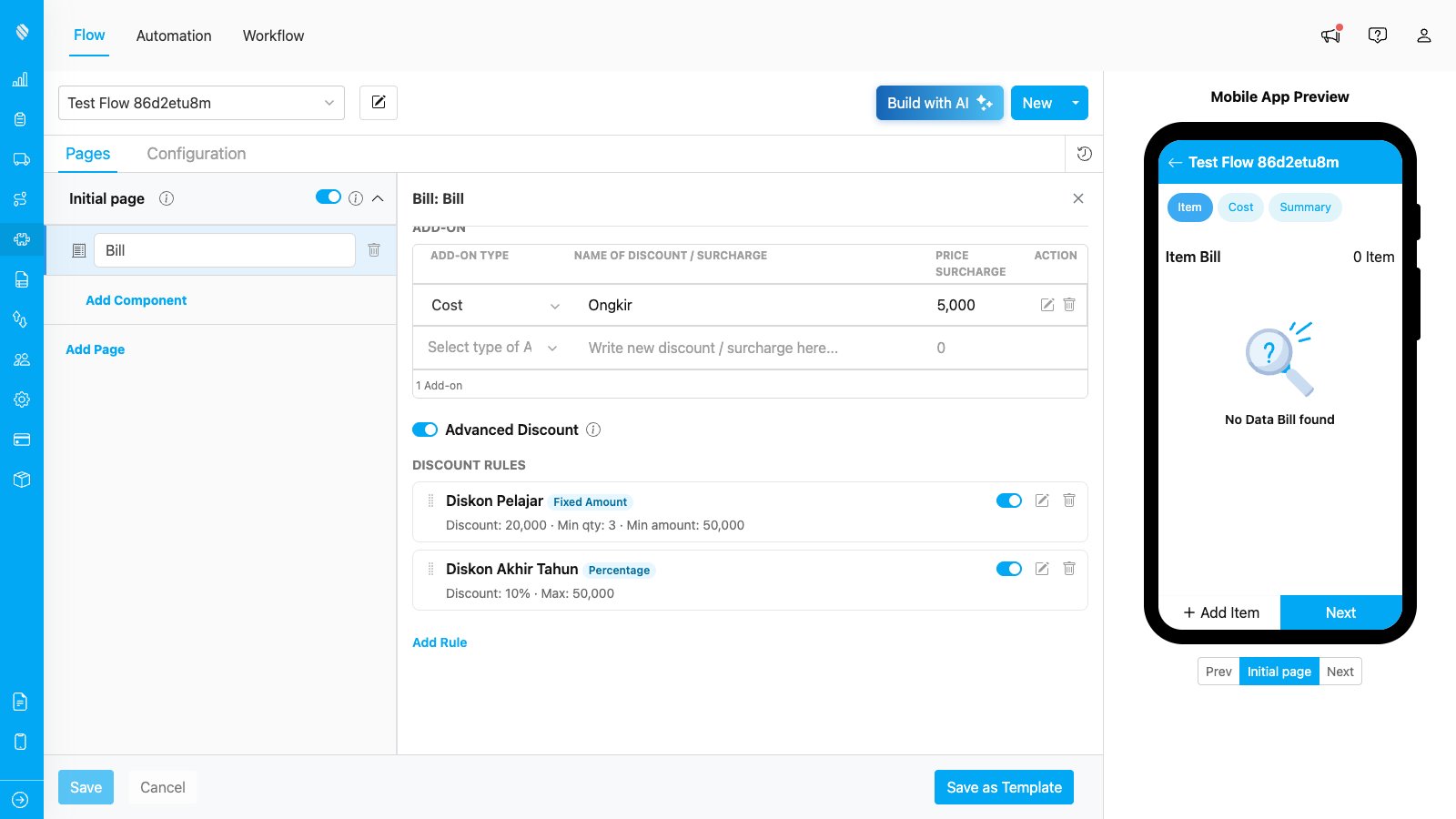
2. Scroll below the **Item** and **Add-on** sections to find the **Advanced Discount** toggle.

3. Turn the toggle on.

When the toggle is on:

* The simple **Discount** add-on type is removed from the Add-on section — only **Cost** remains. If the bill already has Discount add-ons, you are asked to confirm, and they are removed (your Cost add-ons are kept).
* The **Discount Rules** section appears below the toggle.

<div align="center">
  <img src="https://mintcdn.com/mileapp-e5b5ea5a/ttnZkSe4u9rDQs3O/images/flow/component-bill/advanced-discount/enable-toggle.png?fit=max&auto=format&n=ttnZkSe4u9rDQs3O&q=85&s=c9050259766a0a7ff45274e50dda708e" alt="Advanced Discount toggle enabled" width="600" data-path="images/flow/component-bill/advanced-discount/enable-toggle.png" />
</div>

<p><em>The Advanced Discount toggle and the Discount Rules section in the Flow Builder.</em></p>

***

## Authoring Discount Rules

Each rule you create appears as a selectable option for the field worker at task time.

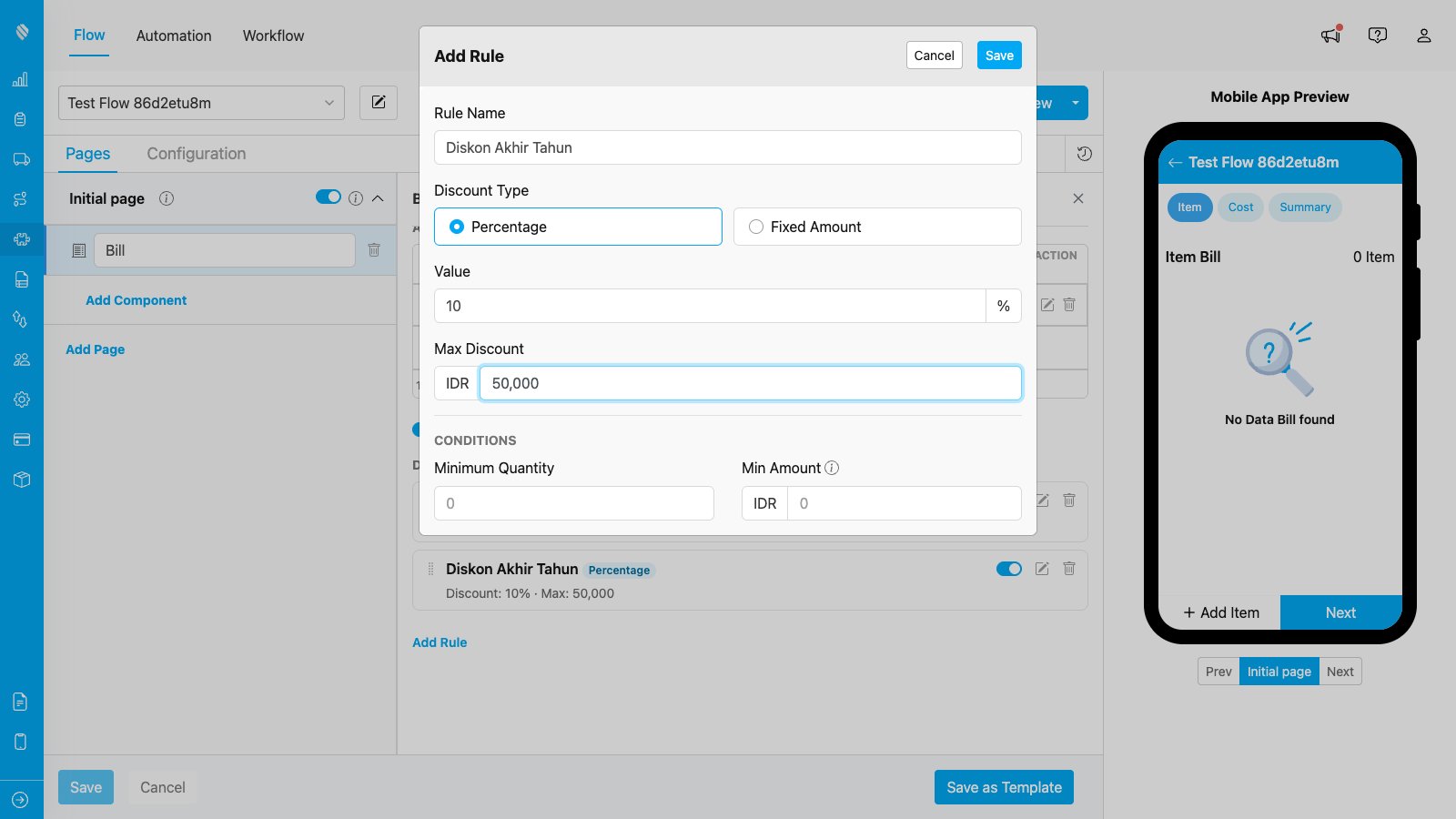
To add a rule, click **Add Rule** in the Discount Rules section, then fill in the following fields:
<div align="center">
  <img src="https://mintcdn.com/mileapp-e5b5ea5a/ttnZkSe4u9rDQs3O/images/flow/component-bill/advanced-discount/add-rule.png?fit=max&auto=format&n=ttnZkSe4u9rDQs3O&q=85&s=32dce571c3a5337f3f3416fd0a2b6b94" alt="Add discount rule form" width="600" data-path="images/flow/component-bill/advanced-discount/add-rule.png" />
</div>

<p><em>The Add Rule form — name, type, value, an optional cap, and optional conditions.</em></p>

| Field                | Required | Description                                                                                        |
| -------------------- | -------- | -------------------------------------------------------------------------------------------------- |
| **Name**             | Yes      | Shown to the field worker as the option label. Also recorded on the task for audit and export.     |
| **Type**             | Yes      | `Percentage` or `Fixed Amount`.                                                                    |
| **Value**            | Yes      | For `Percentage`: a number from 1 to 100 (e.g. `10` = 10%). For `Fixed Amount`: a currency amount. |
| **Max Discount**     | No       | Caps the computed discount. Only available for `Percentage` rules (a fixed amount needs no cap).   |
| **Minimum Quantity** | No       | The rule can only be selected if the total item quantity in the bill meets or exceeds this number. |
| **Min Amount**       | No       | The rule can only be selected if the items subtotal meets or exceeds this amount.                  |
| **Active**           | Yes      | Inactive rules are hidden from field workers and cannot be saved on a task.                        |

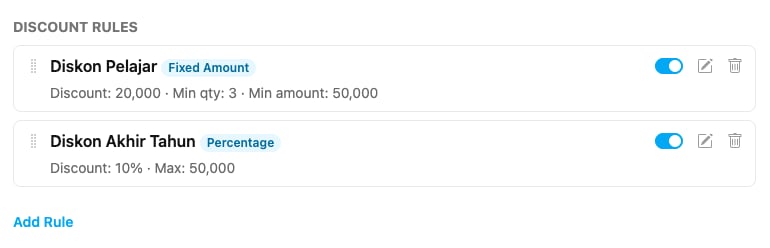
Click **Save** to add the rule. You can add multiple rules; they can be edited, deactivated, or deleted (with a confirmation) at any time.
<div align="center">
  <img src="https://mintcdn.com/mileapp-e5b5ea5a/ttnZkSe4u9rDQs3O/images/flow/component-bill/advanced-discount/rules-list.png?fit=max&auto=format&n=ttnZkSe4u9rDQs3O&q=85&s=e79d2d0a1a63252d32df9dbf94ef509b" alt="Discount rules list" width="600" data-path="images/flow/component-bill/advanced-discount/rules-list.png" />
</div>

<p><em>Saved rules appear in the Discount Rules list, each showing its type and a short summary.</em></p>

<Note>
  Conditions are combined with **AND** — when you set both Minimum Quantity and Min Amount, both must be met for the rule to apply.
</Note>

<Note>
  The discount base is the **items subtotal** only. Cost add-ons (delivery fee, tax, etc.) are not part of the base used to compute percentage discounts or to evaluate the Min Amount condition.
</Note>

### Calculation examples

**Percentage rule — 10%, maximum 50,000.** Items subtotal 200,000 → 200,000 × 10% = 20,000. The cap does not apply (20,000 \< 50,000). Discount = **20,000**.

**Same rule, larger order.** Items subtotal 600,000 → 600,000 × 10% = 60,000. The cap applies. Discount = **50,000**.

**Fixed rule — 30,000.** Discount = **30,000**, regardless of order size (capped at the items subtotal if it would exceed it).

***

## How a Field Worker Applies a Discount

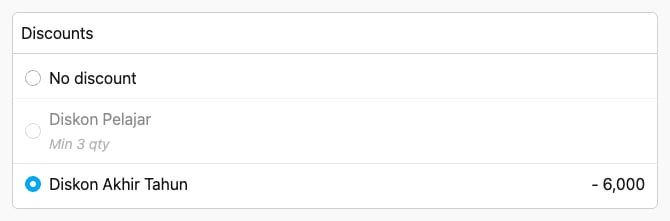
When a field worker opens a task with a Bill in Advanced mode, they see the items, cost add-ons, and a **Discounts** section. This section appears only when the bill has at least one active rule.

**"No discount" is always the default** — a discount is applied only when the field worker selects one.

Each rule is shown as an option with its computed amount next to it. A rule whose conditions are not met (for example, the order is below the minimum amount) is shown greyed out with a hint such as "Min amount 50,000", and cannot be selected.

<div align="center">
  <img src="https://mintcdn.com/mileapp-e5b5ea5a/ttnZkSe4u9rDQs3O/images/flow/component-bill/advanced-discount/apply-discount.png?fit=max&auto=format&n=ttnZkSe4u9rDQs3O&q=85&s=62ebea4deb6e946fa214a43d6239ea45" alt="Selecting a discount on a task" width="600" data-path="images/flow/component-bill/advanced-discount/apply-discount.png" />
</div>

<p><em>The Discounts section on a task — select one rule to apply it (its amount appears and the bill total updates). A rule whose conditions are not met is greyed out with a hint and cannot be selected.</em></p>

**The total updates live.** As item quantities change, each rule's amount recomputes automatically. If the selected rule becomes ineligible, the selection reverts to "No discount" and the field worker is notified.

**Saving and reopening.** The selected discount is saved with the task. When the task is reopened to edit, the rule is restored automatically — as long as it still exists, is still active, and its conditions still hold with the current items. Otherwise the bill reopens with "No discount".

***

## Bulk Create and Sheet Import

Discounts can also be set when creating tasks in bulk.

* **Bulk-create dialog:** each bill row shows the same Discounts control, and each row picks its discount independently.
* **Sheet import:** add an optional column named `{billTitle}.discount` (where `{billTitle}` is the Bill component's title) and enter the exact rule name in each cell. On import, the value is matched to a rule by name; if the rule is found, active, and its conditions are met for that row's items, the discount is applied. A blank, unknown, inactive, or ineligible value simply results in no discount for that row.

***

## How it stays accurate

The server recomputes every discount on save and rejects any mismatch — for single tasks, bulk-created tasks, and imported tasks alike. It checks that the selected rule exists and is active, that its conditions are met for the submitted items, and that the submitted amount matches the server's own calculation. The amount stored on the task always reflects the server's computation, so the saved total is always trustworthy.

When you export tasks, a bill with a discount shows a dedicated **Discount** row named after the rule, with a negative amount; cost add-ons are unaffected. Tasks saved without a discount show no discount row.

***

## Related

* [Introduction Component Bill](/pages/flow/flow-builder/component-bill/component-bill) — full Bill component reference, including items and costs.
* [Creating a Bill Component](/pages/flow/flow-builder/component-bill/creating-a-bill-component)